 Web Hosting
 Windows HostingBuilt for Windows apps and websites – stability, speed and flexibility
 Reseller HostingLaunch a hosting business without technical skills or expensive infrastructure
 Affiliate ProgramRefer customers and earn commissions from sales across our platform
 Domain SearchFind and secure a domain name in seconds with our quick lookup tool
 CO ZA Domains
 All DomainsExplore domain names from over 324 TLDs globally – all in one place
 Free Whois Lookup Tool South Africa
 VPS
VPS Website Builder
 Online ShopSet up a sleek eCommerce store with zero coding knowledge
 SSLs
SSLs SupportAccess help articles, how-tos, and everything about our services
 Blog
Blog Contact UsReach our team instantly via live chat or drop us an email
Buying hosting gets you server space, but space on its own doesn’t manage itself.
You still need a practical way to handle your website files, domains, email, databases and everything else that keeps a site actually running.
That’s what is cPanel used for, at its core.
cPanel is a web based control panel that brings most of that day to day management into one interface, accessible straight from your browser.
cPanel’s own documentation describes it as the main interface for managing domains, email accounts, website content, SQL databases and other web services, all from a single dashboard rather than scattered tools.
It’s worth being clear about one thing upfront.
cPanel isn’t the website itself, and it isn’t a hosting provider either.
It’s software made available through your hosting account, sitting on top of the server to make management genuinely practical for people without a deep technical background.
Once you know what is cPanel used for in practice, a lot of hosting stops feeling mysterious.
Nearly everything covered below happens through the same browser based dashboard, without needing separate tools scattered across different logins.
Here are ten specific things you can actually do with it.
Table of Contents
1) Manage Your Website Files
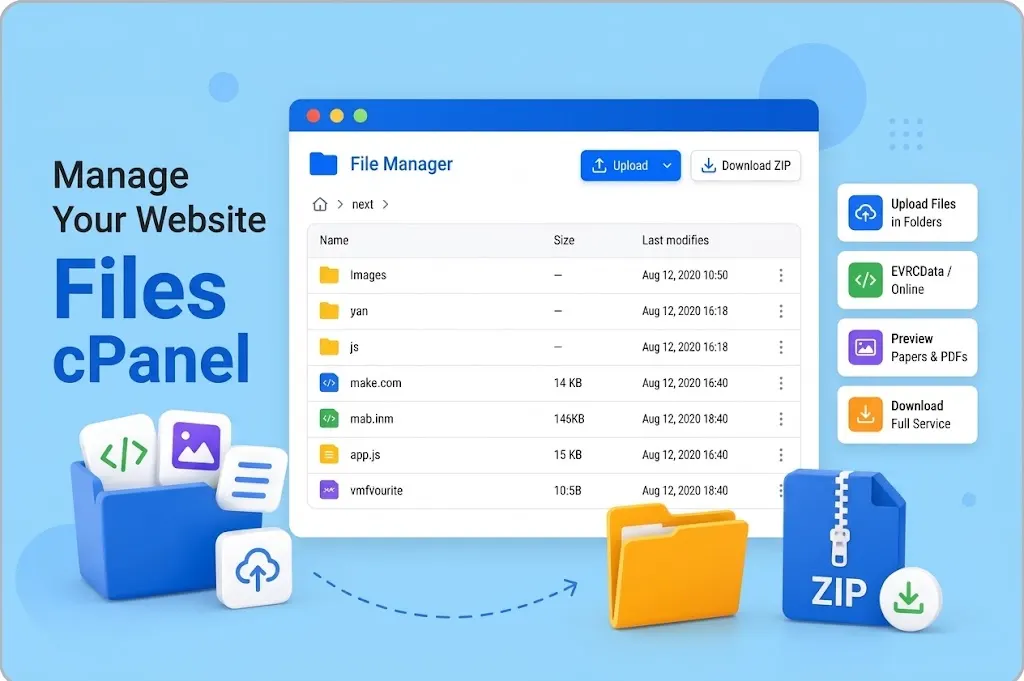
File Manager lets you upload, download, edit, move and delete files directly through your browser, without needing a separate FTP application installed on your computer.
Website files generally live inside a folder called public_html, or a subfolder of it for addon domains and subdomains.
Being able to upload a full website, replace a single image, or fix a broken file directly through File Manager makes basic troubleshooting a lot more approachable than it would be otherwise.
FTP remains available too, where your hosting provider has it enabled, as another way of accessing the same files for anyone who prefers a dedicated FTP client.
File Manager also handles the smaller, everyday tasks that come up more often than people expect, things like renaming a file, adjusting permissions on a specific folder, compressing a group of files into a ZIP archive, or extracting one you’ve just uploaded.
For anyone who isn’t comfortable with a dedicated FTP client, having all of this available directly in the browser removes a real barrier to basic website maintenance.
2) Add and Manage Domains
If your hosting plan supports multiple websites, cPanel lets you add additional domains to the account, manage subdomains, and set up redirects from one address to another.
It’s worth knowing that registering a domain and connecting it to your hosting are two separate things.
Registering gets you ownership of the name itself, something like example.co.za, while connecting it to hosting is what actually makes that domain show your website when someone visits.
cPanel handles the connecting part, pointing the domain to the right folder and configuration on your hosting account.
This distinction trips up a lot of first time site owners, who sometimes assume buying a domain automatically means a website is live.
In reality, the domain still needs to be pointed at hosting, and the hosting account still needs actual website files in place, before anything shows up for visitors.
cPanel’s domain management tools are where that second half of the setup actually happens.
3) Create Professional Email Addresses
cPanel lets you create email addresses using your own domain, such as [email protected] or [email protected], rather than relying on a free generic email provider for business communication.
From there, you can set mailbox storage limits and passwords for each address, configure forwarding so messages land wherever they’re needed, and set up autoresponders where the feature is available.
Email can be accessed through webmail directly in the browser, or configured into a dedicated email application like Outlook or a phone’s mail app.
This is particularly relevant for South African small businesses running on shared hosting.
Where a professional domain based email address adds a genuine layer of credibility that a free email account simply doesn’t.
Setting up more than one address is just as simple too, whether that’s a handful of accounts for different staff members, or role based addresses like info@ and support@ that multiple people check.
Managing all of this through cPanel means you’re not relying on a separate, third party email service just to run a small business inbox.
4) Create and Manage Databases
Plenty of websites, WordPress included, need a database to actually function, since that’s where content, settings and user information get stored behind the scenes.
cPanel lets you create MySQL databases and the database users needed to access them, along with managing everything through tools like phpMyAdmin when a more direct look is needed.
For most WordPress users, there’s genuinely no need to manually edit a database just to keep a site running day to day.
But having the tools available through cPanel means they’re there the moment something more hands on is actually required.
phpMyAdmin specifically gives you a visual way to browse database tables, run queries, and make direct edits when something needs fixing that a plugin or theme can’t handle on its own.
It’s a more technical tool than most of what cPanel offers elsewhere.
But having it sitting right there alongside the simpler features means you’re never locked out of deeper troubleshooting if you ever need it.
5) Install WordPress and Other Applications
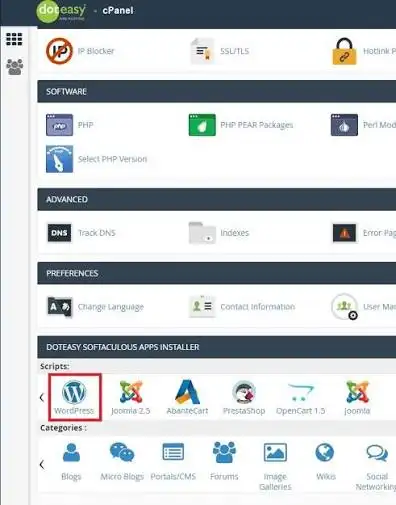
One click application installers are one of the more useful things cPanel brings to the table, letting you install WordPress, Joomla and other supported applications without manually uploading files or setting up a database by hand.
Truehost South Africa currently advertises one click installation for WordPress, Joomla and other applications through its cPanel hosting.
For beginners especially, this saves a genuinely significant amount of setup work.
Turning what could be a fairly technical process into a guided, browser based install that takes a few minutes rather than an afternoon.
Without an installer like this, getting a CMS running manually means downloading the software, uploading it file by file, creating and configuring a database, then connecting the two together correctly before the installation screens even appear.
The one click route skips straight past all of that, which is a big part of why it’s become the default starting point for most new WordPress sites on shared hosting.
6) Manage SSL and Website Security
SSL is what enables HTTPS, showing visitors a secure padlock rather than a browser warning, and it’s become the expected baseline for pretty much any public facing website at this point.
Where your hosting setup allows it, cPanel lets you install and manage SSL certificates directly.
Depending on your specific host, other security related tools may also be available through cPanel, things like IP blocking, password protected directories, or basic firewall features.
It’s worth knowing that not every cPanel installation looks identical here.
Since hosting providers can enable or disable specific features depending on their own setup, so what’s available can vary from one host to another.
Many providers now issue SSL automatically for new domains and subdomains through tools like AutoSSL, so you may never need to manually install a certificate at all.
Still, knowing where to check SSL status in cPanel is worth doing early on, rather than only discovering an issue once a visitor reports a browser warning on your site.
7) Create Backups and Restore Website Data
Backups through cPanel can typically cover website files, databases, and other account data, depending on exactly what your hosting provider has configured.
Having a recent backup on hand before making any major change to your website, a theme update, a plugin install, or a bigger redesign, gives you something to fall back on if anything goes wrong partway through.
It’s worth distinguishing between the manual backup tools available inside cPanel itself and your hosting provider’s own automated backup service running in the background.
For Truehost, the current cPanel hosting page advertises daily automatic backups, which sit alongside whatever manual backup tools cPanel itself provides.
Taking a manual backup before a risky change is a habit worth building regardless of how good your provider’s automatic backups are.
An automatic backup might run once a day, which still leaves a gap between the last scheduled backup and the exact moment you’re about to make a change.
So a quick manual one right before anything major closes that gap completely.
8) Monitor Your Hosting Account
cPanel’s interface includes account information and statistics alongside its management tools.
Giving you a clear view of storage usage, bandwidth usage, database usage, email usage, and other account or server statistics depending on your specific setup.
These numbers count for more than they might seem at first glance.
Since they’re genuinely useful for spotting when a website is approaching its hosting plan’s limits before that turns into an actual problem.
Catching a storage warning early, for instance, gives you time to clean things up or upgrade.
Rather than discovering the issue only once something on the site has already stopped working properly.
Checking in on these statistics every so often, rather than only when something breaks, turns monitoring into a routine habit instead of a crisis response.
A few minutes glancing at storage and bandwidth usage once a month is usually enough to catch a growing problem long before it becomes urgent.
9) Manage Website Settings and Hosting Tools
Beyond the core features already covered, cPanel includes a range of more specific tools:
- setting up custom redirects,
- configuring custom error pages,
- scheduling cron jobs for automated tasks,
- selecting PHP settings or versions where your host allows it,
- and adjusting file permissions directly.
It’s worth drawing a clear line here between tools genuinely available to you as a cPanel user and settings that remain controlled entirely by the hosting provider at the server level.
Not everything a server can technically do is exposed through cPanel, and that’s by design, since some settings affect every account on a shared server rather than just your own.
Cron jobs specifically are worth knowing about even for non developers, since they let you schedule a task to run automatically at set intervals.
Whether that’s a recurring backup script, a cleanup task, or something a specific plugin needs to run periodically.
Setting one up through cPanel is usually a matter of filling in a schedule and the command to run, without needing any deeper server access.
10) Access Your Hosting Without Using a Server Command Line
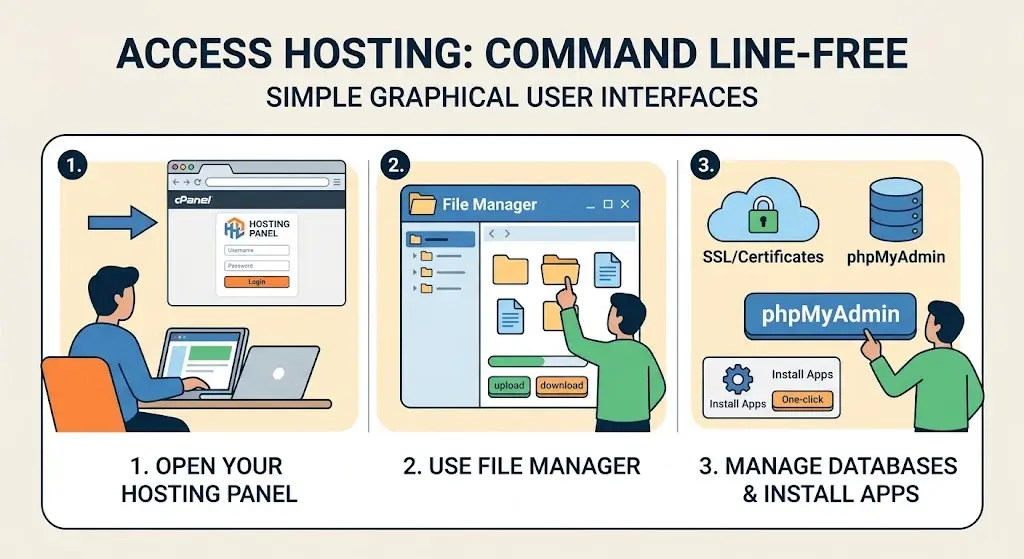
A big part of what cPanel is used for, especially for beginners, comes down to simply not needing to touch SSH or any command line tool to manage a website properly.
Most everyday hosting tasks, uploading files, creating an email account, installing WordPress, checking resource usage, can all be handled comfortably through the browser instead.
That said, this doesn’t make cPanel useless for more experienced users either.
Developers can still reach for more advanced tools when their hosting plan supports them.
While everyone else gets a genuinely approachable starting point that doesn’t demand any command line knowledge at all.
This is really the bigger picture behind what is cPanel used for overall.
It’s less about any single feature and more about lowering the barrier to managing a website properly,
Whether that’s someone launching their very first site or a small business owner who’d rather spend their time running the business than learning server administration from scratch.
What Can You Do With cPanel Hosting at Truehost South Africa?
Truehost’s cPanel hosting includes cPanel as a core part of the hosting setup, giving customers access to everything covered throughout this guide from one dashboard.
Currently advertised features include website, file and database management, email account creation, SSL, one click application installation for WordPress and other platforms, and daily automatic backups.
Exactly which resources and limits apply depends on the specific hosting plan chosen.
So it’s worth comparing plans against what your website actually needs before picking one.
If you’re looking for hosting that gives you this level of control without requiring any command line experience, Truehost’s cPanel hosting plans are worth exploring.
Choose a plan that fits your website today, with enough room to grow into as your needs change.