 Web Hosting
 Windows HostingBuilt for Windows apps and websites – stability, speed and flexibility
 Reseller HostingLaunch a hosting business without technical skills or expensive infrastructure
 Affiliate ProgramRefer customers and earn commissions from sales across our platform
 Domain SearchFind and secure a domain name in seconds with our quick lookup tool
 CO ZA Domains
 All DomainsExplore domain names from over 324 TLDs globally – all in one place
 Free Whois Lookup Tool South Africa
 VPS
 Website Builder
 Online ShopSet up a sleek eCommerce store with zero coding knowledge
 SSLs
 SupportAccess help articles, how-tos, and everything about our services
 Blog
 Contact UsReach our team instantly via live chat or drop us an email

Your cPanel password is the key to your hosting control panel.
Behind that login sit your website files, databases, domains and email accounts, so losing access can stop you from managing nearly every part of your site.
Most people need to reset cPanel password details for one of three reasons.
You may have forgotten it, the login details you received may no longer work, or you may simply want to change an existing password for security reasons.
All three situations are routine, and none of them means your website is in danger.
There are three main ways to reset cPanel password credentials.
You can use the reset option on the cPanel login page, change the password from inside cPanel while you are still logged in, or ask your hosting provider for help.
This guide walks through each one, then covers what to do when the process does not work.
One clarification before you begin. When you reset cPanel password details, you change only the cPanel login.
This is different from resetting the password for your hosting client area, your WordPress dashboard or an email account.
Each of those logins is separate, and changing one does not change the others.
Table of Contents
What You Need Before Resetting Your cPanel Password
Gather these items first, and the process will go smoothly:
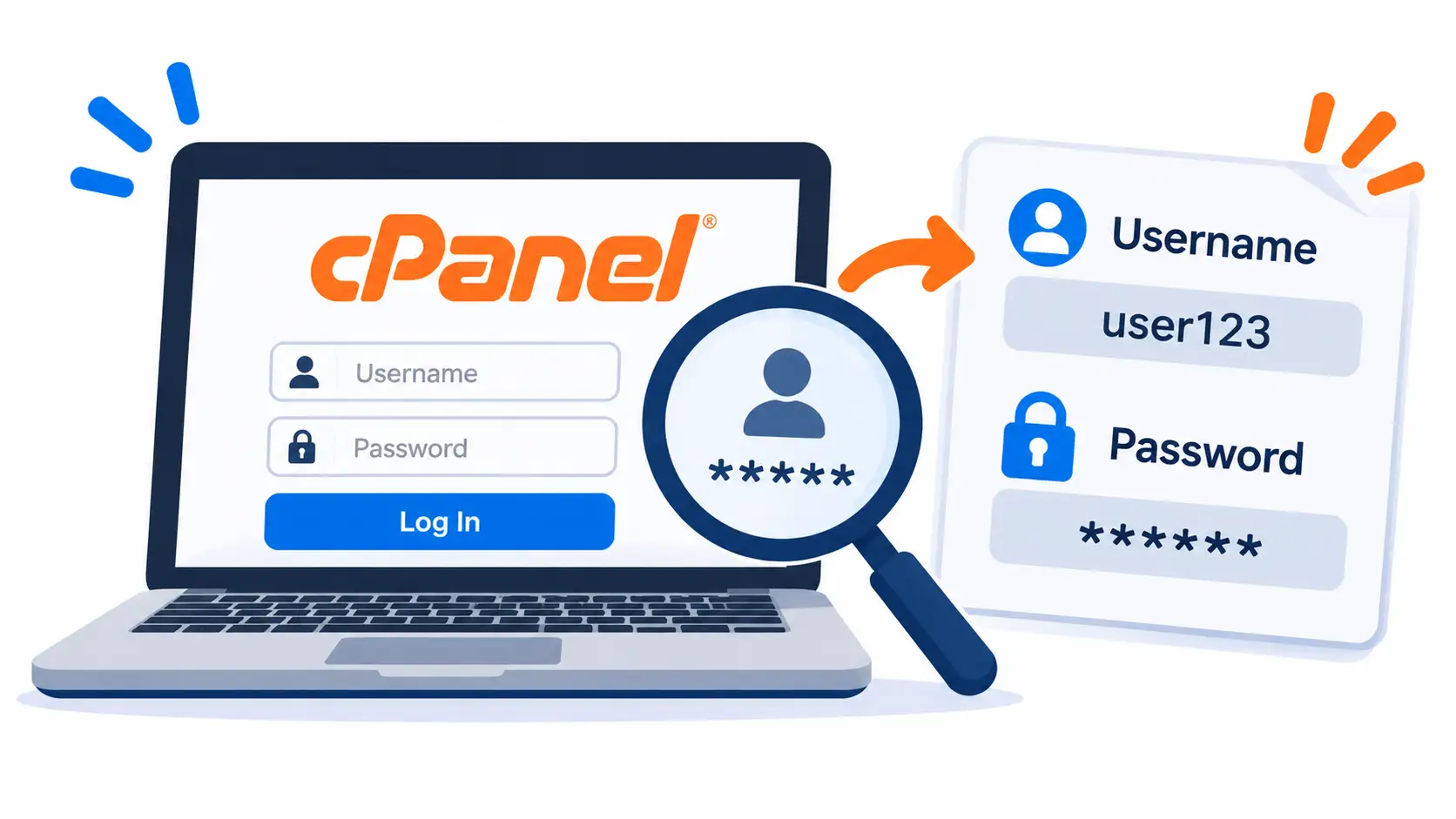
- Your cPanel username. You will need it for the login page reset. Your welcome email or hosting client area usually shows it.
- Access to the email address registered as the cPanel account’s contact address. The reset code is sent there.
- Access to the cPanel login page. Have the correct URL ready.
- Access to your hosting provider’s client area or support team, in case the self-service reset option is unavailable.
The email-based reset process depends on two conditions.
Your hosting provider must have enabled the feature, and the cPanel account must have a valid contact email configured.
If either is missing, the reset link may not appear or the code may never arrive. In that case, jump to Method 3.
Method 1: Reset Your cPanel Password From the Login Page
This is the best starting point if you have forgotten your password.
It works for users who cannot access cPanel at all, and you complete it without help from anyone else.
Step 1: Open Your cPanel Login Page
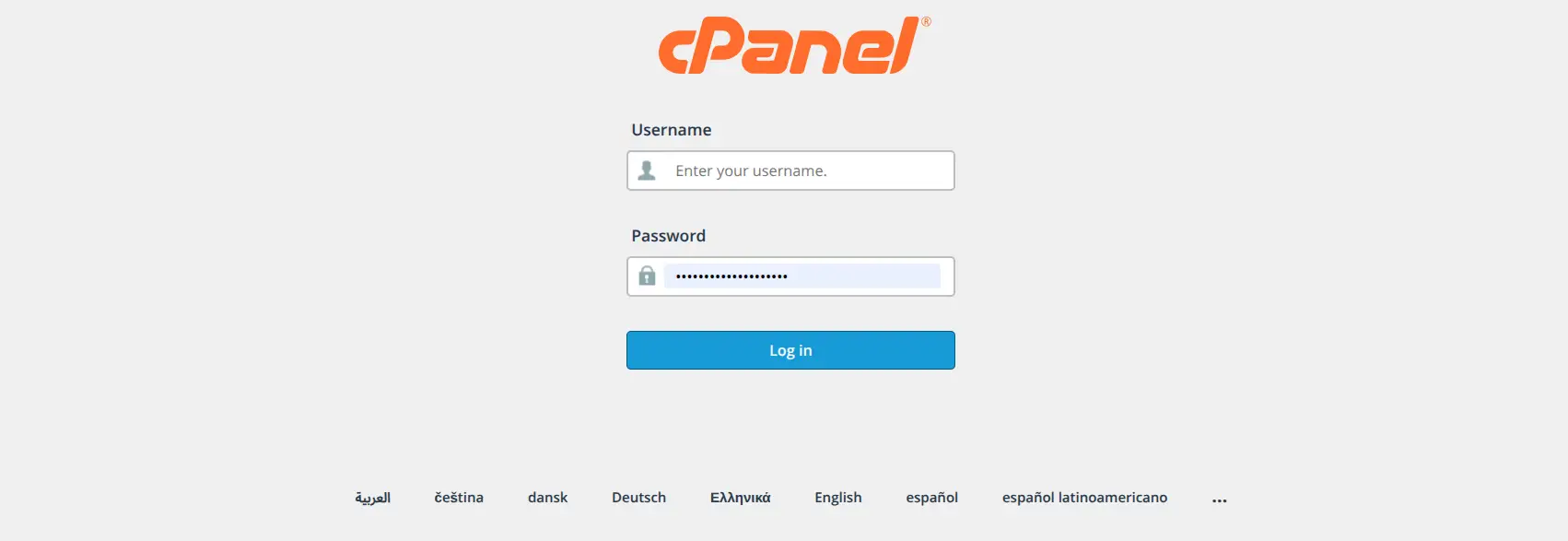
Visit your cPanel login URL. Common formats include:
- https://example.com:2083
- https://cpanel.example.com
- Your hosting server’s hostname with the secure cPanel port, such as https://server.example.com:2083
The correct URL depends on the hosting provider and server configuration.
If you are unsure, check your welcome email or look for a cPanel login button in your client area.
Step 2: Select Reset Password
- Look for the Reset Password link on the cPanel login screen.
- Select it to open the password reset form.
- Enter your cPanel username.
- Select the reset option to continue.
If you cannot see the link, your provider may have disabled it. Do not worry, because Method 3 covers that situation.
Step 3: Verify Your Email Address
- Enter the contact email address associated with the cPanel account, if prompted.
- Request the security code.
- Open your inbox and look for the password reset email.
- Check the spam or junk folder if it does not arrive.
- Keep the original browser session open while you complete the process.
That last point deserves attention.
Closing the reset page before you enter the code can invalidate the request, and you would need to start again from the beginning.
Step 4: Enter the Security Code and Create a New Password
- Return to the reset page.
- Enter the security code you received by email.
- Submit the code.
- Enter a new password and confirm it.
- Save the password and use it to log in to cPanel.
The exact screens may differ slightly depending on the cPanel version and hosting configuration.
The overall flow stays the same: request a code, confirm it, then choose a new password.
When you pick the new password, avoid anything based on your domain name, your own name or a word from the dictionary.
A long, random combination is far harder to guess, and a password manager can store it for you.
Method 2: Change Your cPanel Password From Inside cPanel
Use this method if you can still log in and know your current password.
It suits routine security updates, such as changing a password after a staff member leaves or after you suspect it has been shared.
Step 1: Log In to cPanel
- Open the cPanel login page.
- Enter your existing username and password.
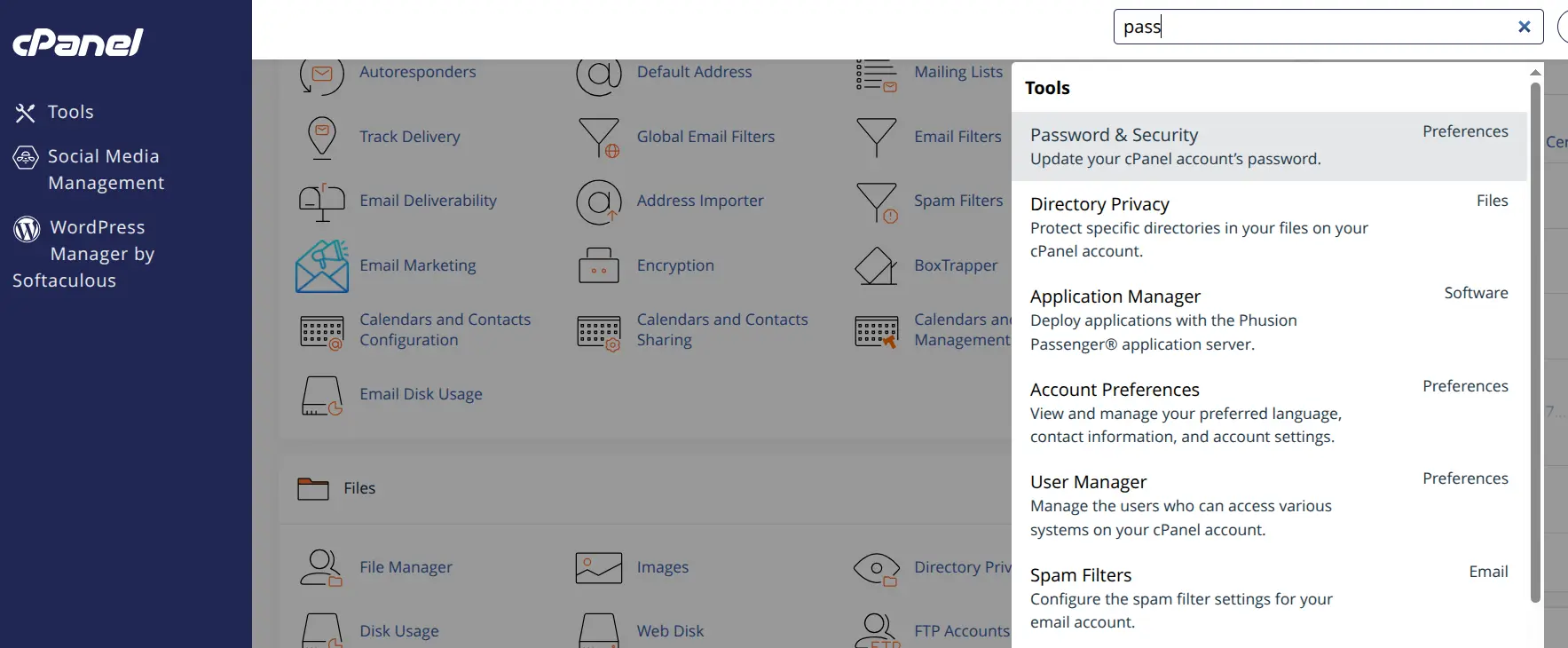
Step 2: Open Password & Security
- Locate the Preferences section on the cPanel home screen.
- Select Password & Security.
Some cPanel versions may place password management under Account Preferences, so look there if you do not see the first option.
Step 3: Enter Your Current and New Passwords
- Enter the existing password.
- Create a new password, or use the password generator for a strong one.
- Enter the new password again to confirm it.
cPanel usually shows a strength indicator while you type.
Aim for a rating that reads strong, and avoid reusing a password from another service.
Step 4: Save the Password Change
- Select the option to change or save the password.
- Expect cPanel to end the current session after the change.
- Log in again using the new password.
Once you reset cPanel password details this way, update any tool that stored the old one.
FTP clients, backup scripts and email applications that connect with your cPanel credentials will fail until you enter the new password.
Method 3: Ask Your Hosting Provider to Reset Your cPanel Password
Sometimes the login page offers no reset option, or the email-based process fails.
In that case, your hosting provider is the next step, because the provider manages the credentials for your account.
- Sign in to the hosting provider’s client area, if you can.
- Open the relevant hosting service.
- Check for a password management option and use it if one is available.
- If there is no self-service option, contact the hosting provider’s support team.
- Provide the domain name or hosting service details needed to identify the account.
- Complete the ownership verification process.
- Request a cPanel password reset.
Expect some questions before anything changes.
A responsible provider verifies that you own the account before it alters login credentials, and that protects you from anyone trying to take over your hosting.
Have your registered email address, your domain name and any account reference ready to speed things up.
It also helps to know who can do what. cPanel’s software support team does not directly reset end-user hosting credentials.
The hosting provider or server administrator manages those logins, so contact them rather than the makers of cPanel.
When you write to support, be specific.
Say that you need to reset cPanel password access for a named domain, and mention any error message you saw.
A clear request usually gets a faster answer than a general complaint that you are locked out.
What to Do If the cPanel Password Reset Is Not Working
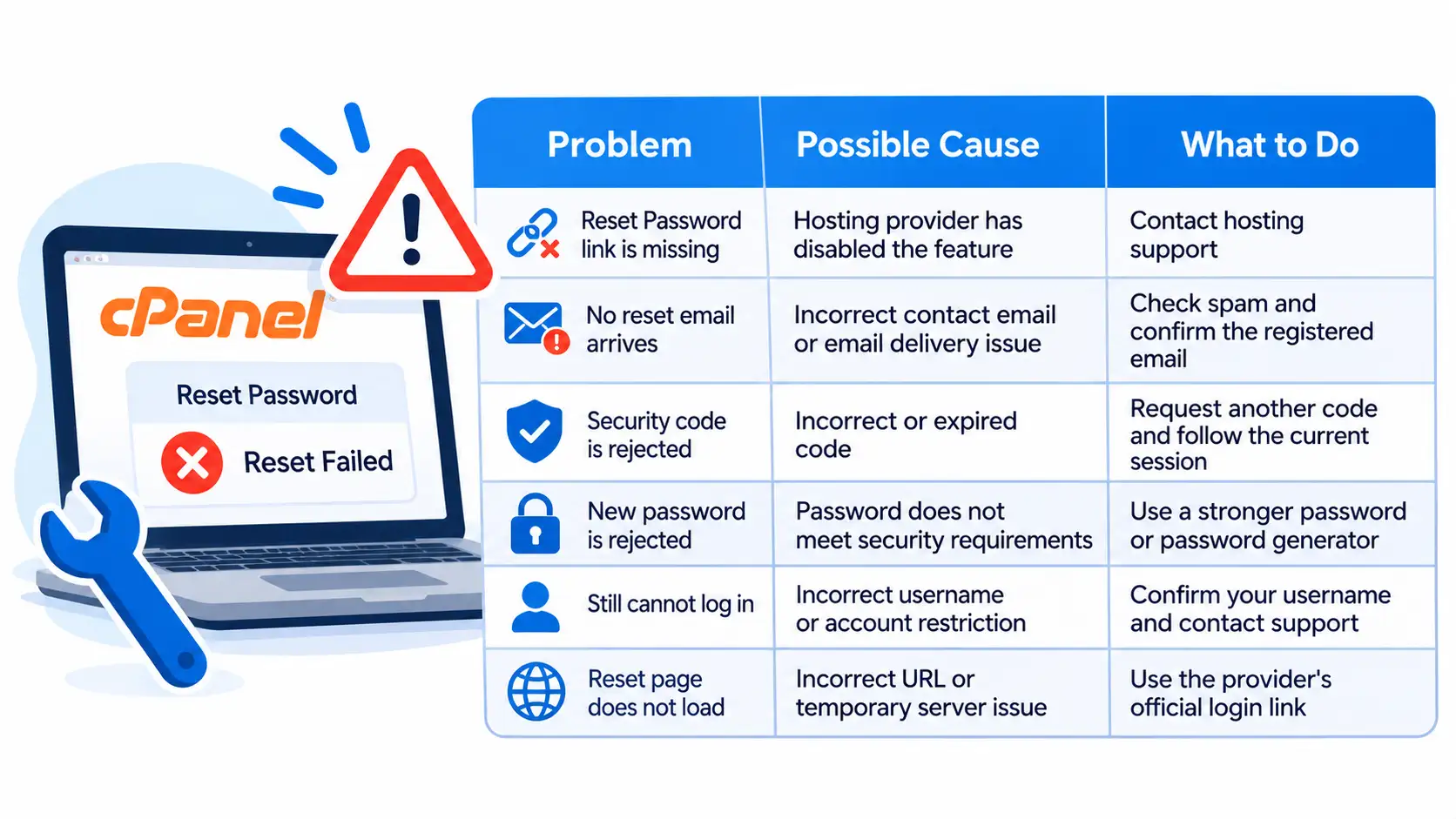
If the reset fails at any stage, this table points you to the likely cause:
| Problem | Possible cause | What to do |
| Reset Password link is missing | Hosting provider has disabled the feature | Contact hosting support |
| No reset email arrives | Incorrect contact email or email delivery issue | Check spam and confirm the registered email |
| Security code is rejected | Incorrect or expired code | Request another code and follow the current session |
| New password is rejected | Password does not meet security requirements | Use a stronger password or password generator |
| Still cannot log in | Incorrect username or account restriction | Confirm your username and contact support |
| Reset page does not load | Incorrect URL or temporary server issue | Use the provider’s official login link |
Start with the simplest cause.
Most failed resets trace back to a wrong contact email or a code that expired because the browser session closed.
If you request several codes in a row, use only the newest one, since older codes may stop working.
If the email never arrives, wait a few minutes before you try again, then check the spam and junk folders.
Some mail systems delay messages from hosting servers.
If the address on file is one you no longer use, the self-service route will not work, and a support request is the right path.
When the reset page itself will not load, avoid guessing at addresses.
Use the login link from your hosting client area or welcome email, because that address is the one your provider supports.
If a recent change to your domain’s DNS settings is the cause, the server hostname version of the URL often still works.
Once you regain access, take a moment to tidy up.
Save the new password in a password manager, remove the old one from any saved list, and consider turning on two-factor authentication if your cPanel offers it.
A few minutes of cleanup now prevents the same lockout from happening again.
Get cPanel Hosting From Truehost
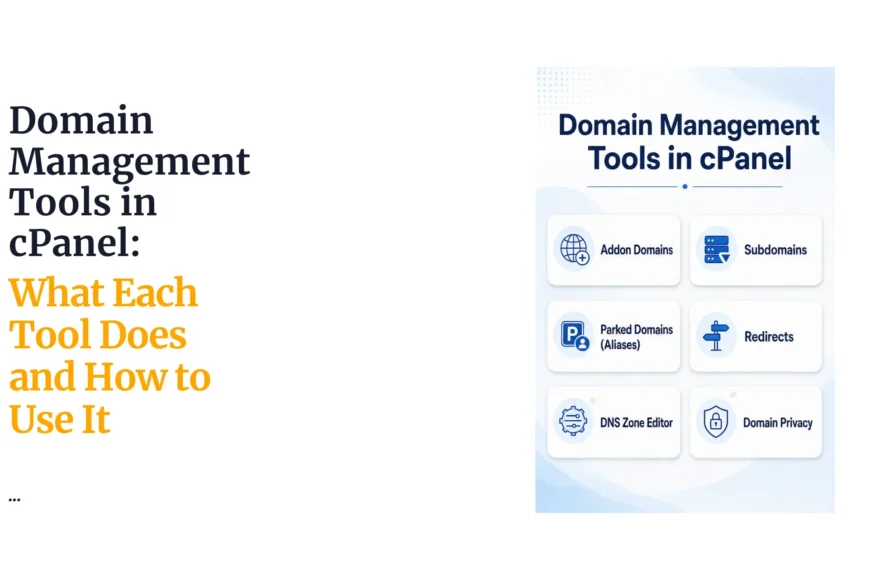
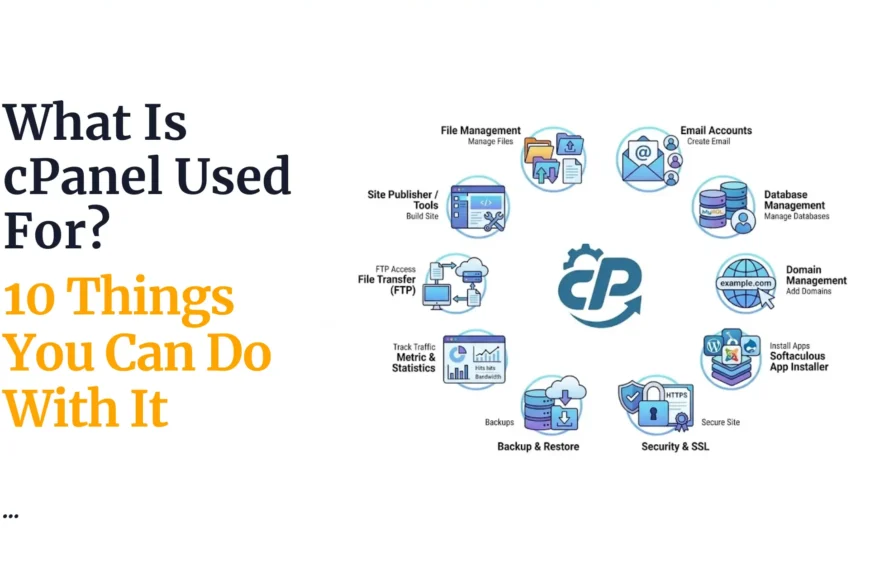
cPanel gives website owners access to hosting management tools, including File Manager, databases, email accounts and domain settings.
Having them in one dashboard means you can handle most routine website tasks yourself, and you only need to reset cPanel password details on the rare occasion that a login goes missing.
Truehost cPanel hosting is an option for anyone who wants to manage a website through cPanel.
Before you choose, check the current product page for verified plan features and pricing, since both can change over time.
Then compare the available packages based on storage, website limits and your hosting requirements.
Need cPanel hosting for your website? Explore Truehost cPanel hosting and choose a plan that gives you access to the tools you need to manage your website.