 Web Hosting
 Windows HostingBuilt for Windows apps and websites – stability, speed and flexibility
 Reseller HostingLaunch a hosting business without technical skills or expensive infrastructure
 Affiliate ProgramRefer customers and earn commissions from sales across our platform
 Domain SearchFind and secure a domain name in seconds with our quick lookup tool
 CO ZA Domains
 All DomainsExplore domain names from over 324 TLDs globally – all in one place
 Free Whois Lookup Tool South Africa
 VPS
 Website Builder
 Online ShopSet up a sleek eCommerce store with zero coding knowledge
 SSLs
 SupportAccess help articles, how-tos, and everything about our services
 Blog
 Contact UsReach our team instantly via live chat or drop us an email

You cannot open cPanel without a username and password.
These login details give you access to your website files, databases, email accounts and other hosting tools, so losing them can stop you from managing your site at all.
Your cPanel username and password are usually provided when your hosting account is created.
Most people receive them once, skim past them and then need them months later, often at an awkward moment.
The good news is that you can recover them in several ways: the hosting welcome email, your provider’s client area, the hosting control panel or a password reset.
It also helps to separate cPanel credentials from the other logins attached to a website.
Your hosting provider’s client area, your WordPress dashboard and your FTP account each use different details.
Typing the wrong set is a common reason a login seems to fail.
Some providers also offer single sign-on, which lets you open cPanel from the client area without entering the credentials manually.
If your provider does this, you may never have needed your cPanel password until now.
Here is a quick comparison of the logins you may be juggling:
| Login details | What they access |
| Hosting client area username and password | Hosting provider’s customer account |
| cPanel username and password | cPanel hosting control panel |
| WordPress username and password | WordPress dashboard |
| FTP username and password | Website files through an FTP client |
This guide shows you where to find your cPanel username and password, how to reset the password if it is gone, how to log in and what to do when the login fails.
Table of Contents
Where to Find Your cPanel Username and Password
Hosting providers share or store cPanel login details in a few different places. Check them in the order below, starting with the one that takes the least effort.
1) Check Your Hosting Welcome Email
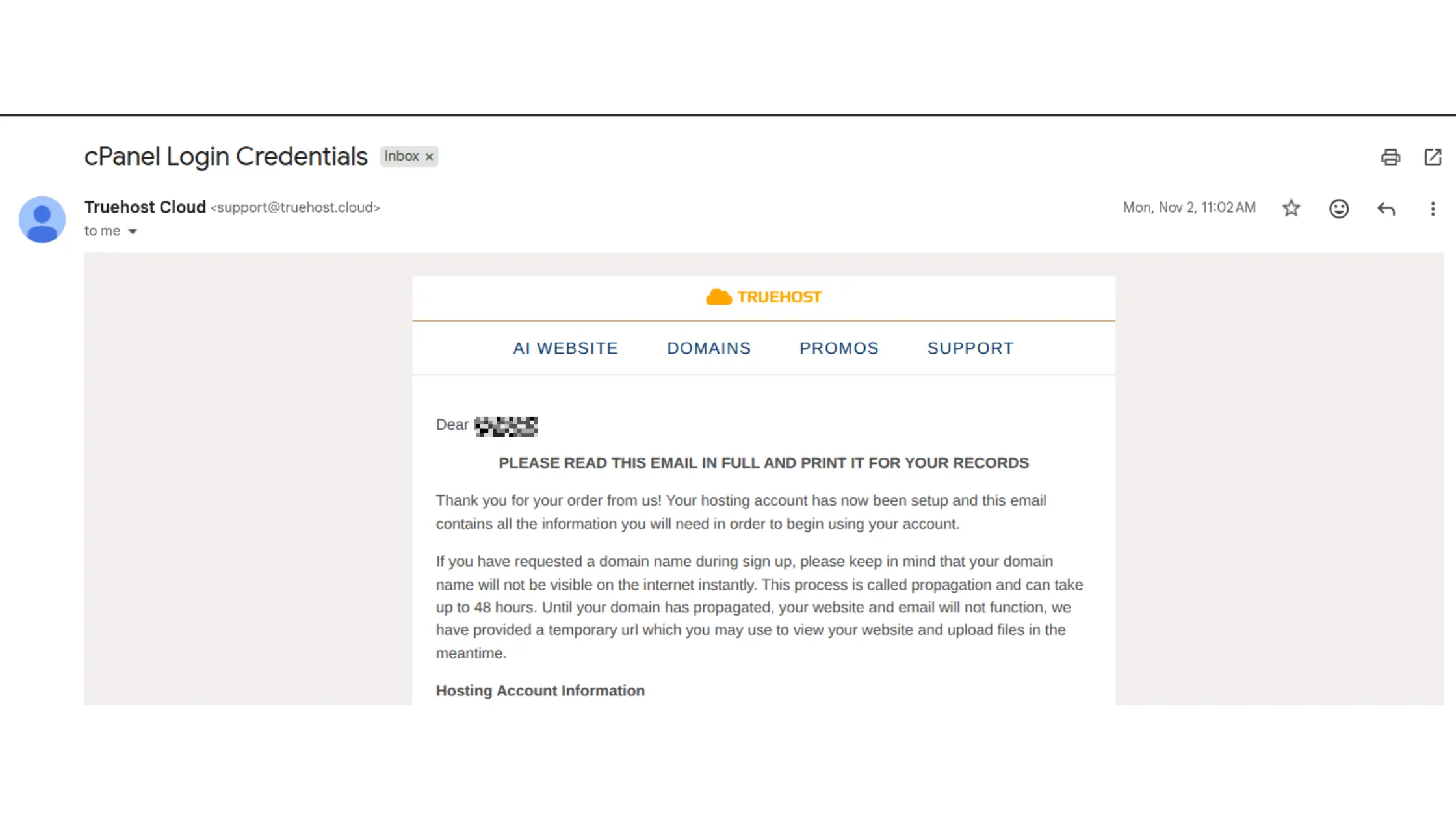
Hosting providers commonly send account setup details after a hosting package is activated.
That message is often the fastest place to find your cPanel username and password.
- Search your inbox for the hosting provider’s name.
- Look for subjects such as New Hosting Account Information, Hosting Account Details or Welcome to Your Hosting Account.
- Open the message and look for the cPanel username, the server hostname and the login URL.
- If you cannot find it, search the spam, junk and archived folders.
Some providers send the username and login link without including the password.
This is common where passwords are generated or changed through the customer portal.
If your email shows a username but no password, move on to the client area or the reset steps below.
2) Log In to Your Hosting Client Area
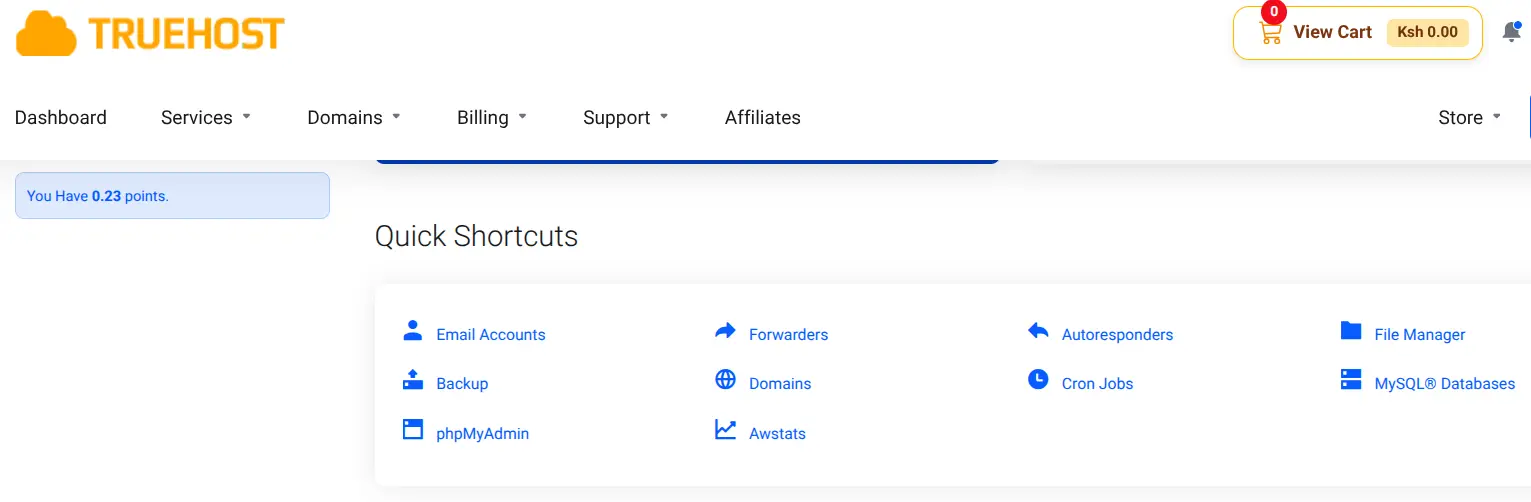
Many hosting companies display cPanel access details inside the customer account. The steps look like this:
- Open the hosting provider’s website.
- Sign in to the client area.
- Navigate to Services or My Services.
- Select the hosting package associated with your domain.
- Look for a cPanel login or control panel option.
- Use the available login button to open cPanel.
Some providers use single sign-on, so you do not need to know or enter the cPanel password at all.
Clicking the button signs you in automatically.
That is convenient, but it means your password may be one you have never seen, which is why a reset can be the quickest route if you need it elsewhere, for example for an FTP connection or an email setup.
3) Check Your Hosting Account’s Control Panel
Some hosting dashboards display account information separately from the welcome email.
Open the hosting package’s management page and look for:
- A section called account information, server details or login credentials.
- The cPanel username, which many providers show in plain text.
- A password management or reset option, if the password itself is not visible.
Do not be surprised if the current password is nowhere to be found.
Providers may deliberately hide existing passwords for security reasons, and they store them in a form that nobody, including support staff, can read back.
That design protects your account, and it is why a reset is the normal fix.
How to Reset Your cPanel Password If You Have Forgotten It
If you cannot locate your current cPanel username and password, reset the password rather than trying to recover or guess it.
Guessing wastes time and can trigger security blocks after repeated failures. A reset gives you a fresh, working password in a couple of minutes.
Method 1: Reset Your Password Through the Hosting Client Area
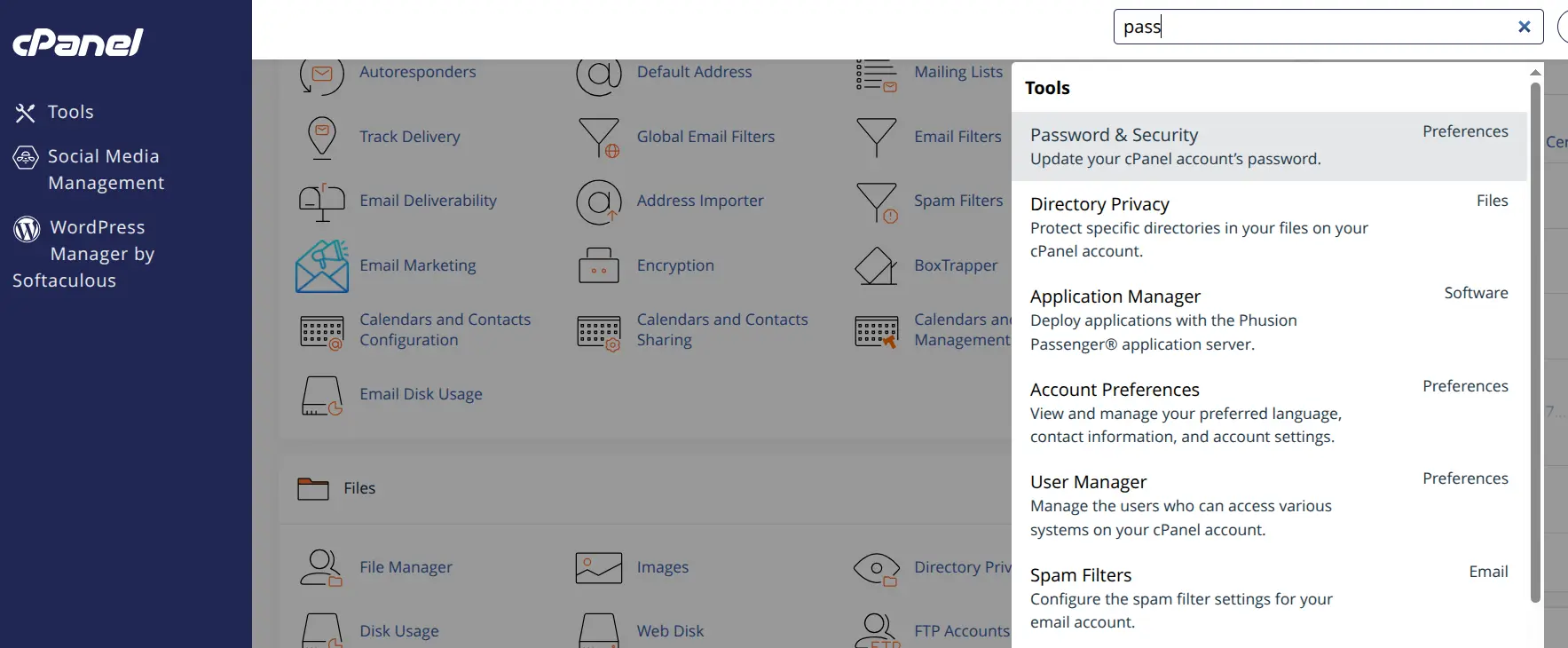
- Sign in to the hosting provider’s client area.
- Open the relevant hosting service.
- Find the password management option.
- Select the option to change or reset the cPanel password.
- Enter a new, strong password if prompted.
- Save the changes and use the new password to access cPanel.
The exact menu labels differ between hosting providers.
You might see wording such as Change Password, Manage Credentials or Reset cPanel Password.
If you cannot find the right option, the provider’s help pages usually show a screenshot of their layout.
Method 2: Ask Your Hosting Provider for Assistance
If the client area does not offer a reset, or you cannot sign in to it, contact support directly:
- Contact the hosting provider’s support team through its chat, ticket system or email.
- Provide the domain name or hosting service details needed to identify the account.
- Complete any ownership verification the team requests.
- Ask for help resetting the cPanel password or restoring access.
Expect questions before anything changes.
Support teams should verify account ownership before they alter login credentials, and a provider that skips this check puts every customer at risk.
Have your registered email address and domain name ready to speed the process up.
How to Log In to cPanel Once You Have Your Credentials
Once you have your cPanel username and password, the login itself takes only a minute.
Step 1: Find Your cPanel Login URL
Providers use a few common address formats:
| Login method | Example |
| Domain with cPanel port | https://example.com:2083 |
| Server hostname | https://server.example.com:2083 |
| cPanel subdomain | https://cpanel.example.com |
Port 2083 is the standard secure cPanel login port.
The hostname and subdomain examples depend on the hosting provider’s configuration, so use the address from your welcome email or client area when you have it.
Step 2: Enter Your cPanel Username and Password
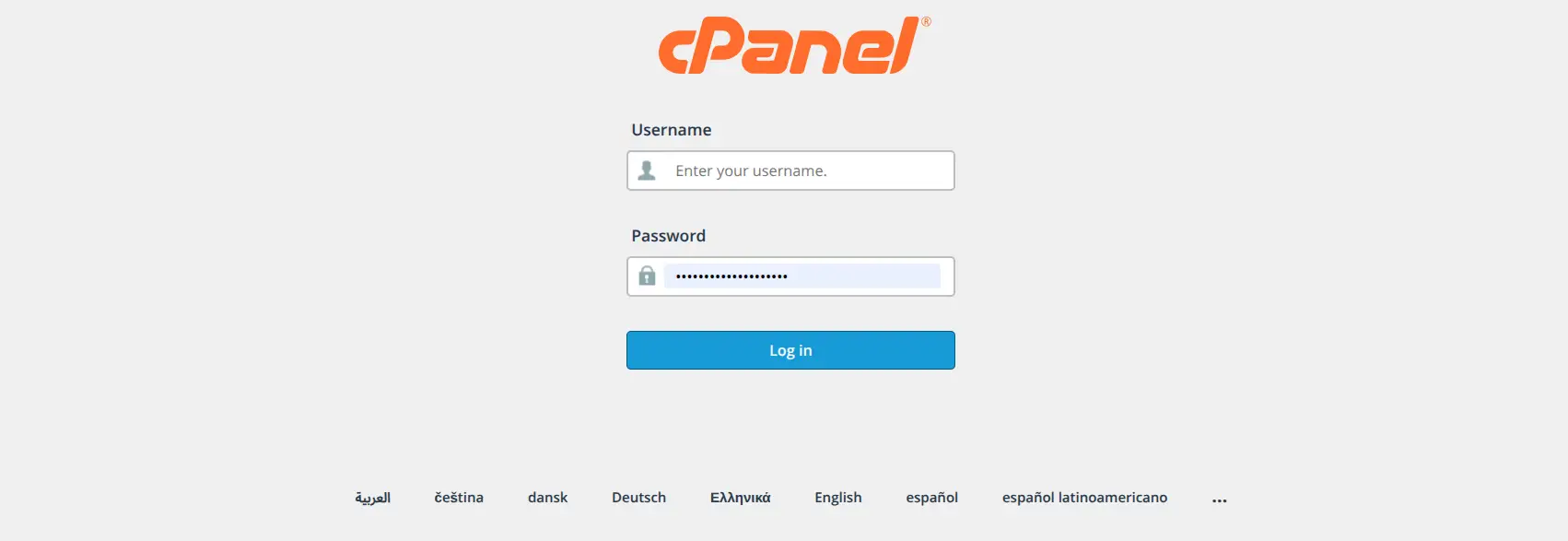
- Open the cPanel login page.
- Enter the username provided by the hosting provider.
- Enter the corresponding password.
- Select Log In.
- Confirm that the cPanel dashboard opens.
Type carefully, because cPanel usernames and passwords are case-sensitive.
If you paste the details from an email, check that no extra space came along with them.
Step 3: Save Your Login Details Securely
A login you cannot find is almost as useless as one you never had, so store it safely after you recover it. At the same time, avoid exposing it:
- Use a reputable password manager.
- Avoid saving passwords in the browser of a shared or public computer.
- Do not send passwords through public forums or unsecured messages.
- Use a unique password for cPanel, not one you use anywhere else.
- Enable available additional security protections, such as two-factor authentication.
A strong cPanel password is long, unique and unrelated to your domain name or personal details.
Because cPanel controls your files, databases and email, anyone who gets into it can do serious damage.
What to Do If Your cPanel Username or Password Is Not Working
Sometimes you have the details and the login still fails. Use this table to narrow down the cause:
| Problem | Possible cause | What to do |
| Incorrect username or password | Typing error or outdated credentials | Check the welcome email or reset the password |
| Password reset fails | Incorrect client area access or account permissions | Contact hosting support |
| cPanel login page does not load | Incorrect URL, port or server issue | Confirm the login URL with your provider |
| Account is suspended | Hosting account restriction | Contact the hosting provider |
| Too many failed login attempts | Security protection or IP block | Ask support to check the restriction |
| Domain does not open cPanel | DNS or hostname configuration | Use the server hostname or provider’s login link |
Start with the simplest explanation.
A typing slip or an old password causes most failed logins, and a reset solves both.
If the login page will not load at all, try the server hostname address instead of your domain, since a recent DNS change can stop the domain from reaching the server for a while.
If you have been locked out after several wrong attempts, stop trying.
Repeated attempts can extend an automatic block, so contact support and ask them to check whether your IP address has been restricted.
Get cPanel Hosting From Truehost South Africa
cPanel provides a central interface for managing website files, databases, email accounts, domains and other hosting features.
Having everything in one place means you can handle most routine website tasks without a developer, as long as you keep your cPanel username and password safe.
Truehost’s cPanel hosting is an option for anyone who wants access to these tools.
Before you choose, check the current product page for the verified plan features and pricing, because both can change.
Then compare the available packages and choose one based on your website requirements, such as the number of sites, storage and email needs.
Need hosting with cPanel access? Explore Truehost cPanel hosting and choose a plan for managing your website from one control panel.