 Web Hosting
 Windows HostingBuilt for Windows apps and websites – stability, speed and flexibility
 Reseller HostingLaunch a hosting business without technical skills or expensive infrastructure
 Affiliate ProgramRefer customers and earn commissions from sales across our platform
 Domain SearchFind and secure a domain name in seconds with our quick lookup tool
 CO ZA Domains
 All DomainsExplore domain names from over 324 TLDs globally – all in one place
 Free Whois Lookup Tool South Africa
 VPS
VPS Website Builder
 Online ShopSet up a sleek eCommerce store with zero coding knowledge
 SSLs
SSLs SupportAccess help articles, how-tos, and everything about our services
 Blog
Blog Contact UsReach our team instantly via live chat or drop us an email
So you’ve set up a domain alias in Plesk and want email to work with it. Maybe you have multiple domain names pointing to the same site, or you bought a shorter domain just for your email.
A domain alias is simply an extra domain name that shows the same website content as your primary domain.
For example, if yourbusiness.co.za is your main domain, you might add yourbrand.co.za as an alias. Both will display the same site.
With email, you probably want addresses like [email protected] without paying for separate mailboxes. The good news is, you don’t need to.
Emails sent to your alias domain can be forwarded to your primary domain’s existing mailbox.
The key point many miss: you cannot create a standalone mailbox directly on a domain alias in Plesk.
Instead, Plesk automatically forwards any email sent to the alias domain to the matching mailbox on your primary domain without needing an extra account.
Table of Contents
Confirm this Before Setting Up
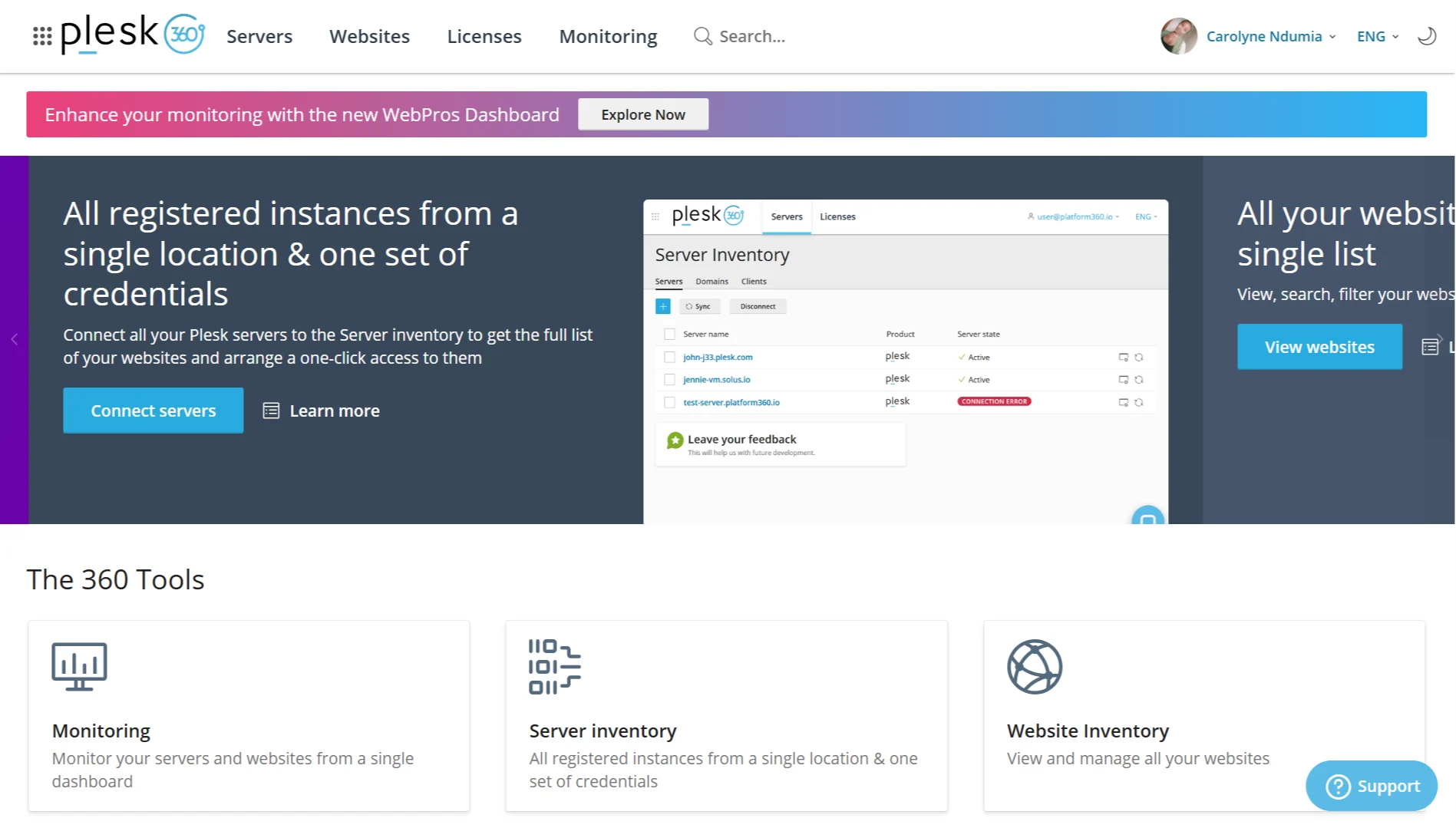
- Admin or Reseller Access: You’ll need the right permissions within Plesk to make these changes. If you’re not the main account holder, you’ll need admin-level access or your hosting provider’s help.
- Domain Alias Already Created: The alias domain must already exist in your Plesk account. If you haven’t added it yet, you’ll need to do that before you can configure email.
- Mail Service Enabled on the Alias: During alias creation, there’s an option for “Mail service.” If it wasn’t checked, the email for that alias simply won’t work.
- DNS/MX Records Pointing Correctly: For the email to arrive, your domain’s DNS settings must point to the correct mail server. Your hosting provider can confirm the right server details.
- Primary Domain Has Active Mail: Since emails to the alias forward to the primary domain, the primary domain needs a working mailbox to receive them.
7 Steps to Set Up Email for a Domain Alias
Step 1: Log in to Plesk and go to Websites & Domains
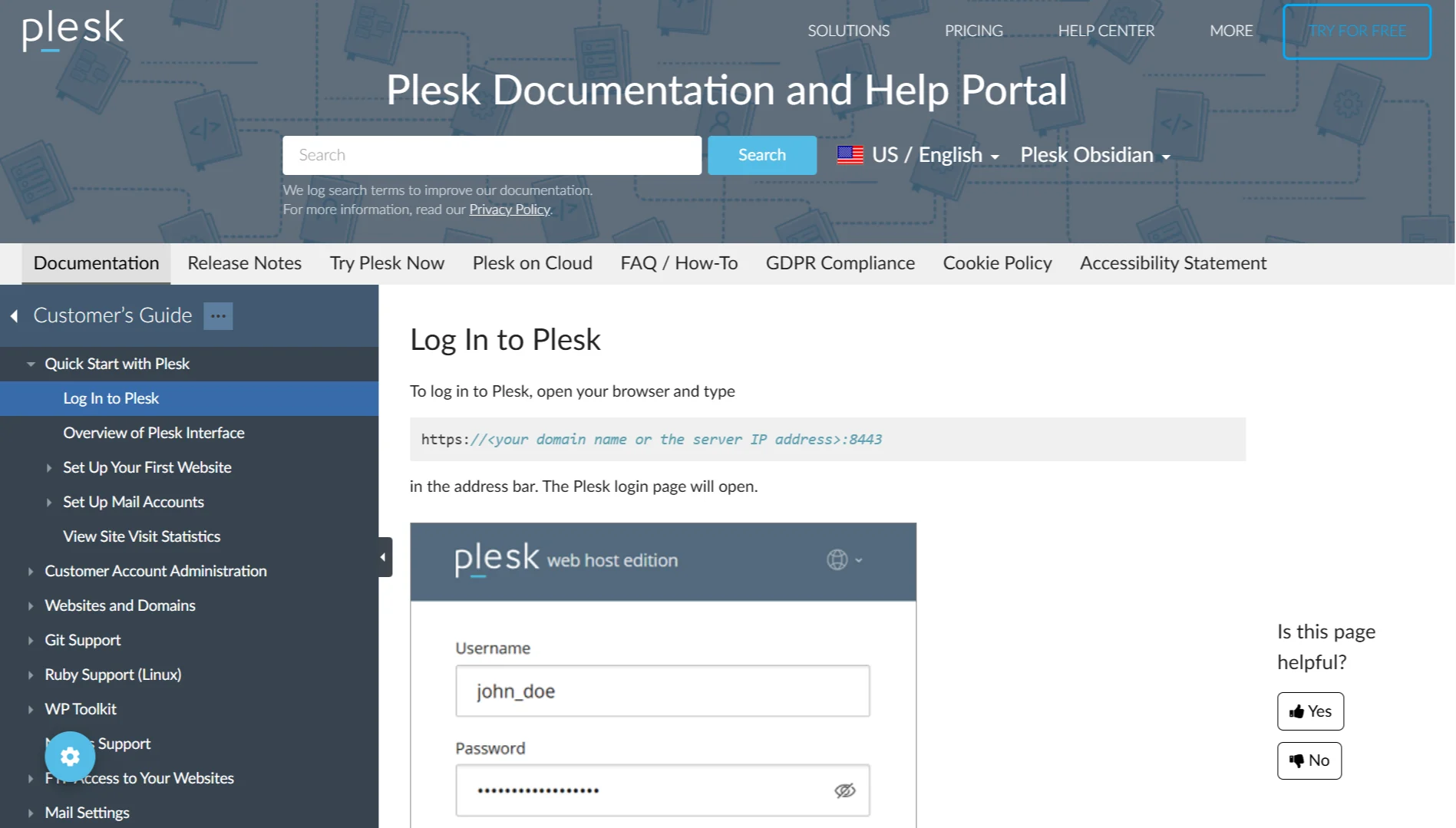
First, log in to your Plesk control panel. Once you’re in, look for “Websites & Domains” in the main menu. This is where you manage all your domains.
Step 2: Add or edit the domain alias
If you haven’t added the alias yet, click “Add Domain Alias.” You’ll be prompted to enter the alias domain name (e.g., yourbrand.co.za) and select the primary domain it should point to.
If the alias already exists, click on its entry to edit its settings.
Step 3: In the alias settings, find the “Mail service” option
Within the alias’s settings, you’ll see a section for services. Look for the “Mail service” checkbox.
Step 4: Enable the “Mail service” for the alias
Make sure the mail service checkbox is ticked. This tells Plesk to accept incoming mail for this alias domain.
If this is unchecked, no email will be delivered. Once you’ve confirmed it’s enabled, click ok or save to apply the changes.
Step 5: Go to the Mail tab for the primary domain
Now, navigate away from the alias. Go back to the websites & domains page and find your primary domain (the one you selected as the main domain).
Click the Mail tab associated with it. This is where you manage all email accounts and forwarding rules
Step 6: Create or use an existing mailbox on the primary domain
You need a mailbox on your primary domain to receive the forwarded email. If you already have one (e.g., [email protected]), you can use that.
If not, click “Create Email Address” to set up a new mailbox. Provide a name, set a strong password, and create the account.
Step 7: Learn the automatic result
You don’t need to do any extra setup for the forwarding to work. Once the mail service is enabled on the alias (Step 4), Plesk automatically handles the forwarding.
If you send an email to [email protected] (your alias domain), Plesk will automatically route it to the mailbox of the same name on your primary domain.
So, emails to [email protected] will land in the [email protected] mailbox. If you created a new mailbox called [email protected], any email sent to [email protected] would end up in that mailbox.
No extra forwarding rules are needed.
Mistakes to Avoid During Email Forwarding for the Alias Domain in Plesk
| Mistake | Solution |
| Enabling mail service after creating the alias | Edit the alias and tick Mail service. |
| Assuming DNS records are already correct | Point MX records to your server’s mail handler. |
| Creating a mailbox directly on the alias domain | Create the mailbox on the primary domain instead. |
| Looking for forwarding settings in the alias panel | Find all mail settings under the primary domain’s “Mail” tab. |
| Setting up individual forwards for every alias address | Just enable mail service on the alias once. |
Email on Alias Domain PleskFAQs
Is an email alias the same as forwarding?
No, though they are related. An email alias is an alternative address that points to a primary mailbox (like [email protected] pointing to [email protected]). Forwarding is a feature that redirects emails from one address to another, including external addresses (e.g., from [email protected] to [email protected]).
What is the email alias trick?
The trick in Plesk is understanding that you don’t need to create anything new to get email working for an alias domain. By simply enabling the “Mail service” on the alias, all its email addresses automatically forward to the matching mailboxes in the primary domain.
What is the difference between an email alias and a separate email account?
A separate email account has its own login, password, and storage space; it’s an independent mailbox. An alias, on the other hand, is just a forwarding address. It doesn’t have its own storage or login; it simply delivers messages to a different, existing mailbox.
Can an alias email receive emails?
Yes, absolutely. That’s its primary purpose. When you enable the mail service for an alias, the server can accept emails sent to that address.
Where do alias emails go?
Alias emails go to the mailbox with the same name on the primary domain. An email to [email protected] will end up in the [email protected] mailbox.
How do I know if an email is an alias?
In Plesk, you can check under the primary domain’s “Mail” tab. Click on a specific mailbox, go to the “Email Aliases” tab, and you’ll see a list of all the alias addresses attached to it
Launch Your Site with Unlimited Email Accounts Built-In
Setting up domain aliases and forwarding in Plesk is a great first step to professional email. But managing separate accounts and forwarding rules for every scenario can be hard, especially as your business grows.
We believe your email should work for you, not the other way around.
That’s why with Truehost’s Professional Email Solution, you get a hassle-free experience right from the start.
You can get started from as little as R8 per month. We make sure your branded email is not only professional-looking but also powerful enough to handle your workflow.
When you host your website with us, you’re getting a complete communication toolkit.
What you get with our business email:
- A Branded Business Email: Ditch the free Gmail or Yahoo addresses and get
[email protected]. It builds instant trust and looks far more professional to clients and partners. - A Complete Productivity Suite: We include collaboration tools, cloud storage, and a powerful spam and virus filter right out of the box, so your inbox stays clean and secure.
- Accessible Anywhere: Access it via webmail, sync it with your Outlook or Gmail app, or use it on any mobile device.
- Enterprise-grade Security: We include features like 2FA, anti-phishing filters, and DDoS protection, so you can be confident your communications are private.
A domain alias ensures your brand is covered from every angle, but a professional email for your primary domain ensures you’re taken seriously.
With unlimited email accounts included, you’ll have everything you need to succeed.