 Web Hosting
 Windows HostingBuilt for Windows apps and websites – stability, speed and flexibility
 Reseller HostingLaunch a hosting business without technical skills or expensive infrastructure
 Affiliate ProgramRefer customers and earn commissions from sales across our platform
 Domain SearchFind and secure a domain name in seconds with our quick lookup tool
 CO ZA Domains
 All DomainsExplore domain names from over 324 TLDs globally – all in one place
 Free Whois Lookup Tool South Africa
 VPS
 Website Builder
 Online ShopSet up a sleek eCommerce store with zero coding knowledge
 SSLs
 SupportAccess help articles, how-tos, and everything about our services
 Blog
 Contact UsReach our team instantly via live chat or drop us an email

Managing a domain takes more than registering the name.
Once you own a domain, you still have to connect it to your hosting, set up DNS records, create subdomains and decide where visitors should land.
Skip those steps and the name sits there doing nothing.
Mistakes here can also take a website or its email offline, so it pays to know what each tool does before you click.
Whether you run one website or five, the same handful of tools cover almost every task.
cPanel is a hosting control panel that puts most of these jobs in one dashboard.
The domain management tools in cPanel let you add websites, edit DNS records, forward visitors and more, all without touching a server.
This article covers the main domain management tools in cPanel, what each one does and when to use it.
One caution before we start. Features and labels vary with the cPanel version and the hosting provider, so your dashboard may look a little different from the descriptions here.
Table of Contents
What Are the Domain Management Tools in cPanel?
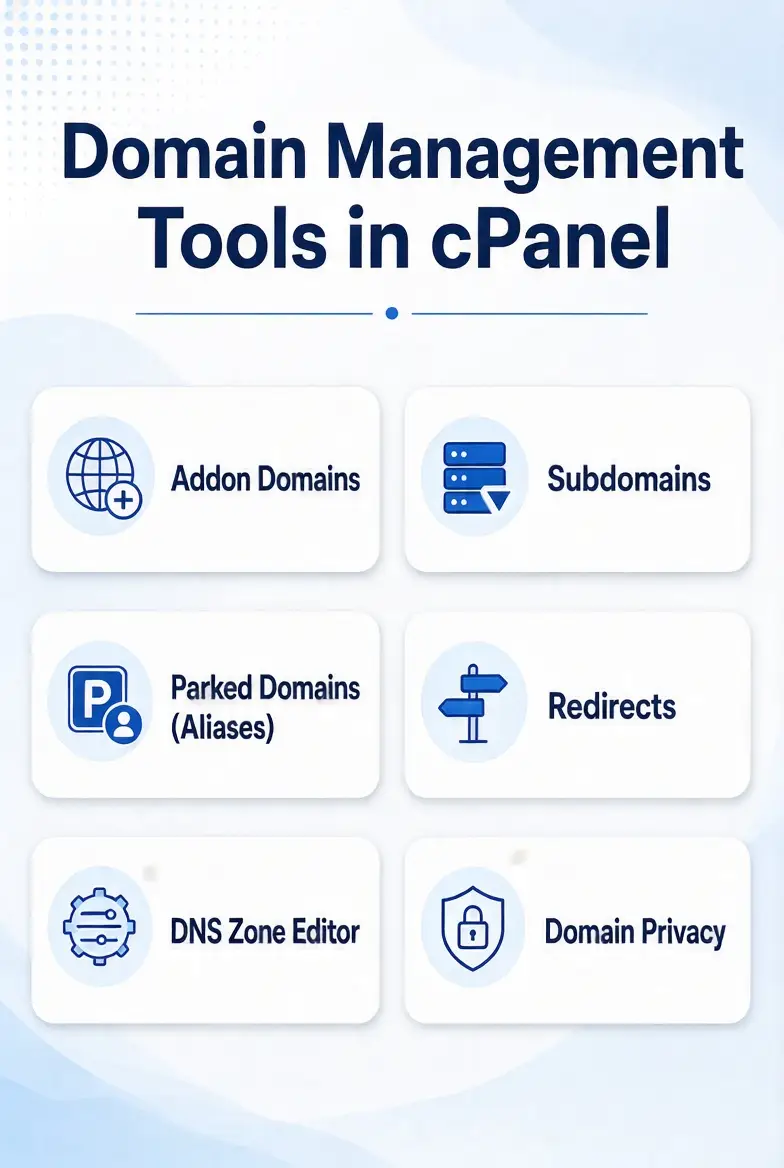
Here’s a quick comparison of the main tools.
| cPanel tool | Main purpose | Common use |
| Domains | Add and manage domains, aliases and subdomains | Hosting multiple websites |
| Zone Editor | Create and edit DNS records | Pointing a domain to a server |
| Redirects | Forward visitors to another URL | Moving a website or page |
| Dynamic DNS | Update DNS for changing IP addresses | Connecting devices on dynamic networks |
Newer versions of cPanel use a unified Domains interface for several domain tasks.
Older versions, and customised hosting dashboards, may show separate options such as Addon Domains, Aliases and Subdomains.
Hosting providers can also switch certain features on or off. To find a tool, log in to cPanel and type its name into the search box at the top.
Search is usually faster than scrolling.
Most of these tools sit under the Domains section of the dashboard, though older layouts split them across several headings.
If you can’t find a tool, check with your host before you assume it doesn’t exist.
1) Domains: Add and Manage Domains in cPanel
The Domains interface lets you create and manage several domains from a single cPanel account.
It’s the first place to look when you want to host another website or set up a subdomain.
Most day-to-day domain jobs start here.

i) Adding a new domain
Adding a domain takes a few steps:
- Open the Domains interface in cPanel.
- Select Create a New Domain.
- Enter the registered domain name.
- Choose the document root, which is the website directory for that domain.
- Complete the setup.
The domain must be registered and correctly pointed to your hosting account before the website becomes reachable.
Adding it in cPanel prepares the hosting side. Test the site in a browser after each change, including the www version.
The DNS side still needs to match.
If your domain is registered elsewhere, you either update its nameservers to your host or add the right records at the place that manages its DNS.
After the change, give it time to spread. It can take anywhere from a few minutes to a day or more.
ii) Managing addon domains
An addon domain lets you host a separate website under the same cPanel account.
Say you own example.com and you want a second site at example.org.
You don’t need to buy another hosting account. You add example.org as an addon domain and give it its own folder.
The two websites can have separate files and document roots.
They still share the resources and limits of the hosting account, so storage, memory and processing power come from the same pool.
A busy site can slow its neighbour. Keep an eye on usage if you add several, and check your plan’s website limit before you start.
iii) Managing domain aliases
An alias makes another domain name show the same website as your primary domain.
For example, example.com and example.net can both open the same site.
People use aliases to protect alternative domain extensions, so visitors who type .net or .org still arrive.
They also use them to send visitors who remember an older domain name to the main website.
iv) Creating subdomains
Subdomains organise separate sections or services under your main domain. Common examples are:
- blog.example.com for a blog
- shop.example.com for an online store
- support.example.com for customer support
A subdomain doesn’t need a new domain registration.
You create it inside cPanel under the domain you already own, and you can point it to its own folder.
Free SSL certificates usually cover subdomains too, though your host’s settings decide that, so check that the padlock appears after you set one up.
v) Managing document roots and domain settings
The document root is the folder where a domain’s website files live.
When a visitor opens your domain, the server looks in that folder for the page to show.
You can reach it through File Manager, where you can upload, edit and organise the files.
Keep each site’s files in its own folder, and give folders clear names, so you don’t mix up two websites on the same account.
From the Domains interface you can also change domain settings or remove a domain you no longer need.
Removing a domain from cPanel doesn’t necessarily delete its website files.
Back up your account first, and check the associated files and email accounts before you remove anything.
2) Zone Editor: Manage DNS Records in cPanel
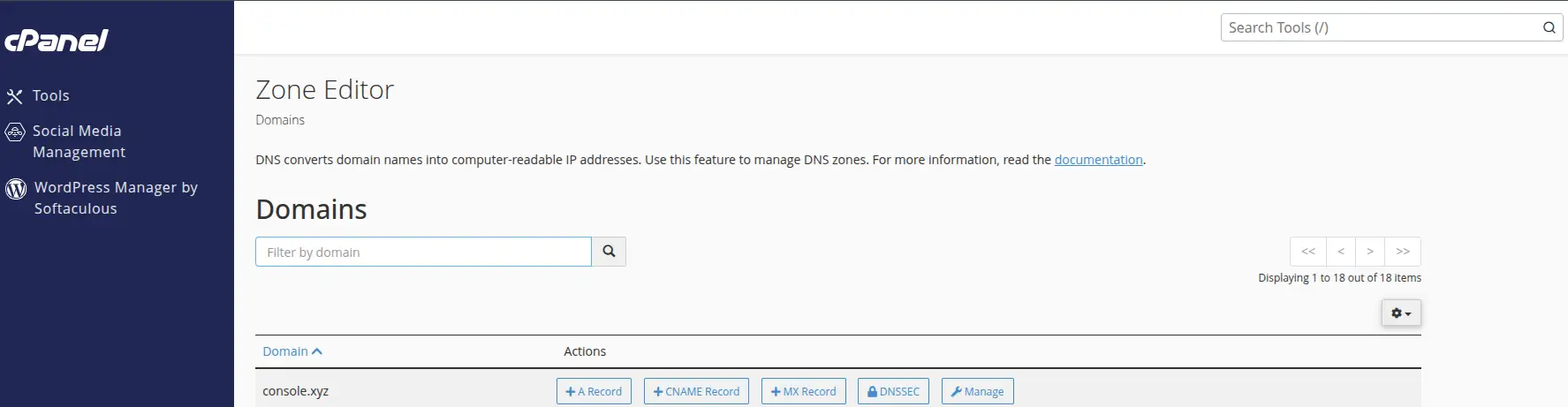
The Zone Editor lets you add, edit and delete the DNS records for your domains. These records tell the internet where to send website traffic and email.
Change them carelessly and your site or mail can stop working, so take care. Before you edit, note the existing values or take a copy of the zone.
Every record also has a TTL, which is how long other servers keep a cached answer. Lower the TTL before a planned change so updates spread faster.
Which record types you see depends on your host’s configuration. Don’t assume every cPanel account exposes every option.
i) A records
An A record connects a domain or hostname to an IPv4 address. For example, it can point example.com to your hosting server’s IP address.
You may need to update an A record when you move to a new host, or when your provider gives you a new server address.
Check both the root name and the www name, since each may need its own record.
ii) AAAA records
An AAAA record does the same job for an IPv6 address.
The difference lies in the address format.
IPv4 addresses are shorter, while IPv6 addresses are longer and were created because the world was running out of IPv4 addresses.
If your host supports IPv6, it may give you an AAAA record value to add alongside the A record.
iii) CNAME records
A CNAME record points one hostname to another hostname.
A common example is directing www.example.com to example.com, so both names reach the same place.
A CNAME can’t share a name with other record types, so you can’t use one on a name that already has MX records.
You’ll also use CNAME records when you connect third-party services. A provider may ask you to point a name like shop.example.com to a hostname they supply.
iv) MX records
MX records specify which mail servers receive email for your domain. If they’re wrong, email can stop arriving.
Get the correct MX values from your email provider before you change anything. Copy them exactly.
Old MX records can stay behind and cause trouble, so remove any that no longer apply. Test email in both directions after any change.
Each MX record has a priority number, and mail goes to the lowest number first.
v) TXT records
TXT records store text-based information. Services use them to verify domain ownership and to authenticate email.
Common examples include SPF, DKIM and DMARC records, as well as ownership checks from third-party tools.
The value you enter must come from the service you’re connecting. Don’t copy values from another provider’s guide.
If a record exists already, edit it instead of adding a second one, especially for SPF, because a domain should have only one SPF record.
vi) CAA and SRV records
A CAA record says which certificate authorities may issue SSL certificates for your domain.
An SRV record identifies the servers that provide particular services.
Beginners use both less often, so you may never need to touch them.
vii) DNSSEC management
On supported installations, you can reach DNSSEC management through the Zone Editor.
DNSSEC adds a layer of authenticity to DNS responses, which helps protect visitors from tampered answers.
Your host decides whether DNSSEC is available, so check before you plan around it.
If you turn it on, keep your registrar’s records in step with your host’s, because a mismatch can make the domain unreachable for some visitors.
3) Redirects: Forward Domains and URLs to Other Addresses
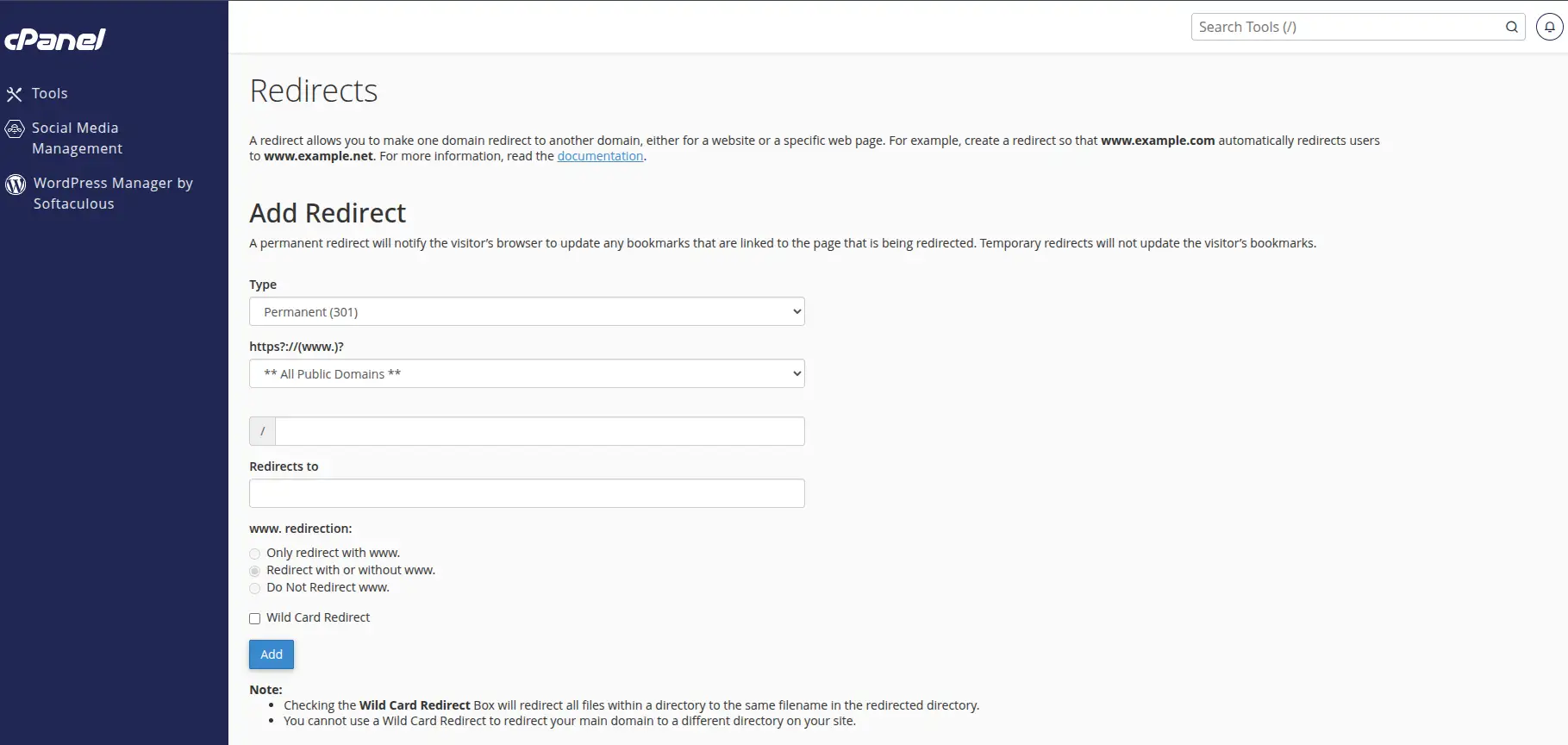
The Redirects tool sends visitors from one domain or URL to another.
It’s useful when you move a website, rename a page or retire an old address.
The form asks for the redirect type, the domain, the path and the destination.
It also lets you choose whether to include www versions and whether to use a wildcard.
i) Permanent 301 redirects
Use a 301 redirect when a page or website has moved for good. For example, you might redirect oldexample.com to newexample.com.
Search engines can update their records to reflect a permanent move, so the new address can take over the old one’s place in search results over time.
Browsers also remember 301 redirects, so test with care before you save one.
Update your internal links and your sitemap after a move too.
ii) Temporary 302 redirects
Use a 302 redirect when something is only available at another address for a while.
A typical case is sending visitors to a maintenance page during an update.
The difference is intent.
A 302 tells browsers and search engines the original address will come back, so they shouldn’t replace it.
Switch it off once the work is done, so visitors reach the real page again.
iii) Wildcard redirects
A wildcard redirect forwards every URL on one domain to the matching path on another.
Imagine a website moving from olddomain.com to newdomain.com.
A visitor who opens olddomain.com/about lands on newdomain.com/about, not on the home page.
That keeps your page structure intact and saves visitors from hunting for content.
It also helps keep old links from other websites working.
iv) Redirecting www and non-www versions
A site can open with or without the www prefix. Pick one preferred version and redirect the other to it.
A consistent address avoids duplicate versions of your site and keeps links tidy.
HTTPS redirection is also available through the Domains interface on supported configurations.
It sends visitors from the insecure address to the secure one.
Turn it on once your SSL certificate is working, or visitors may see a security warning.
One caution.
The Redirects tool may not work as expected when a third-party application or CMS manages conflicting redirect rules.
WordPress plugins, for example, can set their own rules.
In that case, set up redirects through the application, or in the .htaccess file instead.
4) Dynamic DNS: Manage Domains With Changing IP Addresses
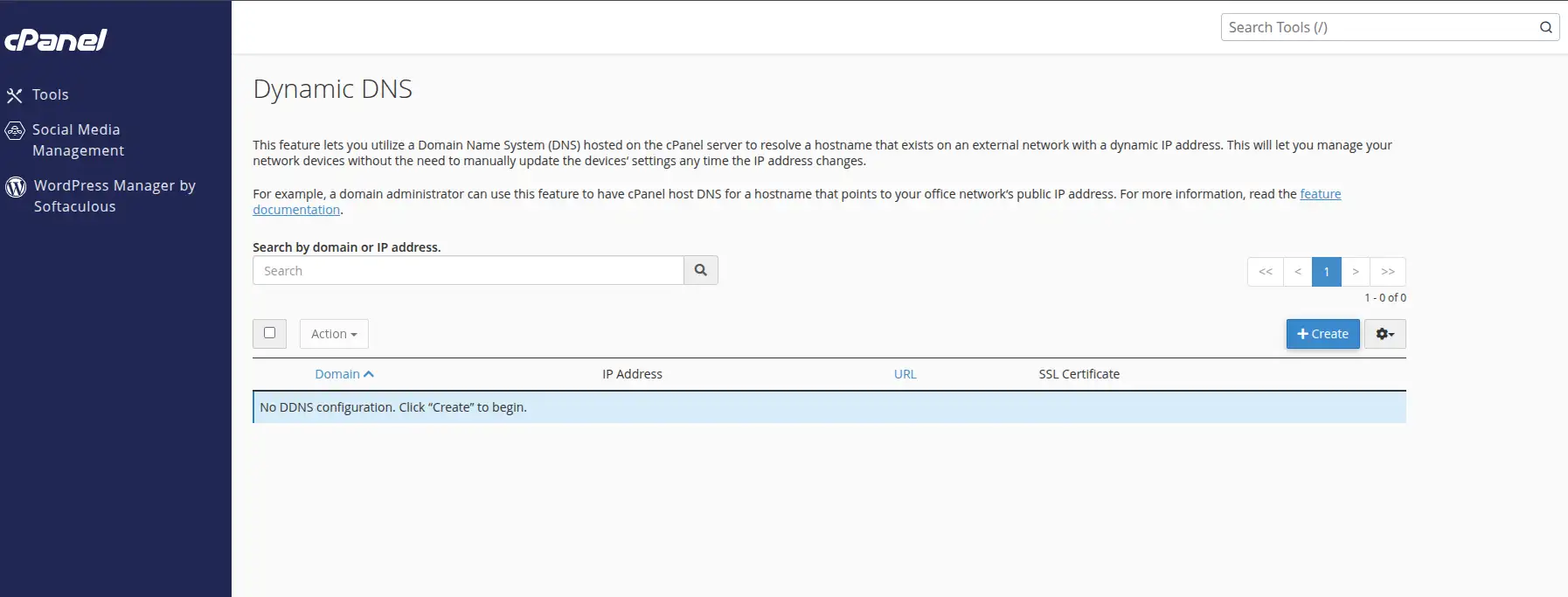
Dynamic DNS, or DDNS, keeps a hostname pointed at an address that changes. Ordinary DNS assumes the address stays put.
Here’s the background.
A static IP address stays the same.
A dynamic IP address can change when your router restarts or your internet provider reassigns it.
DDNS updates the hostname automatically when the network’s IP address changes, so the name keeps working.
People use it to reach a home server or a network device remotely.
A security camera or a small office router are typical examples.
Most ordinary business websites don’t need it, because hosting servers use fixed addresses.
If you run a normal website on shared hosting, you can skip this tool.
DDNS also needs your hosting provider to set up the DNS infrastructure behind it, so it may not be available in every cPanel account.
Manage Your Domains With cPanel Hosting From Truehost
The tools above all sit in one dashboard, and that’s what makes cPanel hosting convenient.
Truehost’s cPanel hosting gives website owners a central place to manage their hosting, including the supported domain and DNS tasks covered in this article.
If you’re new to hosting, cPanel is easy to learn. Most tasks follow the same pattern: pick the domain, choose the folder, then save. Support can help if a record or a redirect doesn’t behave.
According to Truehost, its cPanel hosting includes:
- cPanel access for managing domains, website files, databases and email
- Hosting capacity for multiple websites, depending on the package you choose
- Free automated SSL certificates
- Daily automatic backups on the Starter plan, with regular backups listed for the other plans
- Free website migration
- One-click application installation
- Hosting support when you need help with your account
Always take a backup before you remove a domain, change nameservers or rewrite redirects.
Truehost lists backups on its plans, so you have a way back if a change goes wrong.
The number of websites depends on the plan. Starter hosts up to 10 websites, Pro hosts up to 30, and Unlimited has no website cap.
That gives you a clear path as you add domains, without moving to a new host each time. That counts if you plan to use addon domains.
If you need hosting with cPanel for one website or several, compare Truehost’s cPanel hosting plans and choose a package based on the number of websites and the resources you need.
Compare Truehost’s cPanel hosting plans and pick the package that fits your websites.