 Web Hosting
 Windows HostingBuilt for Windows apps and websites – stability, speed and flexibility
 Reseller HostingLaunch a hosting business without technical skills or expensive infrastructure
 Affiliate ProgramRefer customers and earn commissions from sales across our platform
 Domain SearchFind and secure a domain name in seconds with our quick lookup tool
 CO ZA Domains
 All DomainsExplore domain names from over 324 TLDs globally – all in one place
 Free Whois Lookup Tool South Africa
 VPS
VPS Website Builder
 Online ShopSet up a sleek eCommerce store with zero coding knowledge
 SSLs
SSLs SupportAccess help articles, how-tos, and everything about our services
 Blog
Blog Contact UsReach our team instantly via live chat or drop us an email
Not every website problem is actually caused by your hosting provider.
Plenty of issues that look like a hosting failure trace back to something else entirely.
DNS misconfiguration, a WordPress plugin, incorrect settings, a sudden traffic spike, an expired domain, an SSL hiccup, or simply running out of server resources can all look identical from the outside.
Knowing which is which saves a lot of wasted time staring at the wrong dashboard.
This guide walks through the most common hosting-related problems.
For each one, we’ll cover what typically causes it and exactly what to check before assuming the worst.
Table of Contents
1) Website Is Not Loading
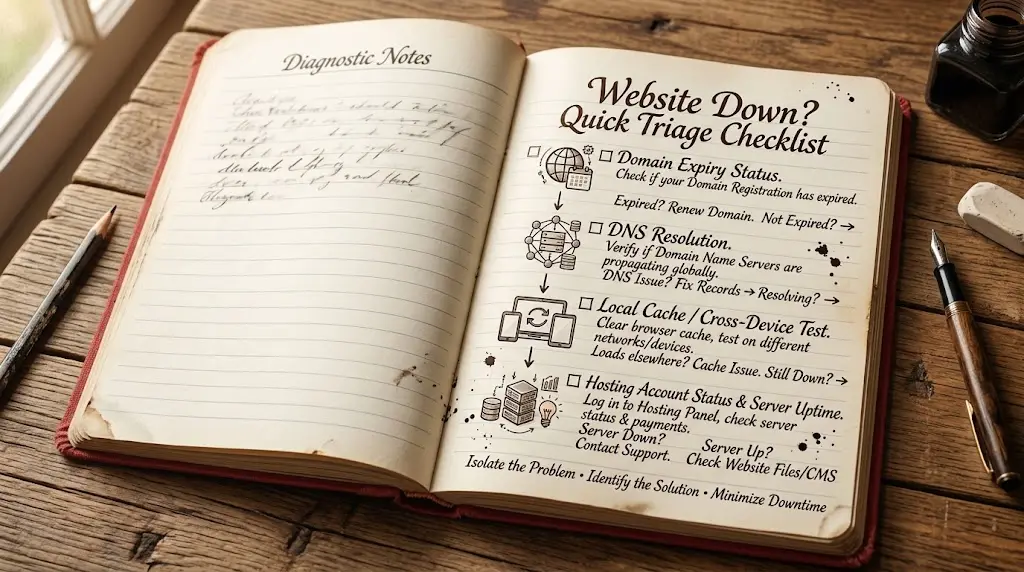
This is one of the most alarming hosting problems.
That’s mostly because it can stem from so many different causes.
DNS might not be pointing to the correct server.
The domain itself may have expired.
The hosting account could be suspended, often over a missed payment.
The server might be temporarily unavailable. DNS records could simply be wrong.
Website files might be missing after a failed update or migration. Or the database connection could be failing entirely.
What to Check:
- Run through a simple sequence.
- Check whether the domain is still active and hasn’t expired.
- Check your DNS records to confirm they’re pointing where they should.
- Try loading the website on a different network or device, since local caching can make a working site look broken.
- Log in and check your hosting account status directly.
- Check whether your provider is reporting a known outage before assuming the problem is unique to your site.
2) Website Is Loading Slowly
Slow websites aren’t always the host’s fault, even though that’s usually the first thing blamed.
Common causes include too many plugins running simultaneously, large unoptimized images, and a poorly optimized WordPress setup in general.
Genuinely insufficient server resources for your traffic can cause it too.
So can a sudden spike in visitors, database queries that have grown inefficient over time, missing caching, or slow-loading third-party scripts pulling in ads or analytics.
How to Troubleshoot:
- Start by checking your resource usage in your hosting control panel to see if you’re consistently near a limit.
- Optimize your images, since compressing them can shave real weight off page load.
- Enable caching if it isn’t already active.
- Remove plugins you’re not actively using. Keep WordPress core, themes, and plugins updated.
If resources are consistently maxed out despite these fixes, that’s a genuine sign to consider upgrading your hosting plan rather than continuing to patch around the ceiling.
3) 500 Internal Server Error
A 500 error is a generic signal that something went wrong on the server. It doesn’t specify exactly what.
Common causes include PHP errors in your code, plugin conflicts, an incorrectly configured .htaccess file, wrong file permissions, hitting resource limits, or database problems.
How to Fix a 500 Error:
- Start by checking what changed recently, a new plugin, a theme update, a manual file edit.
- Review your server’s error logs, which usually point directly at the source.
- Disable any recently installed plugins to see if the error clears.
- Check that your PHP version is compatible with your site’s current theme and plugins.
- If none of that resolves it quickly, restoring a recent working backup is often the fastest path back to a functioning site.
4) DNS Problems
DNS determines where your domain actually sends visitors.
So a DNS issue can make an otherwise perfectly healthy website look completely broken.
Common problems include incorrect nameservers pointing away from your actual host, a wrong A record, or a missing CNAME record.
DNS changes that simply haven’t propagated yet, or conflicting records fighting each other in the same zone, cause plenty of trouble too.
Checking your DNS zone directly, comparing it against what your hosting provider expects, is usually the fastest way to spot which of these is the actual culprit.
5) SSL Certificate Problems
SSL issues tend to show up as a handful of recognizable symptoms. A “not secure” browser warning. An expired certificate.
A certificate that doesn’t match the domain it’s serving. An HTTPS redirect that isn’t working correctly.
Or mixed content warnings, caused by some page resources loading over HTTP while the rest load over HTTPS.
- Confirm SSL is actually installed on the domain in question.
- Check that the certificate covers both the root domain and any relevant subdomains, like www.
- Make sure the site actually loads over HTTPS rather than defaulting back to HTTP.
- Update any hardcoded HTTP links scattered through your site’s content or theme files.
- Check that your HTTPS redirect rules are configured correctly rather than conflicting with each other.
6) Website Email Isn’t Working
This one counts for a lot on business websites specifically. A broken inbox can mean missed customer inquiries.
Common causes include incorrect MX records, a mailbox that’s hit its storage limit, or incorrect email client settings.
SPF, DKIM, or DMARC misconfiguration can cause it too, along with recent DNS changes that haven’t fully propagated, overly aggressive spam filtering, or an expired hosting account or domain quietly cutting off mail delivery.
Checking your MX records and mailbox storage first tends to catch the majority of these issues quickly.
7) Hosting Account Has Run Out of Storage

Storage gets consumed by more than just your website files. Images, videos, backups, email and its attachments, server logs, cached files, and old, forgotten website files from a previous version can all quietly eat into your allocation over time.
How to Free Up Storage:
- Remove files you no longer need.
- Delete outdated backups that have piled up.
- Clean out old emails, particularly ones with large attachments.
- Optimize your media files.
- Remove plugins and themes you’re not actively using.
If you’ve genuinely outgrown your current allocation despite a proper cleanup, upgrading to a higher storage tier is the sensible next step.
8) Database Connection Errors
This one shows up particularly often on WordPress and other CMS-driven websites.
They rely on a live database connection for essentially every page load.
Common causes include incorrect database credentials, a temporary issue on the database server itself, a corrupted database, hitting database resource limits, or a configuration error somewhere in the connection settings.
How to Troubleshoot:
- Keep this simple and cautious.
- Double-check your database credentials match exactly what’s configured in your site’s connection settings.
- Check whether your hosting provider is reporting any database server issues.
- Importantly, create a backup before making any changes to your database directly.
- Database repairs can go wrong just as easily as they can go right.
9) WordPress Problems Caused by Hosting
Sometimes WordPress issues genuinely trace back to the hosting environment rather than WordPress itself.
This includes PHP version incompatibility between your WordPress install and what the server is running, and memory limits that are too low for your site’s actual needs.
Plugin conflicts that only surface under specific server configurations, theme issues tied to server settings, general resource exhaustion, database problems, and incorrect file permissions blocking WordPress from writing updates or uploads correctly all fall into this category too.
Checking your PHP version and memory limit settings in your hosting control panel is a good first step whenever WordPress starts behaving strangely without an obvious plugin or theme cause.
10) Website Keeps Going Offline
It’s worth drawing a clear line here between an occasional, brief error and genuinely repeated downtime.
These point toward very different problems.
Possible causes include server outages on your host’s end, resource exhaustion from your own site, sudden traffic spikes overwhelming available capacity, application crashes, DNS problems, or poorly configured scripts consuming more resources than intended.
What to Check Before Contacting Your Host:
- Check your hosting provider’s status page for known outages.
- Review your resource usage for signs of exhaustion.
- Check your error logs for repeated, specific error messages.
- Think back on any recent changes made to the site.
- Check your DNS configuration.
- Review recently installed or updated plugins and themes, since these are common sources of instability.
11) Hosting Resource Limits

This is worth knowing on its own.
A lot of users hit an error without realizing why it’s actually happening.
Hosting resource limits cover several distinct things: CPU allocation, RAM, the number of entry processes allowed to run simultaneously, I/O (input/output) capacity, storage space, inodes (the total number of files your account can hold), and database resources.
Each of these is a separate, finite limit.
Hitting any one of them can produce an error or slowdown even when the others look perfectly fine.
Knowing which specific resource you’re bumping against makes troubleshooting considerably faster than guessing.
12) Website Shows “Bandwidth Limit Exceeded”
Bandwidth refers to how much data your site transfers to visitors over a given period.
It’s worth being clear about the difference between bandwidth and your other resource limits. CPU, RAM, and general server resources are entirely separate things from bandwidth.
A site can be well within its bandwidth allowance while still struggling due to CPU or RAM constraints instead.
This distinction is genuinely useful to know.
A hosting plan advertising unlimited bandwidth doesn’t automatically mean unlimited server resources across the board. Unlimited bandwidth addresses data transfer specifically.
It says nothing about how much processing power or memory your account actually has available.
13) FTP or cPanel Isn’t Working
Access problems here usually trace back to a handful of common causes.
An incorrect username or password. The wrong FTP host address.
An incorrect port number. Account-level permission restrictions.
A firewall or network restriction blocking the connection. Or the hosting account itself being suspended or inactive.
Double-checking your login credentials and the exact FTP host address your provider issued is usually the fastest way to rule out the simplest explanation first.
14) Website Problems After a Hosting Migration
This is a genuinely useful one for anyone who’s recently moved between hosts.
Common post-migration issues include DNS still pointing to the old host, and missing files that didn’t transfer completely.
A missing or incompletely imported database causes plenty of headaches too, along with incorrect database credentials left pointing at the old server, broken email due to MX records not being updated, SSL certificate issues on the new server, PHP version differences between the old and new hosting environment, and incorrect DNS records generally.
A simple migration checklist helps catch most of these before they become a real problem.
Confirm DNS is fully updated and pointing to the new host.
Verify all files transferred completely.
Confirm the database imported correctly and credentials match. Test email specifically rather than assuming it works.
Check SSL is active and covers the right domains. Confirm your PHP version on the new host matches what your site actually needs.
Fix the Problem Before It Becomes a Bigger One
Most hosting problems fall into a handful of recognizable categories.
DNS misconfiguration, resource limits, SSL issues, and database errors cover most of what goes wrong.
So do leftover problems from a recent change or migration.
Work through the checks above systematically. Guessing wastes time.
A systematic approach resolves most issues without needing to escalate to your provider’s support team at all.
When you do need to reach out, ruling out the obvious causes first gets you a faster, more useful answer.
Of course, the best fix for a hosting problem is not running into it in the first place. Truehost’s hosting is built to cut down on exactly the issues covered above.
That means reliable uptime, generous resources, and free SSL that’s actually configured correctly from the start.
Daily backups come standard too. So does real 24/7 support when something does come up.
Tired of chasing down hosting problems on your current plan?
Switch to Truehost and get hosting that’s genuinely built to just work.