 Web Hosting
 Windows HostingBuilt for Windows apps and websites – stability, speed and flexibility
 Reseller HostingLaunch a hosting business without technical skills or expensive infrastructure
 Affiliate ProgramRefer customers and earn commissions from sales across our platform
 Domain SearchFind and secure a domain name in seconds with our quick lookup tool
 CO ZA Domains
 All DomainsExplore domain names from over 324 TLDs globally – all in one place
 Free Whois Lookup Tool South Africa
 VPS
VPS Website Builder
 Online ShopSet up a sleek eCommerce store with zero coding knowledge
 SSLs
SSLs SupportAccess help articles, how-tos, and everything about our services
 Blog
Blog Contact UsReach our team instantly via live chat or drop us an email
You have a domain, and you have hosting, but the two are not talking to each other yet.
Visitors typing in your domain either see nothing at all, or they land on the wrong page entirely.
This is a common situation, and the fix involves two separate steps that people often mix up.
Learning how to add a domain in cPanel actually covers two distinct tasks.
The first is adding the domain to your hosting account itself.
The second is pointing that domain’s DNS toward the correct hosting server.
Skipping either step leaves you with a domain that looks connected but does not actually work.
In this guide, you will walk through both parts of the process.
We will cover adding the domain inside cPanel, pointing its DNS correctly, checking that everything works, and troubleshooting the issues that come up most often along the way.
Table of Contents
What You Need Before Adding a Domain to cPanel
Before you get started, make sure you have the following ready:
- A registered domain name that you own or manage
- An active cPanel hosting account
- Access to your domain registrar account
- Your cPanel login details
- Your hosting provider’s nameservers or server IP address
- A separate directory ready, if the domain will host its own independent website
It helps to know that cPanel itself generally does not register, renew or transfer domains.
Those functions are normally handled through your domain registrar or your hosting provider directly.
cPanel’s job is to manage how your hosting account handles the domain once it has been registered elsewhere.
How to Add a Domain to cPanel
This is the main part of the process, so let’s walk through it step by step.
1) Log In to cPanel
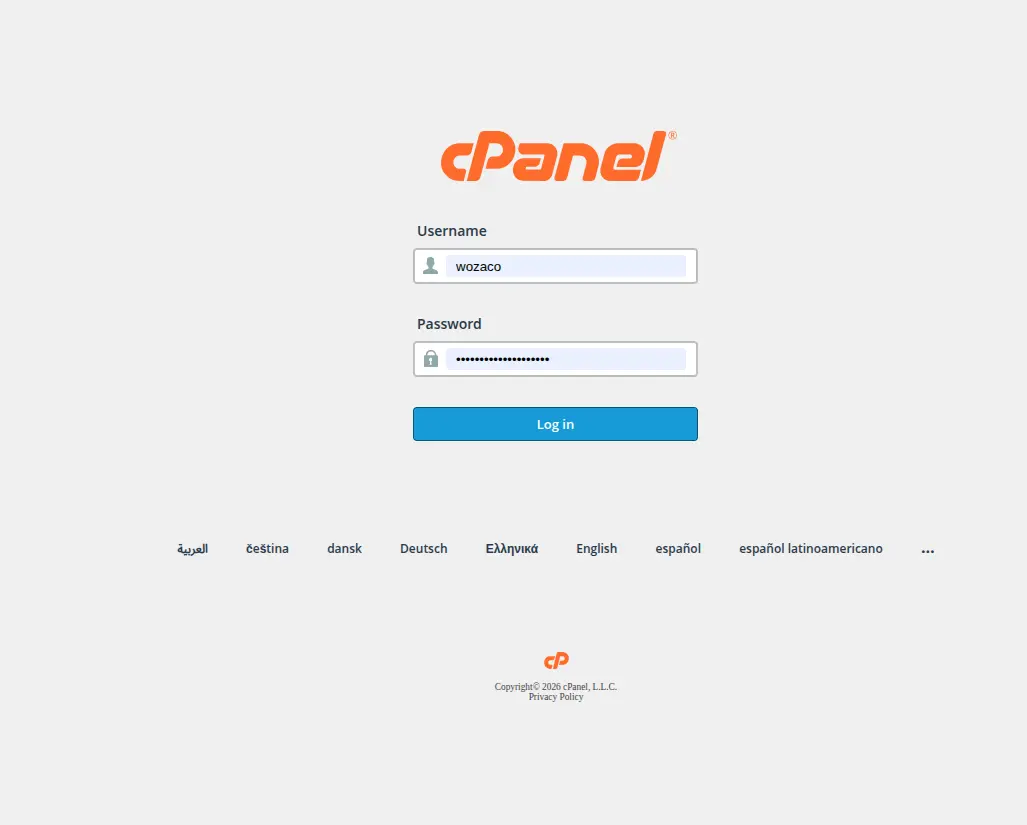
Start by opening the cPanel login page provided by your hosting company.
This is usually accessible through a link in your welcome email, or by adding /cpanel to the end of your domain or server address.
Sign in using your username and password, then look for the Domains section on your dashboard.
2) Open the Domains Interface
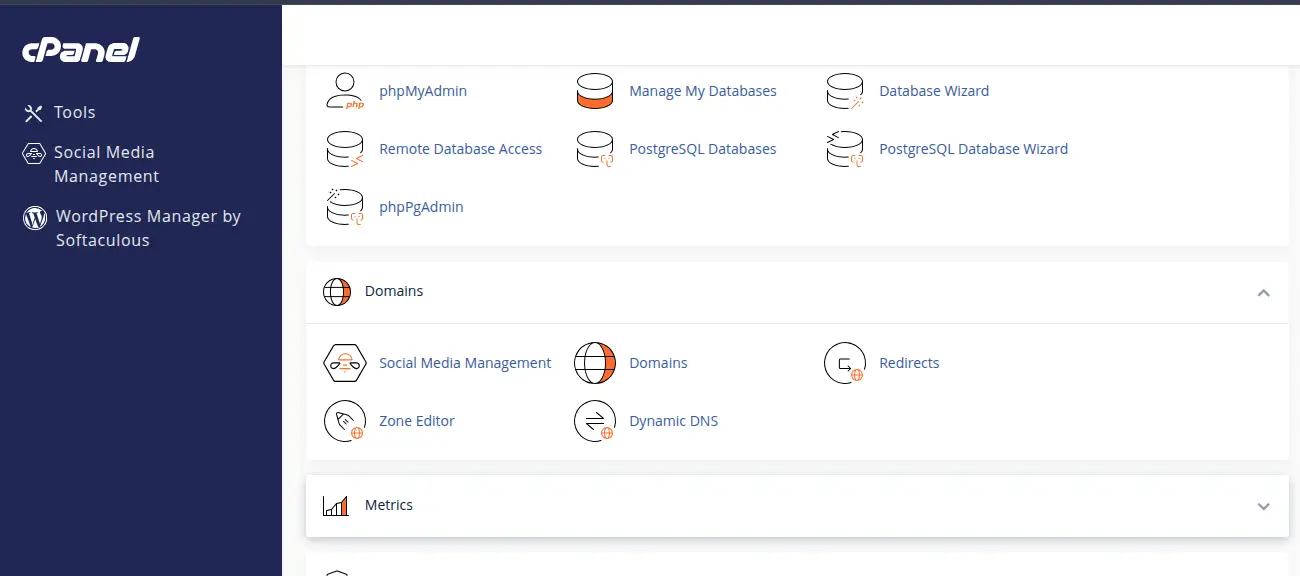
From your cPanel dashboard, go to Domains, then select Create a New Domain.
Newer versions of cPanel tend to use this unified Domains interface, rather than the separate Addon Domains button found in older versions.
If your hosting account uses an older cPanel layout, look for Addon Domains instead, since the underlying process works the same way either way.
3) Enter Your Domain Name
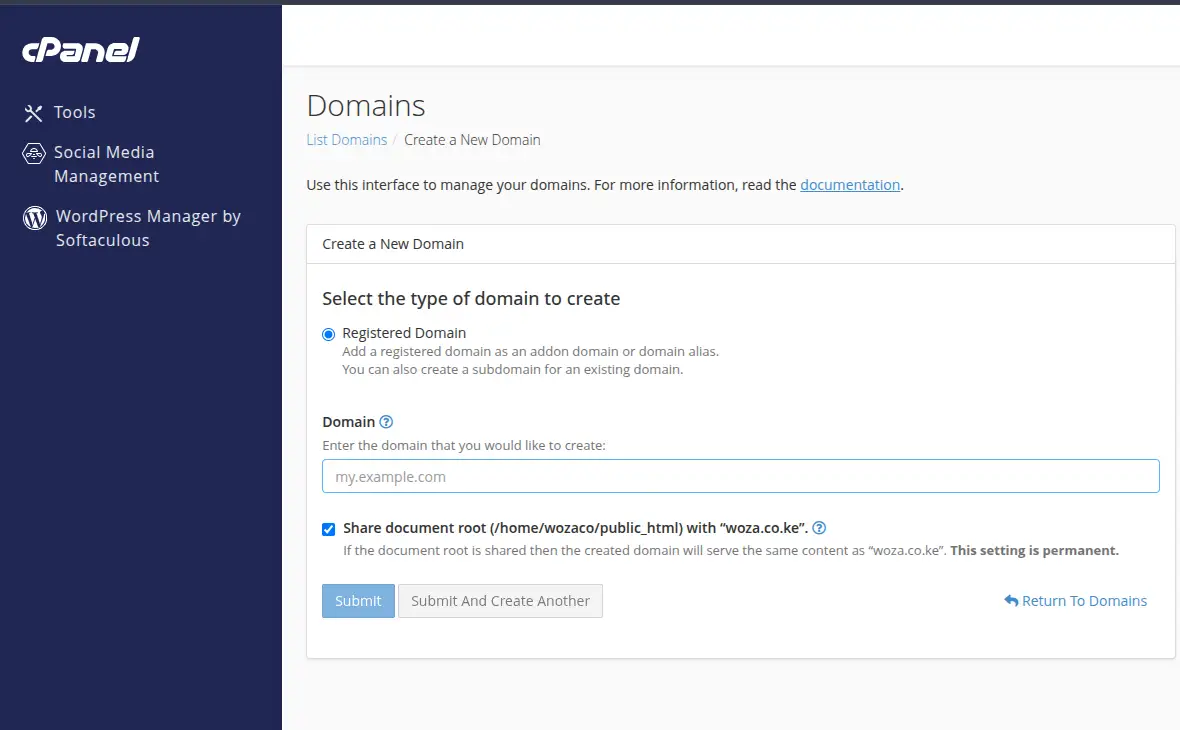
Type in your registered domain, using the full domain name such as example.com.
Double check for typos here, since even a small mistake can cause confusion later.
If the domain is already associated with another cPanel account, you will likely see an error message, since a single domain generally cannot be actively managed by two separate hosting accounts at the same time.
4) Choose the Document Root
The document root is the specific folder on your server where your website files will live for this domain.
If you want the new domain to host a completely different website from your main one, you should use a separate directory rather than sharing your primary document root.
Sharing the document root usually causes both domains to display the exact same content, which is rarely what people actually want.
cPanel allows you to set or adjust the document root directly during the domain creation process, so take a moment to confirm it points to the right folder before continuing.
5) Create the Domain
Once everything looks correct, click Submit or Create to finish adding the domain.
After this, confirm that the domain now appears in your Domains list inside cPanel.
It is worth being clear that adding the domain to cPanel does not automatically mean it is already resolving to your website.
This step only tells your hosting account to expect and handle that domain.
The domain still needs its DNS pointed correctly before visitors can actually reach your site.
How to Point Your Domain to Your cPanel Hosting
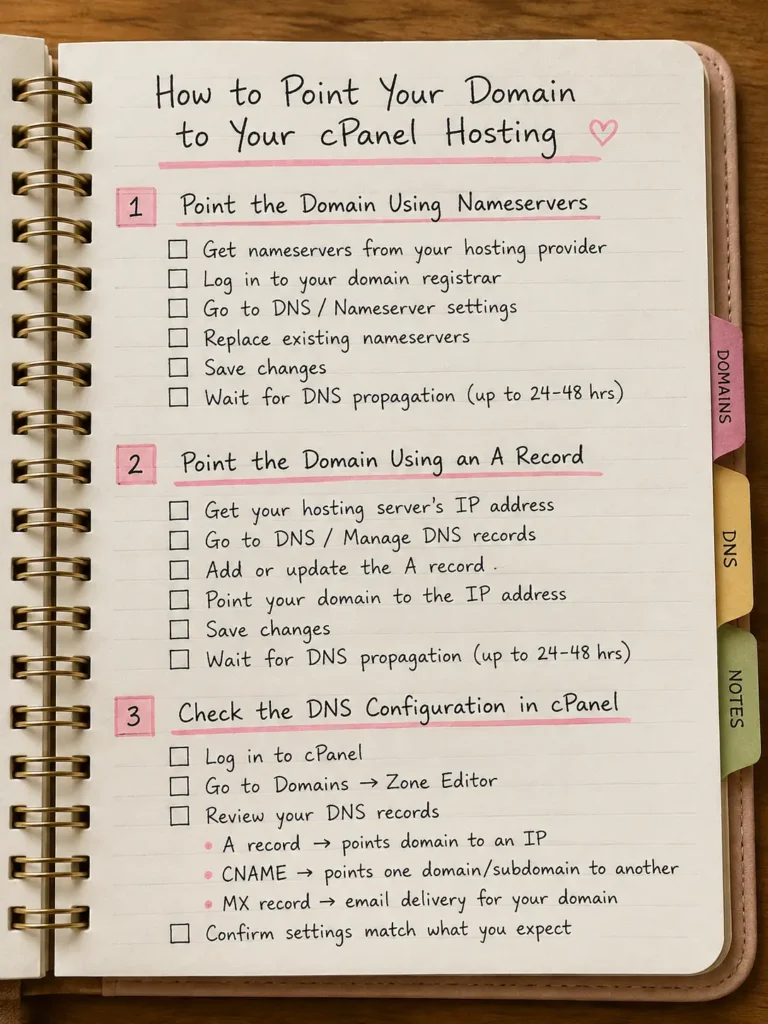
Once your domain has been added inside cPanel, the next major step is making sure its DNS actually points to your hosting server.
1) Point the Domain Using Nameservers
Start by finding the nameservers provided by your hosting company.
These are usually listed in your welcome email or hosting dashboard.
Log in to your domain registrar account, locate the DNS or nameserver settings for your domain, and replace the existing nameservers with the ones your host provided.
Save your changes once this is done.
Keep in mind that DNS changes do not happen instantly.
Propagation can take anywhere from a few minutes to around 24 to 48 hours, depending on your registrar and various factors outside your control.
2) Point the Domain Using an A Record
An A record may be preferable if you want to keep your existing nameservers in place, perhaps because you are using them for email or other services elsewhere.
To do this, find your hosting server’s IP address, then add or update the domain’s A record at your registrar to point directly to that IP.
The difference here comes down to scope.
Changing nameservers hands over DNS management entirely to your host, while changing an individual A record adjusts just one specific setting while leaving the rest of your DNS configuration untouched.
3) Check the DNS Configuration in cPanel
Inside cPanel, go to Domains, then Zone Editor.
This tool lets you manage DNS records directly through cPanel, when your hosting provider permits it.
Without turning this into a full DNS tutorial, it helps to know the basics: A records point a domain to an IP address, CNAME records point one domain or subdomain to another, and MX records direct where email for that domain should be delivered.
Checking these settings in Zone Editor can help confirm your configuration matches what you expect.
How to Check If Your Domain Is Working
Once you have completed the steps above, it helps to verify everything is actually working correctly.
1) Open the Domain in a Browser
Type your domain directly into a browser and check whether the correct website loads.
This is the simplest and most direct test available to you.
2) Check HTTPS
Confirm that your site loads securely over HTTPS, rather than showing a warning or defaulting to HTTP.
If SSL is not active yet, you may need to install a certificate through cPanel before HTTPS will work properly.
3) Check the DNS Records
Use a DNS lookup tool, or check directly inside cPanel’s Zone Editor, to confirm the domain is resolving to your intended hosting server rather than an old or incorrect address.
4) Check the Document Root
Make sure the correct website files actually live inside the directory assigned to your domain.
A domain can resolve correctly and still show the wrong content if the document root points to the wrong folder.
5) Use a DNS Propagation Checker
If your domain still is not loading correctly after adding it, a DNS propagation checker can help.
These free online tools show you how your domain currently resolves across different locations and DNS servers around the world.
Since propagation does not happen everywhere at once, it is common to see your domain working correctly in one region while still showing old results in another.
Waiting a little longer, then checking again, usually resolves this on its own.
Common Problems When Adding a Domain to cPanel
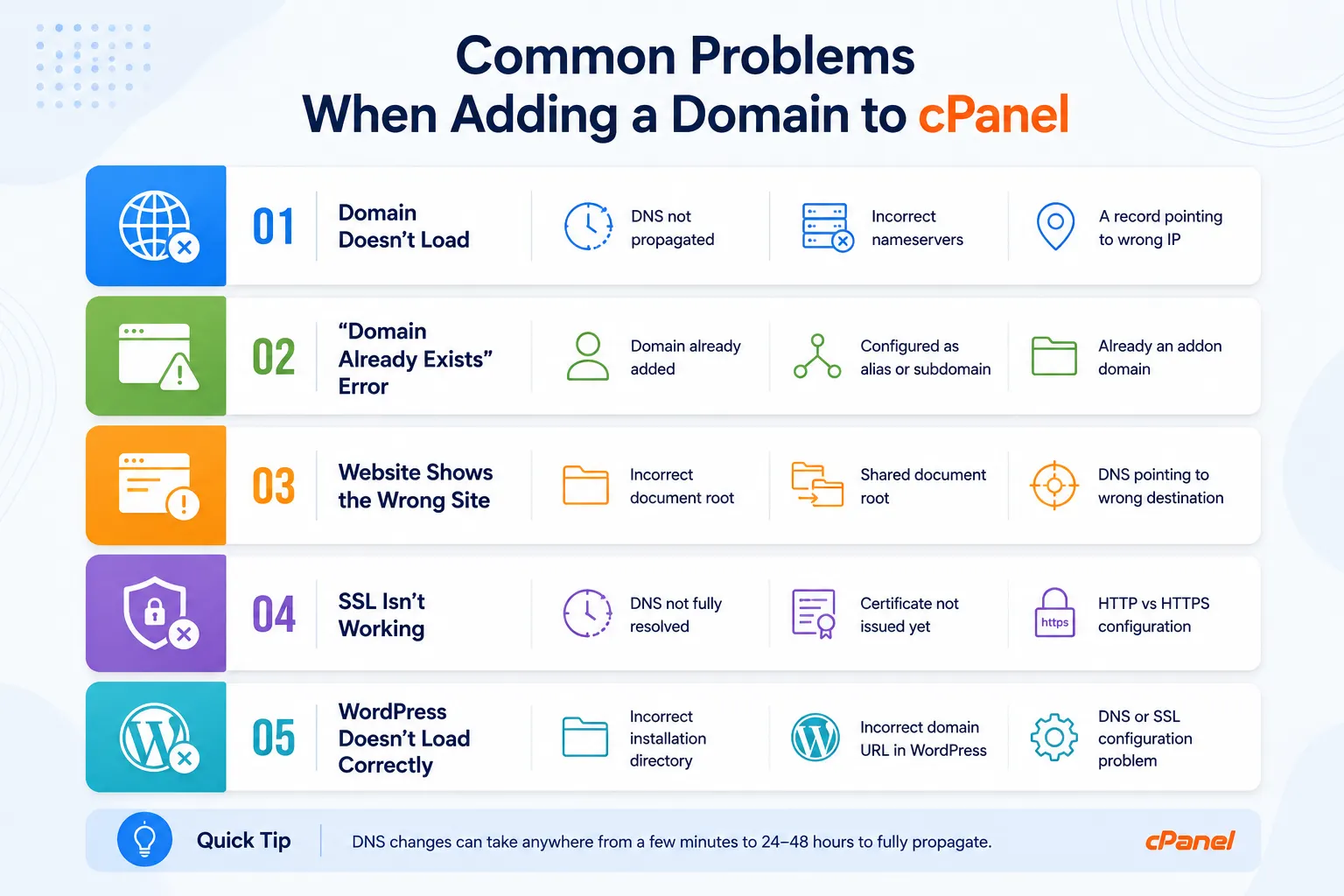
A handful of issues come up repeatedly, so it helps to know what typically causes them.
1) Domain Doesn’t Load
This is usually caused by DNS that has not finished propagating yet, incorrect nameservers at your registrar, or an incorrect A record pointing to the wrong IP address.
2) “Domain Already Exists” Error
This error generally means the domain is already attached to your hosting account in some form.
It could already be configured as an alias, a subdomain, or a separate addon domain elsewhere in your account.
3) Website Shows the Wrong Site
This is often caused by an incorrect document root, a shared document root between two domains, or DNS pointing to the wrong destination entirely.
4) SSL Isn’t Working
SSL issues typically trace back to DNS that has not finished resolving, a certificate that has not been issued yet, or an HTTP versus HTTPS configuration that needs adjusting.
5) WordPress Doesn’t Load Correctly
This usually comes down to an incorrect installation directory, an incorrect domain URL set inside WordPress itself, or a DNS or SSL configuration problem affecting the domain.
Connect Your Domain to cPanel
Getting a domain fully working comes down to two connected steps: adding the domain inside cPanel, then pointing its DNS to the correct hosting server.
Skip either one, and your domain will not resolve properly, regardless of how carefully you completed the other step.
Once DNS resolves correctly, your domain becomes ready to use for WordPress, email and any other website services tied to your hosting account.
At that point, the technical setup is done, and you can focus on building out the actual site.
If you would rather not handle all of this manually, Truehost South Africa’s cPanel hosting plans are worth considering.
Even on entry-level plans, Truehost currently advertises support for multiple domains, free SSL, daily backups and free website migration, which takes a lot of the guesswork out of connecting a new domain.
This kind of setup suits users who want reliable hosting and domain support without piecing together a complicated configuration on their own.
Frequently Asked Questions
Can I add a domain to cPanel without buying hosting?
No. cPanel is a hosting management tool, so you need an active hosting account before you can add a domain to it.
Can I add multiple domains to one cPanel account?
Yes, in most cases. Many hosting plans allow multiple domains on a single cPanel account, though limits can vary depending on your specific plan.
What is an addon domain in cPanel?
An addon domain is a separate domain hosted within the same cPanel account as your primary domain, typically used to host a completely independent website.
How long does it take for a domain to work after adding it to cPanel?
It depends largely on DNS propagation, which can take anywhere from a few minutes up to around 48 hours after making changes at your registrar.
Do I need to change nameservers when adding a domain to cPanel?
Not always. You can either change nameservers or update individual DNS records like the A record, depending on your setup and preferences.
Can I add a domain registered with another company to cPanel?
Yes. Your domain registrar and your hosting provider do not need to be the same company, as long as you can access your registrar’s DNS settings to point the domain correctly.
Why is my domain not showing in cPanel?
This usually means the domain was not fully added during setup, or an error occurred during the creation process. Check your Domains list and try adding it again if needed.
Can I install WordPress on an addon domain?
Yes. Addon domains can host their own independent WordPress installation, separate from your primary domain’s website.