 Web Hosting
 Windows HostingBuilt for Windows apps and websites – stability, speed and flexibility
 Reseller HostingLaunch a hosting business without technical skills or expensive infrastructure
 Affiliate ProgramRefer customers and earn commissions from sales across our platform
 Domain SearchFind and secure a domain name in seconds with our quick lookup tool
 CO ZA Domains
 All DomainsExplore domain names from over 324 TLDs globally – all in one place
 Free Whois Lookup Tool South Africa
 VPS
VPS Website Builder
 Online ShopSet up a sleek eCommerce store with zero coding knowledge
 SSLs
SSLs SupportAccess help articles, how-tos, and everything about our services
 Blog
Blog Contact UsReach our team instantly via live chat or drop us an email
No, you don’t need cPanel for WordPress.
WordPress runs perfectly well without it, and plenty of WordPress sites do exactly that every day.
The confusion usually comes from three separate things getting blended together.
WordPress is the software you use to build and manage your website, the thing you log into to write posts, edit pages, and install themes.
Web hosting is the server where that WordPress software actually runs and where your site’s files and database live.
And cPanel is a control panel, a dashboard that helps you manage parts of that hosting environment, like files, databases, email, and domains.
They’re related, but they’re three distinct layers, and only the first two are strictly required.
So why do so many people assume WordPress needs cPanel?
Mostly because a huge number of traditional shared hosting providers use cPanel as their standard control panel, and it makes tasks like installing WordPress, managing files, setting up databases, handling domains, and creating email accounts genuinely easier.
If your first WordPress site was built on a cPanel host, it’s natural to associate the two, even though cPanel itself was never part of WordPress’s requirements.
The tutorials, YouTube walkthroughs, and hosting guides most beginners find first almost all assume a cPanel environment, which reinforces the impression that the two come as a package.
Table of Contents
Do I Need cPanel for WordPress?
The straightforward answer is still no.
What WordPress actually requires from its hosting environment is a fairly short list, and cPanel isn’t on it.
| WordPress Needs | Is cPanel Required? |
|---|---|
| PHP | No |
| MySQL/MariaDB | No |
| HTTPS | No |
| Web server | No |
| Domain | No, but needed for a typical public website |
| Hosting | Yes |
WordPress’s own current requirements recommend a host supporting PHP 8.3 or greater, MariaDB 10.11 or greater or MySQL 8.0 or greater, and HTTPS support, along with Apache or Nginx as the web server.
WordPress itself notes that any server supporting PHP and MySQL will do. cPanel doesn’t appear anywhere in that list.
As long as the underlying hosting environment provides what WordPress needs, the control panel sitting on top is a convenience choice, not a technical requirement.
What Does cPanel Do for WordPress?
If cPanel isn’t required, why do so many WordPress site owners still prefer it?
Because it genuinely makes several common tasks easier, particularly for beginners who don’t want to manage a server from a command line.
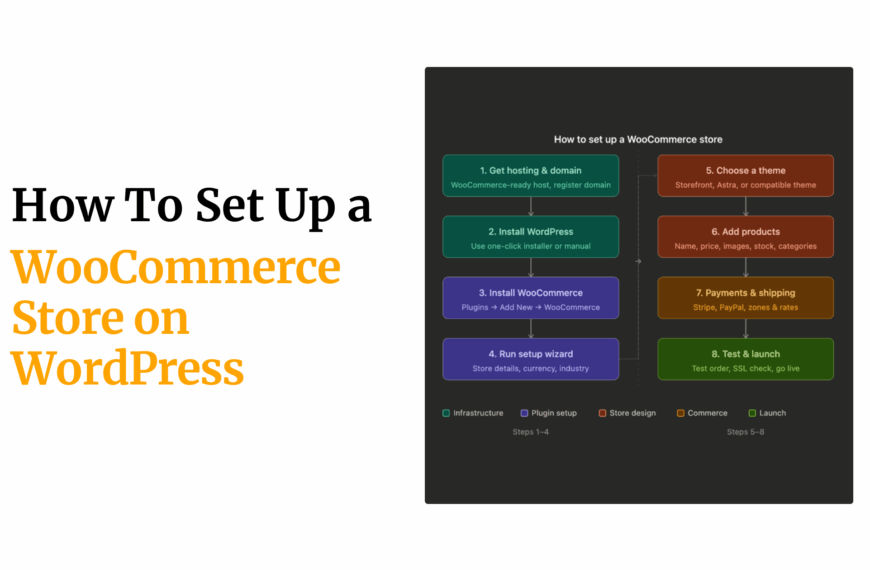
a) Install WordPress
cPanel can simplify WordPress installation considerably through tools like WP Toolkit, when the hosting provider has it enabled.
cPanel’s current documentation shows WordPress installation handled through cPanel → Domains → WP Toolkit.
Which walks you through setting up a fresh install, choosing where it lives, and creating your admin login, all without manually uploading files or creating a database yourself.
Without a tool like this, installing WordPress manually means downloading the software, uploading it to the right folder on your server, creating a database and database user, editing a configuration file to connect everything together, and then running the installer in your browser.
None of that is impossible, but for a beginner it’s a lot of steps where a small mistake can leave you staring at an error page.
A one-click installer collapses all of it into a short form.
b) Manage WordPress Files
cPanel’s File Manager gives you direct, browser-based access to your site’s files.
So you can upload new files, edit existing ones, move things around, and adjust file permissions without needing a separate FTP application.
This comes in handy for troubleshooting, say, replacing a broken plugin folder, uploading a theme manually, or fixing a configuration file that’s causing errors.
c) Create and Manage Databases
WordPress stores all of its content, posts, pages, settings, and user data, in a database.
cPanel gives you access to MySQL database management and phpMyAdmin.
Which let you create databases, create database users, and directly inspect or repair database contents when something goes wrong.
For day-to-day WordPress use, you rarely need to touch this directly, but it’s there when you do.
d) Manage Domains and Subdomains
cPanel lets you add domains to your hosting account, create subdomains, adjust DNS-related settings, and manage the directories those domains point to.
If you’re running more than one WordPress site on the same hosting account, or setting up something like a separate blog on a subdomain, this is where all of that gets handled.
e) Manage SSL
A hosting control panel can simplify HTTPS certificate management considerably, since it handles issuing, installing, and renewing SSL certificates, often automatically.
Since WordPress itself requires HTTPS support, having a control panel that makes SSL straightforward removes one of the more technical, error-prone parts of setting a site up properly.
f) Manage Email
Beyond WordPress itself, many site owners want a professional email address tied to their domain.
cPanel handles creating email accounts, setting up forwarders so messages reach an existing inbox, configuring autoresponders for automatic replies, and accessing webmail directly from the browser.
All separate from WordPress but conveniently managed from the same dashboard.
g) Create Backups
cPanel may provide backup tools that let you generate and download copies of your site’s files and databases.
It’s worth being clear that the availability and frequency of backups ultimately depends on the hosting provider, not on cPanel itself.
A cPanel account doesn’t automatically mean automated daily backups are switched on, that’s a decision your host makes about how they configure their service.
For WordPress specifically, a recent backup is the single most useful safety net you can have, since a bad plugin update, a hacked site, or a mistaken edit can all be undone in minutes if a clean copy exists.
Before relying on any host’s backup feature, it’s worth confirming how often it runs, how long copies are kept, and how restoration actually works when you need it.
h) Manage Your Hosting Account Overall
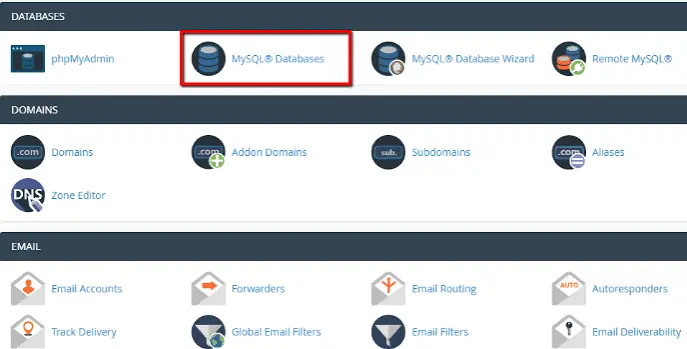
Beyond the individual tools above, cPanel gives you a single place to see your hosting account’s overall health, how much storage you’re using, how much bandwidth, how many databases and email accounts exist, and what resources you have left.
For anyone managing a WordPress site over the long term, having that visibility in one dashboard makes it easier to spot problems like a filling disk before they actually cause an outage.
What Happens If Your WordPress Host Doesn’t Use cPanel?
This isn’t automatically a problem, and it’s worth saying that plainly.
Plenty of hosting providers, including some excellent WordPress-focused ones, use something other than cPanel and still give you everything WordPress needs.
A host without cPanel might provide another control panel entirely, a custom-built hosting dashboard designed around their own platform, or managed WordPress tools that handle updates, caching, and security for you automatically.
They might offer SSH access for developers who prefer working from a command line, FTP or SFTP for transferring files, database management tools for working with your WordPress database directly, and automated WordPress installation that gets a fresh site running in a couple of clicks.
What actually counts is whether the hosting environment meets WordPress’s technical requirements, not which interface you use to manage it.
WordPress itself notes that generic hosting works fine for running WordPress, as long as the required server environment is there.
If a host supports the right PHP version, a compatible database, and HTTPS, WordPress will run, regardless of whether cPanel is part of the picture.
There’s a real trade-off worth being honest about, though.
A custom hosting dashboard might be faster and cleaner than cPanel, but it also means learning a new interface that few tutorials or forum answers will cover specifically.
When something goes wrong at 11pm and you’re searching for a fix, the sheer volume of cPanel-specific guidance available online is a genuine practical advantage over a less common dashboard, even if the underlying hosting is just as capable.
What Should I Look for in WordPress Hosting Instead of cPanel?
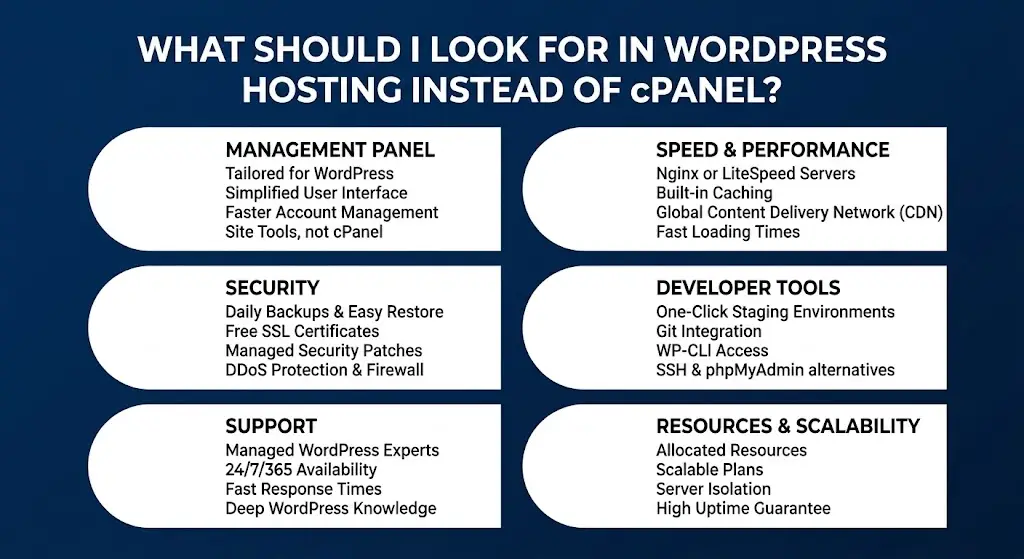
This is where it’s worth shifting your thinking.
Treating does it have cPanel? as your main purchasing criterion can distract from the factors that actually determine how well your WordPress site runs.
Here’s what’s worth checking instead.
- The current PHP version the host supports, since WordPress recommends PHP 8.3 or greater and an outdated PHP version is both a security risk and a performance drag.
- MySQL or MariaDB support at a version WordPress currently recommends.
- HTTPS and SSL, ideally included free and renewed automatically.
- CPU and RAM resources, which determine how your site holds up under real traffic far more than most advertised features do.
- Storage, and what kind, SSD or NVMe being preferable to older drives.
- Backups, including how often they run and how restoration works.
- Overall server performance and uptime.
- Quality of support, particularly WordPress-specific help.
- How easily WordPress itself can be installed.
- Security features.
- Pricing, including what the plan costs at renewal rather than just the introductory rate.
- And how many websites the plan allows, if you’re planning to run more than one.
WordPress’s own requirements make the point nicely.
The hosting environment needs to support the required server software, and cPanel simply isn’t part of that requirement.
A host with cPanel but an outdated PHP version and thin resources is a worse choice than a host without cPanel that gets all of the above right.
It helps to think of cPanel as a feature on a longer checklist rather than the checklist itself.
Ideally, you’re looking for a host that ticks the technical boxes WordPress actually needs and happens to offer cPanel as a convenient way to manage it all.
Rather than one that leads with cPanel as the headline while quietly cutting corners on resources, backups, or support underneath.
Why Choose cPanel Hosting for WordPress?
Everything above points to one fair conclusion: cPanel isn’t required, but that doesn’t make it a bad choice.
For a lot of WordPress site owners, particularly beginners, cPanel hosting is genuinely the more convenient option, and the reasons are worth spelling out.
Plenty of people who start out confident they’ll manage everything through a custom dashboard end up appreciating how much time a familiar, well-documented control panel saves when something unexpected comes up at an inconvenient moment.
The practical reasons someone might choose cPanel hosting for WordPress come down to a handful of everyday conveniences.
- WordPress installation is quick and guided rather than manual.
- File management happens through a clear, browser-based File Manager rather than requiring separate software.
- Database management, including phpMyAdmin access, is built right in.
- Domain management, including adding domains and creating subdomains, sits in one familiar place.
- Email management for professional addresses tied to your domain lives in the same dashboard.
- SSL certificates are generally issued and managed without much manual effort.
- And overall hosting account management, resource usage, limits, and settings, is all visible at a glance.
cPanel’s current WP Toolkit can install and manage WordPress installations directly from the dashboard, handling things like updates, plugin management, and security checks for each install.
It’s worth knowing that availability depends on the hosting provider’s configuration, not every cPanel host enables it the same way, so it’s worth confirming before assuming it’s there.
If that combination of familiarity and convenience sounds like the right fit for your WordPress site, Truehost’s cPanel hosting plans bring all of the above together, with cPanel included as part of the hosting setup.
It’s a practical way to get one familiar dashboard for managing your WordPress site, domains, email, databases, and SSL, without needing to piece together tools from different places.
Explore Truehost’s cPanel hosting plans to see which one fits what your WordPress site actually needs.
Frequently Asked Questions
Can I install WordPress without cPanel?
Yes. Many hosts offer their own one-click installers, custom dashboards, or manual installation through FTP and a database management tool. cPanel is just one of several ways to get WordPress running.
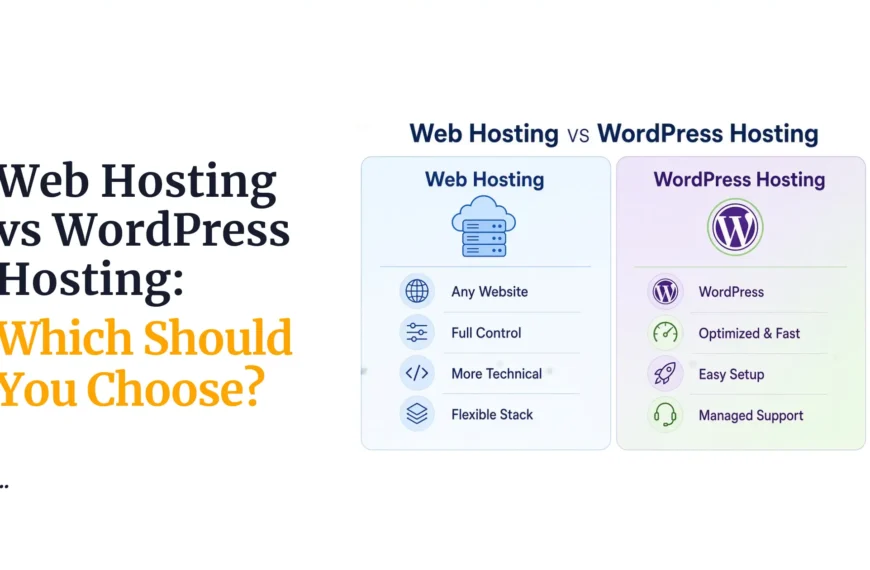
Is WordPress hosting the same as cPanel hosting?
No. WordPress hosting describes hosting set up or optimized for WordPress, while cPanel hosting describes hosting that uses the cPanel control panel. A plan can be one, the other, or both.
Is cPanel better than other hosting control panels for WordPress?
Not necessarily better, but widely familiar. cPanel’s biggest advantage is how many people already know how to use it, along with extensive documentation and broad support for tools like WP Toolkit and Softaculous.
Do I need technical knowledge to use cPanel for WordPress?
Not much for everyday tasks. Installing WordPress, managing files, and creating email accounts are all handled through a visual interface, so beginners can generally get by without touching a command line.
What if my current host doesn’t offer cPanel but I want it?
You can migrate your WordPress site to a cPanel-based host. Most providers, including Truehost, offer migration assistance to help move your files, database, and settings over without rebuilding your site from scratch.