 Web Hosting
 Windows HostingBuilt for Windows apps and websites – stability, speed and flexibility
 Reseller HostingLaunch a hosting business without technical skills or expensive infrastructure
 Affiliate ProgramRefer customers and earn commissions from sales across our platform
 Domain SearchFind and secure a domain name in seconds with our quick lookup tool
 CO ZA Domains
 All DomainsExplore domain names from over 324 TLDs globally – all in one place
 Free Whois Lookup Tool South Africa
 VPS
VPS Website Builder
 Online ShopSet up a sleek eCommerce store with zero coding knowledge
 SSLs
SSLs SupportAccess help articles, how-tos, and everything about our services
 Blog
Blog Contact UsReach our team instantly via live chat or drop us an email
You just logged in to your new VPS over SSH. The prompt blinks. Your provider sent you a public IP address, and your browser tab is empty.
Apache fills that gap. Within about 10 minutes, you can have it installed, running, and responding to requests at your server’s IP address.
Here is the short version. Pick the block that matches your distro.
Ubuntu or Debian
sudo apt update

sudo apt install apache2 -y
AlmaLinux, Rocky Linux, or CentOS
sudo dnf install httpd -y

sudo systemctl enable --now httpd
Those commands install Apache, but they do not finish the job. You still need to open the firewall and verify the result. The sections below cover each step, plus fixes for the most common failures.
Table of Contents
What You Need Before You Install Apache on Your VPS
You need four things before you start:
- A Linux VPS with a fresh install of Ubuntu, Debian, AlmaLinux, Rocky Linux, or CentOS.
- SSH access to the server.
- A user account with sudo rights.
- The server’s public IP address, which your provider shows in its control panel.
Most providers hand you a root login on day one. However, running every command as root is risky. One typo can damage the whole system. Create a sudo user instead.
On Ubuntu or Debian, log in as root and run:
adduser deploy

usermod -aG sudo deploy
On AlmaLinux, Rocky Linux, or CentOS, run:
adduser deploy

passwd deploy

usermod -aG wheel deploy
Replace deploy with any username you like. Then log out and log back in as that user. Every command below starts with sudo, so it works for that account.
Apache2 vs httpd: Same Server, Different Names
This difference confuses many readers. Debian and Ubuntu call the package apache2. The RHEL family calls it httpd. Both install the same Apache HTTP Server. Only the packaging differs.
| Ubuntu / Debian | AlmaLinux / Rocky / CentOS | |
|---|---|---|
| Package name | apache2 | httpd |
| Service name | apache2 | httpd |
| Package manager | apt | dnf (yum on older CentOS) |
| Run-as user | www-data | apache |
This split appears in every command, file path, and log location that follows.
Which Command Set Applies to Your VPS
Check your distro with this command:
cat /etc/os-releaseLook at the ID and ID_LIKE lines. Ubuntu and Debian are part of the Debian family.
AlmaLinux, Rocky Linux, CentOS, and RHEL belong to the RHEL family. Jump to the matching section next and skip the other one.
Install Apache on an Ubuntu or Debian VPS
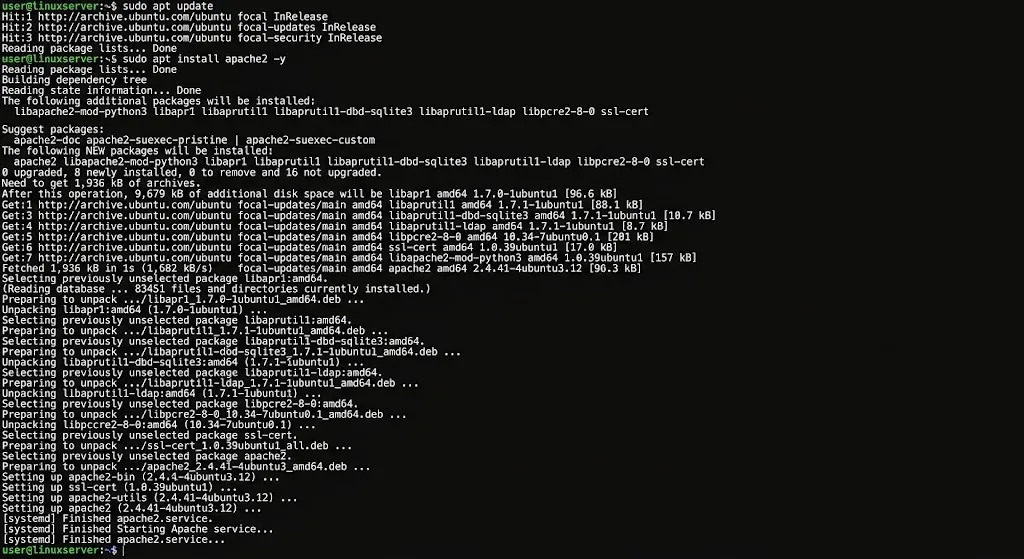
First, refresh the package index. This pulls the latest package versions from your repositories.
sudo apt update

Next, install Apache:

sudo apt install apache2 -y
The package manager installs Apache and its dependencies. The service also starts automatically, which is normal for Debian-family packages.
Now confirm the version:
apache2 -vYou should see output like this:
Server version: Apache/2.4.xx (Ubuntu)The exact number depends on your release. Debian shows (Debian) at the end instead.
Install Apache on an AlmaLinux, Rocky Linux, or CentOS VPS
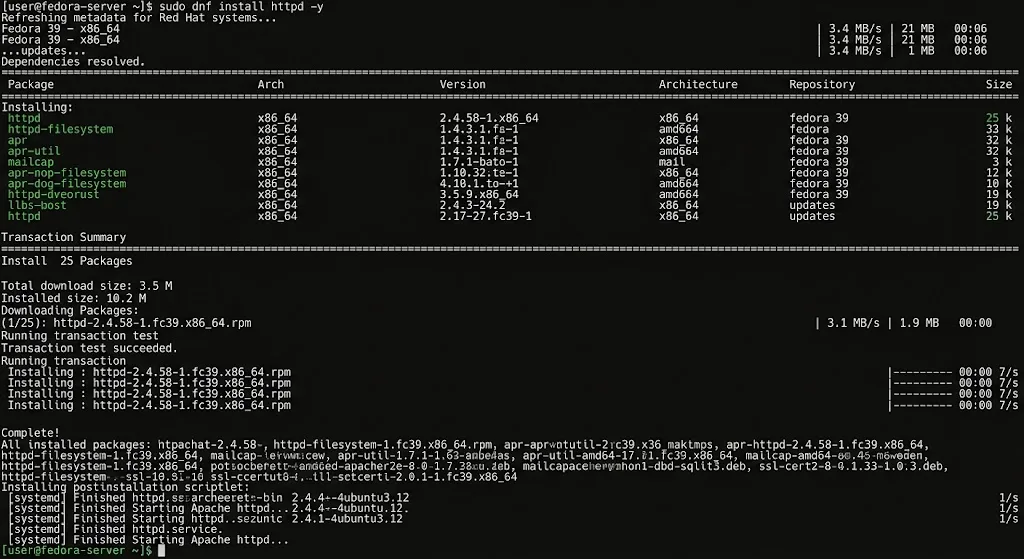
Install Apache with dnf:
sudo dnf install httpd -yOlder CentOS 7 servers use yum instead:
sudo yum install httpd -yHere is the main difference from Ubuntu. Apache does not start automatically after the installation on this family. You start it yourself in the next section.
First, though, confirm the version:
httpd -vThe output ends with your distro name, such as Server version: Apache/2.4.xx (AlmaLinux).
Start Apache and Enable It on Boot
Apache runs as a systemd service. You control it with systemctl. This table maps each action to the right service name.
| Action | Ubuntu / Debian | AlmaLinux / Rocky / CentOS |
|---|---|---|
| Start | sudo systemctl start apache2 | sudo systemctl start httpd |
| Stop | sudo systemctl stop apache2 | sudo systemctl stop httpd |
| Enable on boot | sudo systemctl enable apache2 | sudo systemctl enable httpd |
| Check status | sudo systemctl status apache2 | sudo systemctl status httpd |
| Restart | sudo systemctl restart apache2 | |
| Reload | sudo systemctl reload apache2 | sudo systemctl reload httpd |
Use the One-Line Shortcut
The --now flag starts the service and enables it on boot in one command.
sudo systemctl enable --now apache2In the RHEL family, replace apache2 with httpd. Run this once, and Apache survives every reboot.
Check That Apache Is Running
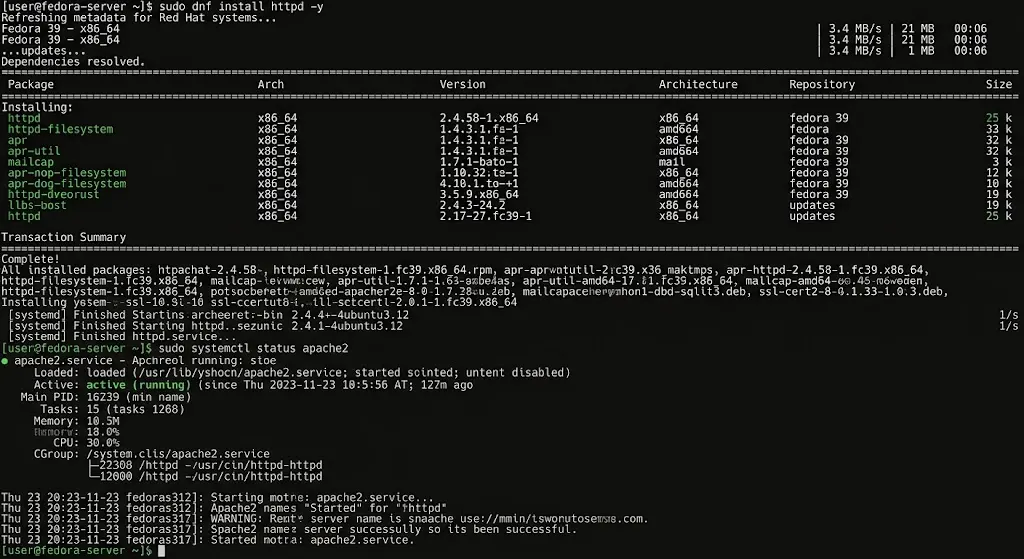
Run the status command for your distro:
sudo systemctl status apache2A healthy service shows this line near the top:
Active: active (running) since ...

A failed start looks different:

Active: failed (Result: exit-code) since ...

(98)Address already in use: AH00072: make_sock: could not bind to address [::]:80
The second line is the clue. Another program already holds port 80. The troubleshooting section shows how to find it.
Restart or Reload?
A restart stops Apache and starts it again. This drops active connections. A reload re-reads the config without dropping anything. Use reload for most config edits. Use a restart after you enable a new module.
Open Ports 80 and 443 in Your Firewall
A running server is not always reachable. Two firewalls can block your traffic. One sits on the server, and the other sits at your provider.
UFW on Ubuntu and Debian
Ubuntu includes UFW but leaves it inactive by default. Debian does not ship it at all. Check the current state first:
sudo ufw statusIf UFW is inactive, nothing blocks traffic at the OS level. Skip ahead to the cloud firewall. If you want to turn UFW on, allow SSH before anything else:
sudo ufw allow OpenSSH

sudo ufw allow 'Apache Full'

sudo ufw enable
The Apache Full profile exposes both ports 80 and443. Always allow SSH first. Otherwise, enabling UFW locks you out of your own server. On Debian, run sudo apt install ufw before running these commands.
firewalld on AlmaLinux, Rocky Linux, and CentOS
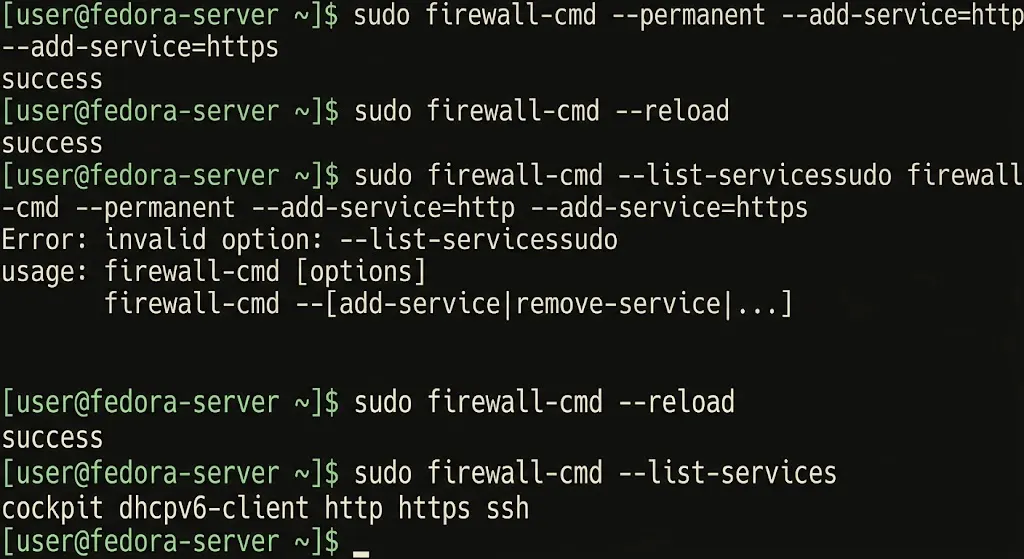
The RHEL family usually runs firewalld. Open the web ports like this:
sudo firewall-cmd --permanent --add-service=http --add-service=https

sudo firewall-cmd --reload

sudo firewall-cmd --list-services
The --permanent flag saves the rule to disk. The reload applies it. The last command should list http and https.
Your Cloud Provider’s Firewall
Many providers add a network firewall or security group in front of your VPS. Open inbound TCP ports 80 and 443 in your provider’s control panel.
This layer trips up many readers. The OS firewall is open, yet the page still fails to load. If that happens, check this layer first.
Open port 443 now, even without an SSL certificate. You will need it later, and the rule costs nothing.
Verify That Apache Is Working
Check in a Browser
Visit http://your_server_ip in your browser. Use http, not https. No certificate exists yet, so HTTPS fails.
On Ubuntu, you see the “Apache2 Ubuntu Default Page” with an “It works!” message. Debian shows a similar page. The RHEL family shows a test page with your distro name.
The RHEL test page loads with a 403 status. This is normal. Apache serves it that way until you add your own index.html.
Check from the Terminal
Run this on the server:
curl -I http://localhostOn Ubuntu and Debian, expect an HTTP/1.1 200 OK response. On the RHEL family, expect an HTTP/1.1 403 Forbidden response from the stock test page. Both results mean Apache is answering.
Check from Outside
Now run the same test from your own laptop:
curl -I http://your_server_ipSuppose the local test works, but the outside test fails. Then a firewall is blocking port 80. Go back to the firewall section and recheck both layers.
Where Apache Keeps Its Files
The two families use different layouts. This table covers the paths you will touch most.
| Item | Ubuntu / Debian | AlmaLinux / Rocky / CentOS |
|---|---|---|
| Main config | /etc/apache2/apache2.conf | /etc/httpd/conf/httpd.conf |
| Site configs | /etc/apache2/sites-available/ | /etc/httpd/conf.d/ |
| Enabled sites | /etc/apache2/sites-enabled/ | Not used |
| Modules | /etc/apache2/mods-enabled/ | /etc/httpd/conf.modules.d/ |
| Web root | /var/www/html | /var/www/html |
| Logs | /var/log/apache2/ | /var/log/httpd/ |
Debian-family systems also include helper commands. Use a2ensite and a2dissite to enable or disable sites. Use a2enmod and a2dismod to switch modules on and off.
Every config change follows the same loop. Edit the file, test the syntax, then reload. Test with this command:
sudo apachectl configtestYou want to see Syntax OK. If you see an error instead, fix it before you reload. A bad config can stop Apache from restarting.
Fix Common Apache Installation Problems
The Default Page Will Not Load
Work from the inside out. Stop at the first check that fails.
- Run
sudo systemctl status apache2(or httpd) and confirm the service is active. - Run
curl -I http://localhostand confirm Apache answers locally. - Check the OS firewall for ports
80and443. - Check your provider’s cloud firewall.
- Confirm you typed the right IP address and used http.
Port 80 Is Already in Use
Find the program that holds the port:
sudo ss -tlnp | grep ':80'The output shows the process name. Nginx is a common culprit on pre-built server images. Stop and disable it, then start Apache:
sudo systemctl disable --now nginx

sudo systemctl start apache2
On the RHEL family, start httpd instead.
Apache Fails to Start
Read the logs. They name the problem in plain text.
sudo journalctl -xeu apache2

sudo tail -n 20 /var/log/apache2/error.log
On the RHEL family, use journalctl -xeu httpd and /var/log/httpd/error_log.
A syntax error in a config file is the usual cause. Run sudo apachectl configtest to pinpoint the line.
403 Forbidden on Your Own Pages
Apache must be able to read your files. Check ownership and permissions:
ls -l /var/www/htmlSet the right owner with sudo chown -R www-data:www-data /var/www/html. On the RHEL family, use apache:apache instead.
Two more causes are worth checking. A folder without an index.html returns a 403, since Apache blocks directory listings by default.
On the RHEL family, SELinux can also block access. Reset the file labels with this command:
sudo restorecon -Rv /var/www/htmlWhat to Do Right After Installing Apache
Three quick steps leave you in a better position.
Hide the Apache version. Default responses reveal your version number. Hide it. On Ubuntu or Debian, open /etc/apache2/conf-available/security.conf and set:
ServerTokens Prod

ServerSignature Off
On the RHEL family, add those two lines to /etc/httpd/conf/httpd.conf. Then run sudo apachectl configtest and reload Apache.
Replace the default page. Write your own page to the web root:
echo '<h1>Apache is running</h1>' | sudo tee /var/www/html/index.htmlRefresh your browser. Your message proves you control the web root.
Take a snapshot. Most providers let you snapshot the VPS in one click. Do it now. You get a clean restore point before you change anything else.
FAQs
How Do I Set Up a Virtual Host in Apache?
Apache uses one config file per site. That file is called a virtual host. On Ubuntu or Debian, create it in /etc/apache2/sites-available/, enable it with sudo a2ensite, then reload Apache. On the RHEL family, drop a .conf file into /etc/httpd/conf.d/ and reload. A dedicated virtual host guide covers the full walkthrough, including DNS.
How Do I Secure Apache with a Free SSL Certificate?
Use Certbot, a free tool that requests and installs certificates for you. Install Certbot and its Apache plugin, then run this command:
sudo certbot --apache -d example.com -d www.example.comYour domain must already point to the VPS. Otherwise, validation fails. A dedicated SSL guide covers the full setup, including automatic renewal.
Get Started With Apache Web Server
You now have a working web server on your own VPS. You also know how to read its status, test its config, and trace a failure from the service down to the firewall.
Your next move is to point a domain at the server. Create an A record that targets your VPS IP address. DNS changes can take a while to spread. Meanwhile, build your first virtual host so the site is ready when the domain resolves.
Do you still need a server to practice on? Pick a Truehost Linux VPS plan, choose your distro, and run through this guide on a clean machine.