 Web Hosting
 Windows HostingBuilt for Windows apps and websites – stability, speed and flexibility
 Reseller HostingLaunch a hosting business without technical skills or expensive infrastructure
 Affiliate ProgramRefer customers and earn commissions from sales across our platform
 Domain SearchFind and secure a domain name in seconds with our quick lookup tool
 CO ZA Domains
 All DomainsExplore domain names from over 324 TLDs globally – all in one place
 Free Whois Lookup Tool South Africa
 VPS
VPS Website Builder
 Online ShopSet up a sleek eCommerce store with zero coding knowledge
 SSLs
SSLs SupportAccess help articles, how-tos, and everything about our services
 Blog
Blog Contact UsReach our team instantly via live chat or drop us an email
You just paid for a VPS. You have an IP address and a password sitting in an email. You try clicking around, and nothing happens.
That confusion is normal. A VPS does not come with a visible desktop or a login screen. You reach it through a command line, and that command line lives inside SSH.
The good news: you can be connected in under two minutes. All you need is a terminal, three pieces of information, and the steps below.
This guide covers Windows, Mac, and Linux, plus what to do if something goes wrong.
Table of Contents
What You Need Before You Connect
Before you open any terminal or client, gather three things:
- Your VPS IP address, a string of numbers such as 41.185.xx.xx
- Your username is usually root unless your host has set up a different account
- Your password or SSH key, sent in your welcome email or shown in your client area
If you host with Truehost, log in to your client area and open the VPS management section. Your server details, including the IP address and login credentials, are listed there.
SSH connects over port 22 by default. Some hosts change this for security reasons, so check your welcome email if your first attempt fails on the standard port.
You do not need extra software on Mac or Linux. Windows users have two solid options, both covered below.
How to SSH Into a VPS From Windows
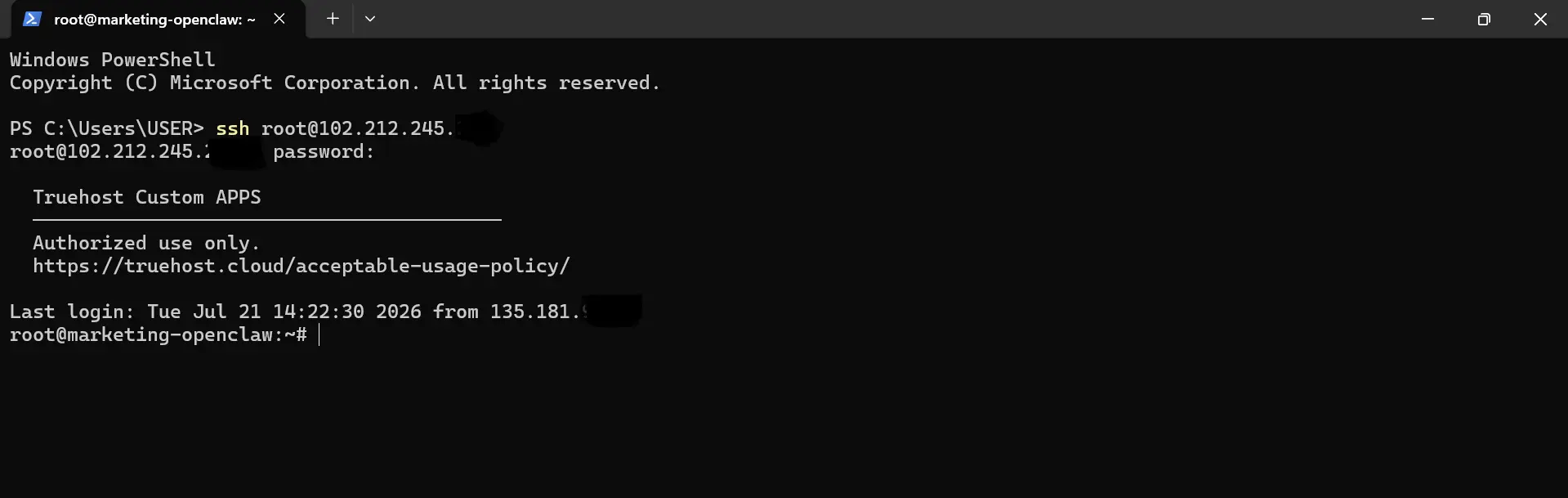
Windows gives you two paths: the built-in terminal or a dedicated client called PuTTY.
Option 1: Windows Terminal or PowerShell
Windows 10 and 11 ship with OpenSSH already installed, so no download is needed.
- Open the Start menu and search for “Terminal” or “PowerShell”
- Type
ssh username@your_vps_ipand press Enter - Replace username with your VPS
usernameandyour_vps_ipwith your actual IP address. - On your first connection, you will see a prompt about the host’s authenticity. Type yes and press Enter.
- Enter your password when asked. Nothing will appear on screen while you type, and that is expected.
Option 2: PuTTY
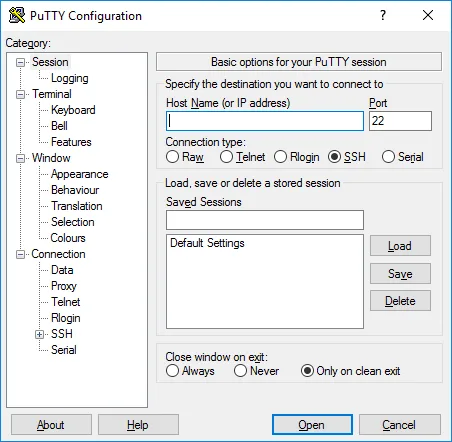
PuTTY works well if you prefer a graphical interface or run an older version of Windows.
- Download and install PuTTY from its official site
- Open PuTTY and enter your VPS IP address in the “Host Name” field
- Leave the port at 22 unless your host specified a different one
- Select “SSH” as the connection type and click “Open”
- Accept the security prompt on your first connection
- Enter your username, then your password, when prompted
Either method lands you in the same place: a working command line connected to your server.
How to SSH Into a VPS From Mac
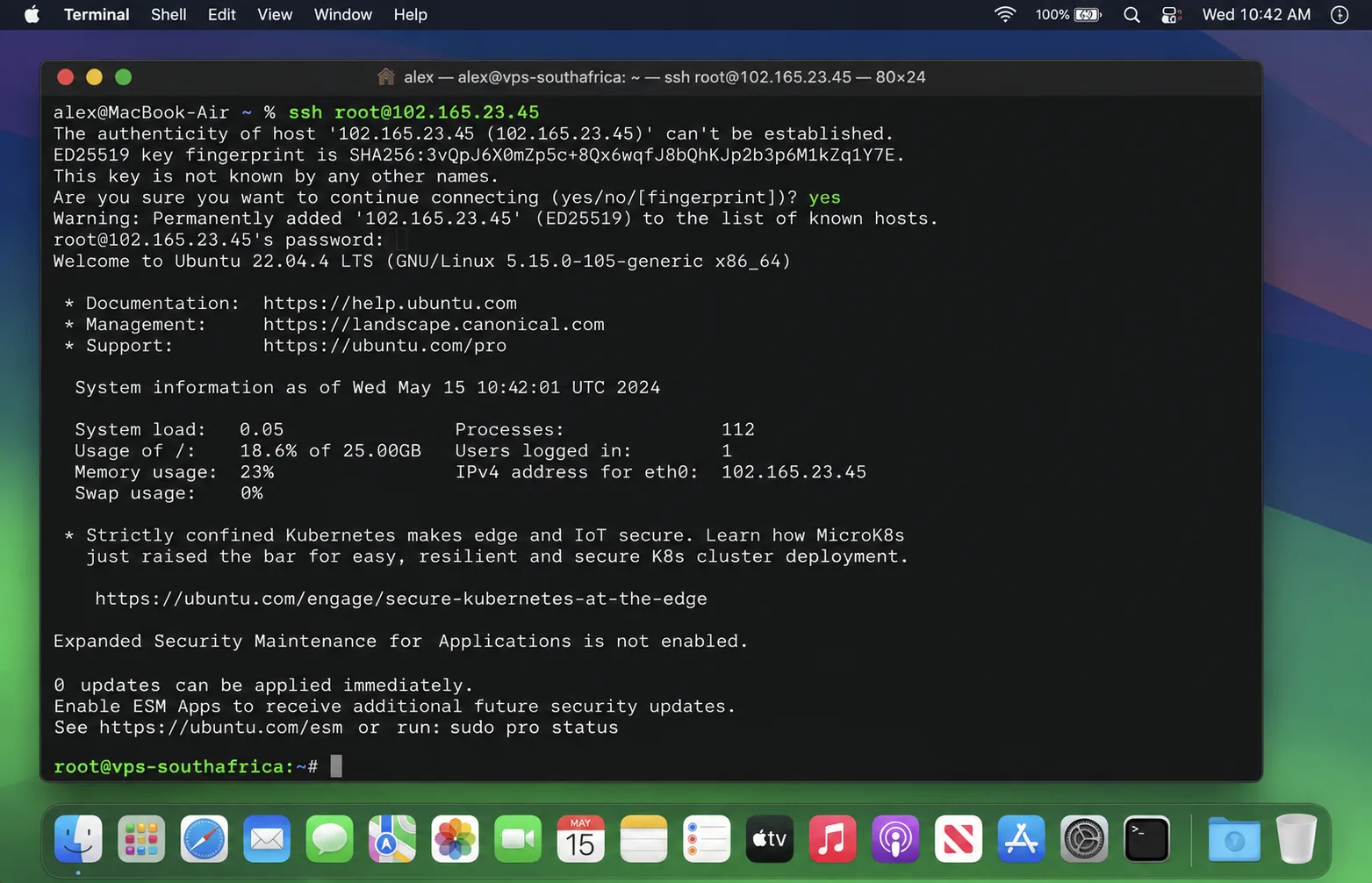
Mac ships with a terminal application and an SSH client already built in, so there is nothing to install.
- Open Spotlight with Command + Space, type “Terminal,” and press Enter
- Type
ssh username@your_vps_ipand press Enter - Replace the placeholders with your actual username and IP address
- On your first connection, you will see a message about the host’s authenticity. Type yes and press Enter
- Enter your password when prompted. The characters stay hidden as you type
If you manage several servers, apps like Termius or iTerm2 can save your connection details. They are optional, not required, for a single VPS.
How to SSH Into a VPS From Linux
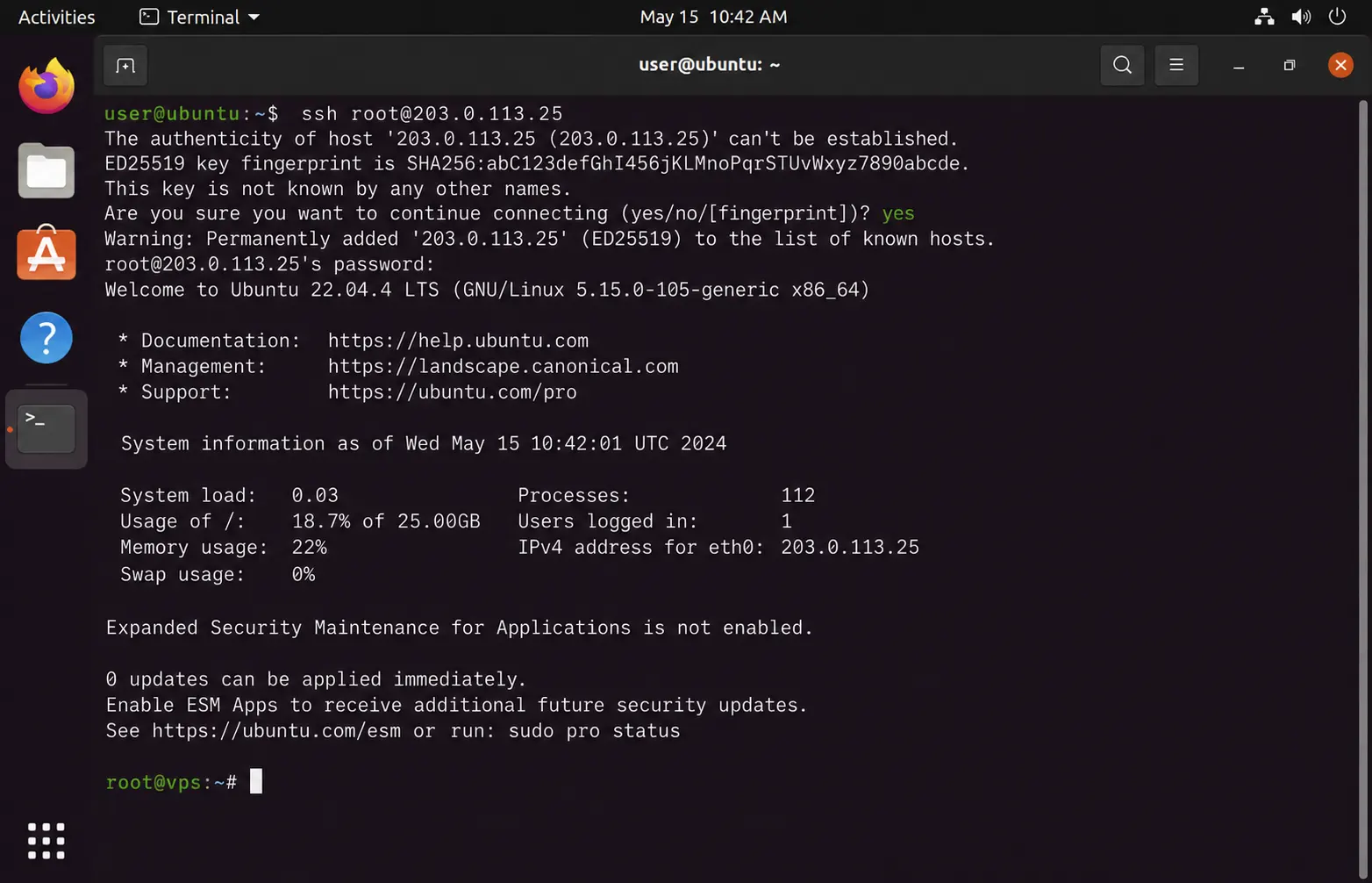
Linux distributions almost always ship with the OpenSSH client preinstalled.
- Open your terminal application.
- Type
ssh username@your_vps_ipand press Enter. - Replace the placeholders with your actual username and IP address
- Accept the host authenticity prompt onthe first connection
- Enter your password when asked
On rare minimal distributions, the SSH client may be missing. Install it with:
sudo apt install openssh-clientAdjust the package manager command if your distribution does not use apt.
Connecting With an SSH Key Instead of a Password
An SSH key is a pair of files that let you log in without typing a password each time. One file stays on your computer, and the other lives on your VPS.
Step 1: Generate a key pair
ssh-keygen -t ed25519Press Enter to accept the default file location. Adding a passphrase is optional but adds an extra layer of protection.
Step 2: Copy the public key to your VPS
ssh-copy-id username@your_vps_ipThis command uploads your public key and places it in the correct folder on the server automatically.
If ssh-copy-id is not available, paste the contents of your .pub file manually into ~/—ssh/authorized_keys on the VPS.
Step 3: Confirm the connection
Run the same ssh username@your_vps_ip command as before. If everything is set up correctly, you will log in without a password prompt.
Some hosts, including certain Truehost VPS plans, configure key-only access from the start.
If your password does not work, check whether a key was already generated and sent to you during setup.
Fixing Common SSH Connection Errors
Most connection problems fall into three categories. Here is how to read them and what to try next.
1) “Connection refused.” This usually means the wrong port, wrong credentials, or a stopped SSH service on the server side. Double-check your port number and confirm the server is running through your client area.
2) “Connection timed out.” This points to a firewall blocking port 22, or a VPS that has not finished booting. Wait a minute, if the server was just created, then try again.
3) “Permission denied.” This almost always traces back to an SSH key problem. Confirm the correct public key is installed on the VPS, and that you are pointing to the matching private key on your computer.
If none of these fixes work, reach out to your hosting provider’s support team with the exact error message. That detail speeds up troubleshooting significantly.
FAQs
Do I need to install anything to use SSH on Windows 11?
No. Windows 11 includes OpenSSH by default, so you can open Terminal and connect right away.
What’s the difference between SSH and RDP for a VPS?
SSH gives you a command-line interface, typically for Linux servers. RDP gives you a full graphical desktop, typically for Windows servers.
Can I SSH into my VPS from my phone?
Yes. Apps like Termius (iOS and Android) and JuiceSSH (Android) let you connect from a mobile device using the same IP address and login details.
Is it safe to use the default root account over SSH?
Root access works, but it carries more risk since it has full server permissions. Many admins create a separate user with limited access for daily tasks.
What do I do if I forgot my VPS SSH password?
Log in to your hosting client area and reset the password from the VPS management panel. Most providers, including Truehost, offer a password reset option without needing SSH access first.
Connect To Your VPS Securely
Connecting to your VPS comes down to the same three pieces every time: your IP address, your username, and your password or key.
Once you have those, the steps stay nearly identical across Windows, Mac, and Linux.
Log in to your Truehost client area now and locate your VPS credentials. Try the connection using the steps above, and reach out to Truehost support if you hit an error not listed here.