 Web Hosting
 Windows HostingBuilt for Windows apps and websites – stability, speed and flexibility
 Reseller HostingLaunch a hosting business without technical skills or expensive infrastructure
 Affiliate ProgramRefer customers and earn commissions from sales across our platform
 Domain SearchFind and secure a domain name in seconds with our quick lookup tool
 CO ZA Domains
 All DomainsExplore domain names from over 324 TLDs globally – all in one place
 Free Whois Lookup Tool South Africa
 VPS
VPS Website Builder
 Online ShopSet up a sleek eCommerce store with zero coding knowledge
 SSLs
SSLs SupportAccess help articles, how-tos, and everything about our services
 Blog
Blog Contact UsReach our team instantly via live chat or drop us an email
When you link OpenClaw to WhatsApp, your AI agent shows up as a contact on your phone. You message it the same way you’d text a friend. No terminal, no extra app, just WhatsApp. And that’s the whole idea.
The connection works through WhatsApp’s Linked Devices feature, the same one that you use with WhatsApp Web.
You scan a QR code once, and WhatsApp registers your OpenClaw instance as a companion device on your account. From that point on, your agent receives messages, processes them, and replies just like any normal contact would.
Under the hood, OpenClaw uses Baileys, an open-source library that speaks the WhatsApp Web protocol, to make this handshake work.
The practical payoff is real-time interaction from your phone, when using the agent for personal productivity, customer-facing automation, or anything in between.
One thing that will affect your experience big time is where OpenClaw is actually running.
To get 24/7 availability in South Africa, hosting your instance on a dedicated Truehost VPS keeps it online even when your laptop is closed, your home connection dips, or the power flickers.
But first, what do you need to get connect OpenClaw to WhatsApp?
- Ensure OpenClaw is installed and running. If you’re still on installation, work through the OpenClaw onboarding docs first, then come back here.
- Use a VPS for production use. Truehost OpenClaw VPS Hosting offers fast local servers, easy one-click deployment, full root access, and optimized for AI workloads.
- Decide on dedicated (a separate SIM or a virtual number) vs. personal WhatsApp number especially for safety concerns.
- Tools needed: Terminal access to your OpenClaw host, WhatsApp app on phone, stable internet.
Now, if you’re ready let’s get you connected.
Table of Contents
Step-by-Step Guide for Connecting OpenClaw to WhatsApp
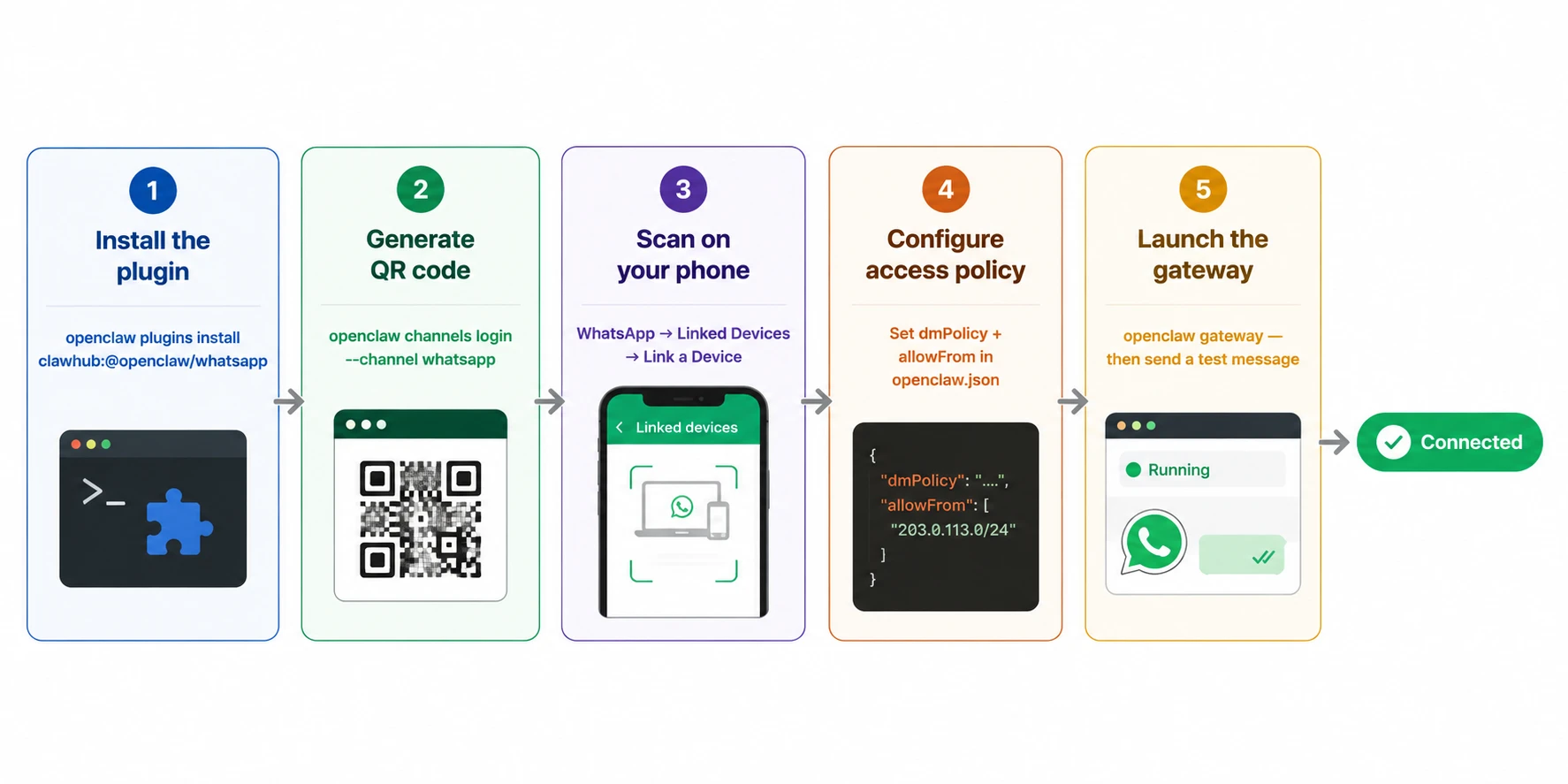
Step 1: Install the WhatsApp Plugin
OpenClaw doesn’t include the WhatsApp channel by default. So, pull it in from ClawHub:
openclaw plugins install clawhub:@openclaw/whatsappThis registers the WhatsApp channel with your OpenClaw instance. Without it, the login command in the next step won’t have anything to connect to.
If you skip ahead and try to add the channel anyway, OpenClaw will usually prompt you to install the plugin automatically, but running this first is cleaner.
Step 2: Generate the Pairing QR Code
With the plugin installed, kick off the login sequence:
openclaw channels login --channel whatsappFor multi-account setups, add the --account flag followed by your account identifier. The command prints a QR code directly into your terminal window.
Note that if you’re on a VPS, you won’t see the terminal output in the same way as a local machine. SSH port forwarding lets you view the QR code output from your local terminal without copying it anywhere.
But whatever you do, have your phone ready before you run this, since QR codes expire in about 60 seconds, and there’s no countdown.
Step 3: Scan the QR Code on Your Phone
Open WhatsApp on the phone attached to the number you’re using for your agent:
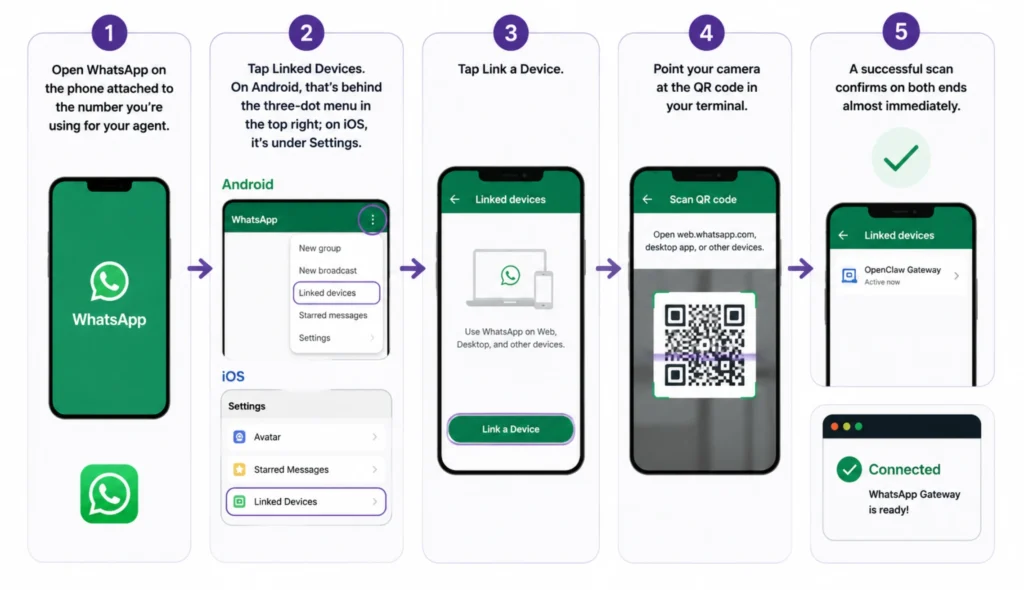
- Tap Linked Devices. On Android, that’s behind the three-dot menu in the top right; on iOS, it’s under Settings.
- Tap Link a Device.
- Point your camera at the QR code in your terminal.
A successful scan confirms on both ends almost immediately.
If the scan fails, it’s almost always one of three things: the QR code expired (rerun Step 2), your screen brightness is too low for the camera to read it clearly, or the camera is too close, so pull back slightly and let it settle.
WhatsApp’s camera is fussier about focus than most barcode readers.
Step 4: Configure Access Policy for Security
This step is very important so take heed. Without it, anyone who gets hold of your linked number can message your agent and get a response.
Open your config file at ~/.openclaw/openclaw.json and set a policy:
{
  "channels": {
    "whatsapp": {
      "dmPolicy": "allowlist",
      "allowFrom": ["+27821234567"]
    }
  }
}
dmPolicy controls who gets through. Setting it to "allowlist" means only the numbers you list in allowFrom will receive any response at all, and everyone else is silently ignored.
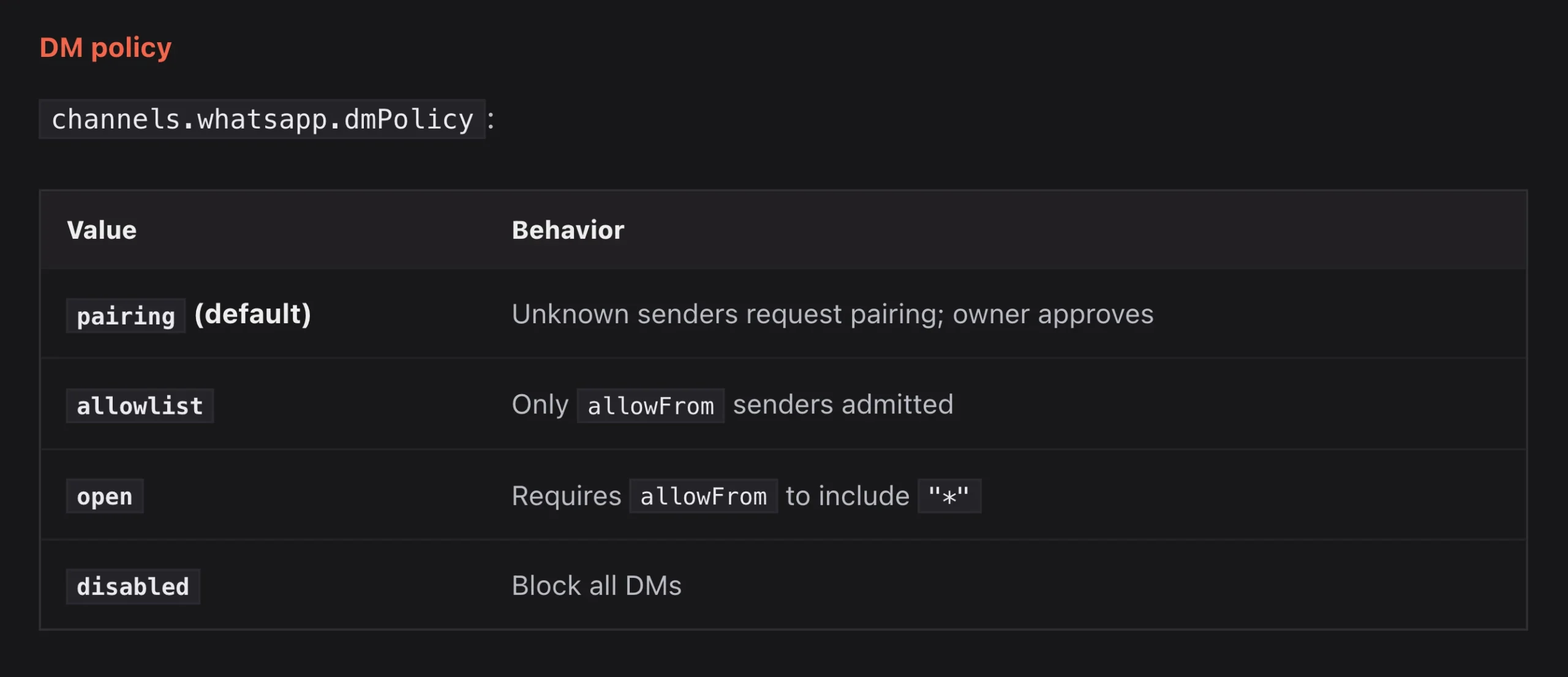
Setting it to "pairing" means unknown numbers have to request access first, which you then approve manually. For personal use where you’re the only one messaging your agent, "allowlist" is the tighter and more sensible default.
Replace the example number with yours in E.164 format: country code first, no spaces, no leading zero. For South Africa, that’s +27 followed by your number without the initial 0.
If you do need to manage pairing requests manually, two commands handle that:
openclaw pairing list whatsapp
openclaw pairing approve whatsapp <request-id>
Step 5: Launch and Verify the Gateway
Config changes only take effect after a gateway restart. Start it with:
openclaw gatewayTo confirm it worked: send a test message from WhatsApp to your linked number. Something as simple as “hello” is enough. If your agent replies, the connection is live end to end.
Common WhatsApp Linking Problems (and Fixes)
1. QR code keeps expiring before you can scan it.
Just rerun openclaw channels login --channel whatsapp and scan within the first few seconds. The window is short, so get your phone to the Link a Device screen before running the command, not after.
2. WhatsApp shows the device as linked, but there are no replies.
Linking and running are two separate things. Check that the gateway is actually up and running. A linked-but-silent agent nearly always means the gateway stopped, or never restarted after you made config changes in Step 4.
3. Pairing keeps blocking your messages.
This is expected behaviour, not a malfunction, when dmPolicy is set to "pairing". Approve the pending request with the pairing commands above, or add your number to allowFrom and switch to "allowlist" so you’re not manually approving yourself every session.
Resist the pull to switch to open access just to get past this. That removes the protection entirely.
4. Session keeps dropping, and it asks you to log in again.
This is usually a permissions issue: OpenClaw is running under a different user account than the one that completed the original scan, so it can’t read its own saved session credentials. Check file ownership in the auth directory and make sure the running user has access.
WhatsApp’s terms of service do prohibit certain types of automated and bulk messaging. Accounts that look like spam get actioned. A dedicated number keeps your personal account protected, and keeping usage human-like, that is one conversation at a time rather than mass broadcasts, reduces the risk significantly.
VPS-specific checklist: Confirm your firewall isn’t blocking the gateway, bind the gateway to localhost rather than an open interface, and run OpenClaw as a systemd service so it restarts automatically if the VPS reboots.
Truehost hosting plans include support on exactly this kind of configuration.
OpenClaw to WhatsApp FAQs
1. Do I need the WhatsApp Business API to connect to OpenClaw?
No. OpenClaw uses Baileys, which connects through the same protocol as WhatsApp Web. There’s no API key, no Meta developer account, and no approval process required.
2. Can I use my personal WhatsApp number instead of a separate one?
You can, and it’s fine for testing. For anything production-facing, a dedicated number is the safer call. It keeps your personal chats separate and gives you a clean reset option if anything goes wrong.
3. Does OpenClaw need to stay running 24/7 for WhatsApp to keep working?
Yes. The WhatsApp session is tied to the process. If OpenClaw stops, the link goes dormant, and messages won’t receive a response until the gateway is back up.
4. How does OpenClaw actually communicate with WhatsApp?
Through the Baileys library, which implements the WhatsApp Web protocol. OpenClaw registers itself as a linked device and maintains a persistent connection to WhatsApp’s servers, the same way WhatsApp Web does in a browser tab.
5. What other channels does OpenClaw support besides WhatsApp?
OpenClaw supports Telegram, Slack, Discord, and SMS through separate channel plugins. The setup pattern, including install plugin, authenticate, and configure access policy, is largely the same across channels.
6. Should I use Telegram or WhatsApp for OpenClaw?
WhatsApp if your audience is already there and you want zero friction, that is no extra app to install on the user’s end. Telegram if you want fewer restrictions on automation and more flexibility with bot features. Both work well with OpenClaw; the choice usually comes down to who you’re building for.
7. Where do I get the 6-digit WhatsApp code, and does OpenClaw need it?
The 6-digit code is part of WhatsApp’s phone number registration process, not the Linked Devices flow. OpenClaw connects via QR scan, so you won’t need that code at any point in this setup.
Where to Run OpenClaw So WhatsApp Stays Connected
The WhatsApp link only stays alive while OpenClaw is running.
A laptop that sleeps, a home connection that drops, or a machine that reboots without auto-restart configured will kill the session, and you’re back to scanning QR codes.
That’s the problem a dedicated VPS solves. Our Truehost OpenClaw VPS Hosting plans come with OpenClaw pre-configured, so no installation step, and no dependency hunting. You get straight to the WhatsApp linking part.
| Plan | Monthly (ZAR) | vCPU | RAM | Storage | Bandwidth |
|---|---|---|---|---|---|
| OpenClaw KVM1 | R285 | 1 core | 2 GB | 50 GB NVMe | 4 TB |
| OpenClaw KVM2 | R380 | 2 cores | 4 GB | 100 GB NVMe | 8 TB |
Both plans run on local South African servers, which keeps latency low for users on the same continent. Your agent stays online, your session stays linked, and you don’t have to rescue it every time your machine restarts.
Ready to keep your OpenClaw agent live on WhatsApp around the clock? Get started with Truehost OpenClaw VPS Hosting today.