 Web Hosting
 Windows HostingBuilt for Windows apps and websites – stability, speed and flexibility
 Reseller HostingLaunch a hosting business without technical skills or expensive infrastructure
 Affiliate ProgramRefer customers and earn commissions from sales across our platform
 Domain SearchFind and secure a domain name in seconds with our quick lookup tool
 CO ZA Domains
 All DomainsExplore domain names from over 324 TLDs globally – all in one place
 Free Whois Lookup Tool South Africa
 VPS
VPS Website Builder
 Online ShopSet up a sleek eCommerce store with zero coding knowledge
 SSLs
SSLs SupportAccess help articles, how-tos, and everything about our services
 Blog
Blog Contact UsReach our team instantly via live chat or drop us an email
Your Minecraft server keeps dropping players mid-build. Your FiveM lobby freezes right before a big scene. Every South African player in the session feels it as rubber banding, then a disconnect.
Home hosting rarely fixes this. Most local ISPs operate behind a CGNAT, so your router has no public IP address to open ports on, no matter how you configure it.
Renting from an overseas provider adds another problem. A round trip to Europe or the US can add 150 to 200 milliseconds before a single shot registers.
A dedicated server gives you the full machine. Nobody else shares the CPU, RAM, or bandwidth, so performance stays consistent even under heavy load.
A VPS slices a single physical server into smaller virtual chunks, so you get guaranteed resources but still share the underlying hardware with other tenants.
Home hosting sounds appealing since the electricity is the only real cost. But most residential connections in South Africa sit behind CGNAT.
That means your ISP shares a single public IP address among many customers, and port forwarding never reaches your machine.
Here is what each option costs and fits, in practical terms:
- Dedicated servers in South Africa typically run from R1,040 to R1,920 a month, depending on CPU, RAM, and storage tier
- VPS plans start lower and work fine for small groups under 10 concurrent players
- Home hosting works only on a local network for friends on the same connection, and breaks down the moment you try to open it to the internet.
- A public server, an active FiveM or RP community, or anything past 20 concurrent players calls for a dedicated box
Pick based on your player count and how much control you need. A small private world does not need the same hardware as a public server running 24/7.
This guide walks through hardware, installation, network setup, security, and speed, built around what actually works for South African players.
Table of Contents
Hardware and Operating System Requirements
Game servers process math, physics, and player positions rather than graphics. That changes what actually matters when you pick specs.
A quick spec reference for popular titles among South African players:
| Game | RAM | Storage | Notes |
|---|---|---|---|
| Minecraft | 4-8GB | 20-40GB | Scales with plugins and world size |
| Rust | 16-32GB | 40GB+ NVMe | Modded servers need the higher end |
| ARK: Survival Evolved | 16GB+ | 60GB+ | Add more per active map |
| Palworld | 8-16GB | 40GB | Multi-core processor recommended |
| CS2 | 4-8GB | 30GB | Prioritize clock speed over cores |
| FiveM / GTA RP | 8-16GB | 50GB+ | Scales fast with resources and scripts |
RAM needs to scale with the game and player count:
- Minecraft, with around 20 players, runs fine on 4 to 8GB
- Rust or Palworld needs at least 16GB, and modded instances often push toward 32GB
- ARK Survival Evolved, with 30 players, needs closer to 16GB as a starting point
CPU choice matters more for clock speed than core count in most cases. A processor running above 3.0 GHz handles tick-rate-sensitive games like CS2 or Rust far better than a high-core-count chip running slower.
Storage should always be an NVMe SSD rather than a SATA SSD. World saves, map loads, and database writes stall badly on slower drives, and that stall is what players feel as a freeze.
Linux is the better default for most self-managed Steam titles. It runs lighter, automates well, and handles long uptimes without extra overhead.
Windows only becomes necessary when a specific game or its anti-cheat system requires it.
Step-by-Step Setup Process
1) Provisioning and Accessing Your Server
Once you order a dedicated server, provisioning usually takes minutes on a KVM-based plan. You will get an email with root access details as soon as the server is ready.
Connect via SSH using the provided credentials, then change the default root password immediately.
From there, create a separate sudo user instead of working directly as root. This single step avoids a lot of accidental damage later.
2) Installing Game Server Files
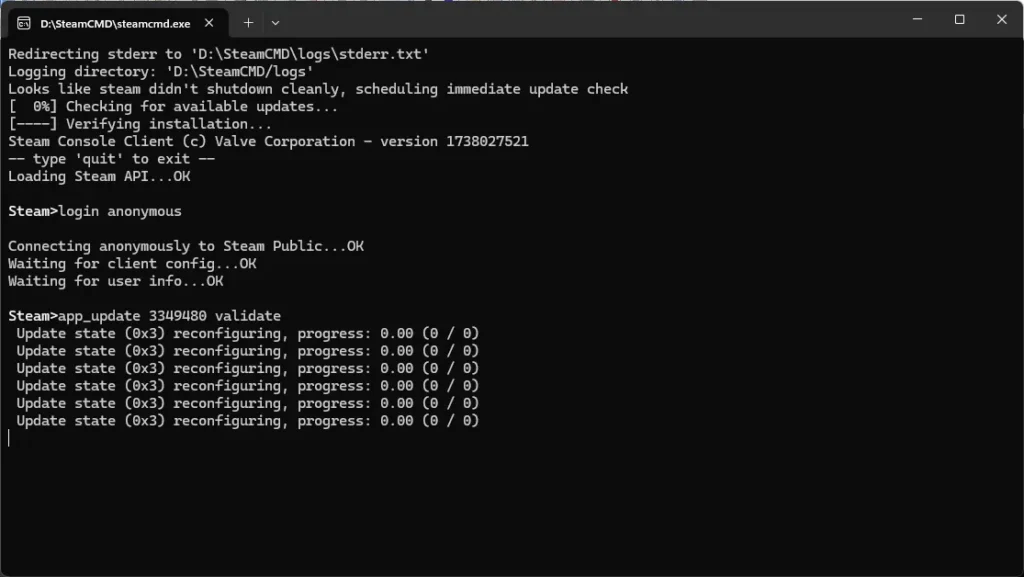
SteamCMD handles installation for any Steam-distributed title without needing the full Steam client.
Every Steam game has its own App ID, so you will need that number before starting.
The basic sequence looks like this:
force_install_dir ./serverfiles/app_update [App ID] validateFor Counter-Strike 2, the App ID is 730. For ARK: Survival Evolved, it is 376030. You can look up any game’s ID on SteamDB if you are unsure.
Not every game runs through Steam. Minecraft and FiveM use direct downloads instead, pulled straight from the official server jar or artifact for that title.
3) Configuring Server Settings
Each game stores its settings in a specific config file. Minecraft uses server.properties, while most Source engine titles use server.cfg.
Focus on the settings that actually change how the game feels: tick rate, max player count, and map rotation.
Set the server to restart automatically after a crash. A simple systemd unit file handles this on Linux, keeping the server running without requiring someone to restart it at 2 am manually.
Check the logs first whenever something fails to start. Nine times out of ten, the answer is sitting in the last few lines of the log file.
4) Network Configuration: Ports, Firewalls, and Static IPs
Every game uses specific ports to talk to players. Minecraft defaults to 25565, while most Source engine titles use 27015.
Check your specific game’s documentation, since some titles use multiple ports for voice, queries, and gameplay.
A rented dedicated server already comes with a public static IP. That single fact solves the CGNAT problem home setups cannot get past, since players can connect directly without any router tricks.
Configure your OS-level firewall to allow only the ports your game actually needs. On Linux, UFW handles this cleanly.
On Windows, create inbound rules in Windows Defender Firewall under Advanced Settings. Keep the rule set narrow, since every open port is a door someone else could try to exploit.
Dynamic DNS still has a place if you manage a hybrid setup, where an admin panel or dashboard needs remote access outside the game itself.
5) Securing and Maintaining Your Gaming Server
A public game server draws unwanted attention fast, so security has to come before launch, not after.
Set up SSH key-based authentication and disable password login once the keys work.
Schedule automatic backups of your world data and configs daily, at a minimum, if the server sees regular use.
Apply operating system and game updates on a fixed schedule rather than waiting for something to break first.
Add fail2ban or a similar tool to block repeated failed login attempts. Bots scan the internet constantly for open SSH ports, and this single tool stops most of them cold.
6) Optimizing for Low Latency Gameplay in South Africa

Choose a provider with a data center physically located in South Africa, whether that is Johannesburg or Cape Town.
Routing traffic through Europe adds real, measurable delay that players notice within the first few minutes.
Calculate your bandwidth needs at roughly 1 to 2Mbps per connected player, then check that figure against your server’s allocated port speed rather than your home connection.
Enable network-level DDoS protection before your server goes public. A single unprotected launch is a common reason new public servers go offline in their first week.
Balance tick rate against max player count together, rather than pushing both to their limit on modest hardware. That combination is exactly what causes the rubber banding this whole guide set out to fix.
FAQs
How much does a dedicated gaming server cost in South Africa?
Pricing typically falls between R1,040 and R1,920 a month, depending on CPU, RAM, and storage tier. Higher tiers are better suited to larger public servers with more concurrent players.
How many players can a dedicated server support?
It depends heavily on the game and hardware tier. A modest setup handles a small friend group comfortably, while higher-specced servers support 60 or more concurrent players on titles like FiveM or Rust.
Can I run multiple games on the same dedicated server?
Yes, as long as you allocate resources per instance and monitor total load. Running several lightweight servers together works fine, but stacking resource-heavy games on modest hardware causes performance problems for everyone.
What happens if my server crashes or the operating system stops responding?
Most South African providers offer rescue mode or a recovery console for exactly this situation. You can boot into rescue mode, access your files, and repair or reinstall the operating system without losing your data.
Set Up Your Dedicated Gaming Server Today
Dedicated hardware and proper configuration solve what peer-to-peer connections and home hosting cannot fix.
Once your server runs on the right specs, with ports configured correctly and security in place, the lag and access problems that started this guide disappear.
If you would rather skip the manual setup, Truehost’s dedicated server plans run on local data centers in South Africa, built for exactly this kind of workload.
View Truehost’s dedicated server pricing and book a free setup consultation to get your gaming server set up today.