 Web Hosting
 Windows HostingBuilt for Windows apps and websites – stability, speed and flexibility
 Reseller HostingLaunch a hosting business without technical skills or expensive infrastructure
 Affiliate ProgramRefer customers and earn commissions from sales across our platform
 Domain SearchFind and secure a domain name in seconds with our quick lookup tool
 CO ZA Domains
 All DomainsExplore domain names from over 324 TLDs globally – all in one place
 Free Whois Lookup Tool South Africa
 VPS
VPS Website Builder
 Online ShopSet up a sleek eCommerce store with zero coding knowledge
 SSLs
SSLs SupportAccess help articles, how-tos, and everything about our services
 Blog
Blog Contact UsReach our team instantly via live chat or drop us an email
OpenClaw lets you build a self-hosted AI shopping assistant that can answer customer questions, check product availability, recommend items, and guide shoppers through checkout on platforms like WhatsApp and Telegram.
There are two practical ways to stand one up: AWS’s official Lightsail blueprint, which launched to general availability on March 4, 2026, with Amazon Bedrock pre-wired in, or a VPS route such as Truehost’s one-click OpenClaw hosting, which skips Docker and Node.js setup entirely.
Table of Contents
Prerequisites
AWS Lightsail path: an active AWS account, basic comfort with SSH or the Lightsail browser console, a Bedrock-enabled region, and, if you’re using Anthropic models on Bedrock for the first time in that account, a completed First-Time-Use (FTU) request. You’ll also need a Telegram bot token or a WhatsApp Business account ready to pair.
Truehost path: a Truehost account, an SSH client (terminal, PuTTY, or browser-based SSH), and a payment method. Truehost’s OpenClaw plans ship with Ubuntu, Node.js, Playwright, and the OpenClaw engine preinstalled, so you skip most of the manual server setup.
Step 1: Launch an OpenClaw Instance on Amazon Lightsail
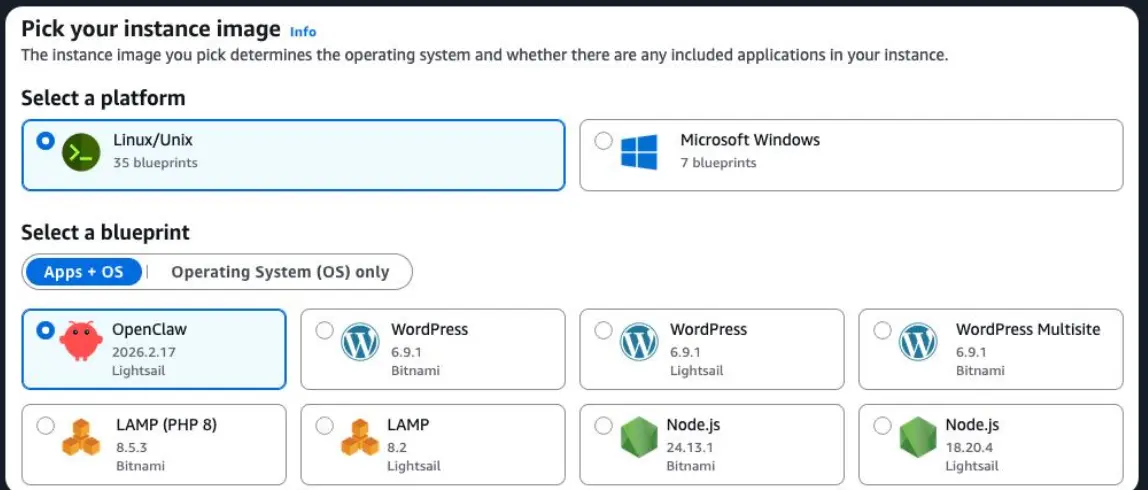
Deploy using the OpenClaw blueprint
i) Create a new Lightsail instance.
ii) Pick a region close to your customers that supports your preferred AI model.
iii) Select Linux/Unix as the platform.
iv) Under “Select a blueprint,” choose OpenClaw. AWS updates this blueprint regularly, so confirm the version shown at deployment time rather than assuming a fixed release; a March 2026 release showed as OpenClaw 2026.2.17, and later builds have already superseded it.
v) Choose a plan with at least 4 GB of RAM; this is AWS’s own recommendation for smooth performance, and it’s the same floor VPS providers use for OpenClaw.
vi) Name the instance and launch it.
vii) Wait for the status to read “Running” before continuing.
Assign a static IP address
Do this as soon as the instance is running. The dashboard, browser pairing, and SSL certificate are all tied to the current IP; if it changes later, you’ll need to re-pair your browser and re-issue the certificate.
Step 2: Connect to the OpenClaw Server
Connect via the Lightsail browser terminal or SSH with your instance’s key pair. On first boot, OpenClaw prints a welcome message containing only the dashboard URL and a temporary access token, nothing else. Record the URL exactly as shown (it embeds the instance’s IP and port), and copy the token immediately: it’s single-use and tied to that session.
Once you’re in, check the AI Providers section first. Lightsail’s OpenClaw instances come pre-configured with Bedrock as the default provider, but confirming this tells you whether Step 4 is a formality or a required setup step before the assistant can respond at all.
The dashboard has five sections worth knowing before you go further:
- AI Providers: connect and manage models (Bedrock, OpenAI, Gemini, Ollama).
- Devices: see and manage browsers/devices with access.
- Channels: connect Telegram, WhatsApp, Slack, Discord.
- Activity & Logs: monitor conversations and agent actions.
- Settings: security, access tokens, and the assistant’s instructions.
Step 3: Pair Your Browser with OpenClaw
Open the dashboard URL, enter the temporary token, and complete the pairing handshake. Note that the approval step itself happens back in the SSH terminal, not the browser: you’ll press y to continue and a to approve the device.
From here, treat device management as an ongoing task, not a one-time step:
- Approve every new browser or device explicitly before it gets access.
- Add other administrators’ browsers through the same pairing flow.
- Rotate tokens if one expires or you suspect compromise.
- Remove devices you no longer use.
- Treat access tokens like passwords; OpenClaw’s own security documentation is explicit that anyone holding a valid token can control the instance.
Step 4: Configure AI Model Access
Connect Amazon Bedrock
AWS’s documented path uses a CloudShell script to create and attach the IAM role Bedrock needs; run the provided script rather than hand-building the role and policy, since the script keeps the permission set matched to what the blueprint expects.
If you’re calling Claude models on Bedrock for the first time in this AWS account, complete the one-time FTU form; without it, requests to Anthropic models will fail even with correct IAM permissions.
Once that’s done, OpenClaw discovers available Bedrock models automatically. Send a test prompt from the dashboard to confirm the round trip works.
Configure alternative providers
- OpenAI: API key entered directly in AI Providers.
- Google Gemini: same interface, Gemini API key.
- Ollama: for fully local inference with no external API calls.
- Mistral and other OpenAI-compatible endpoints; connect using the standard OpenAI-compatible fields.
The trade-off is straightforward: cloud providers (Bedrock, OpenAI, Gemini, Mistral) give you stronger model quality with no local compute burden, but you pay per token, and data leaves the instance. Ollama keeps everything on-box with no usage fees, at the cost of needing more RAM/CPU headroom and generally weaker output quality than frontier-hosted models.
Step 5: Configure the Shopping Assistant
Define the assistant’s personality
Set its role explicitly: a shopping assistant that only recommends products from your store, not a general-purpose chatbot.
Pick a tone matching your brand. Configure it to recommend products, answer questions, and guide the buying process, and decide up front when it should hand off to a human (refunds, complaints, anything outside its scope).
Load in your return policy, shipping details, and warranty terms so answers stay accurate and consistent across every conversation.
Connect product data
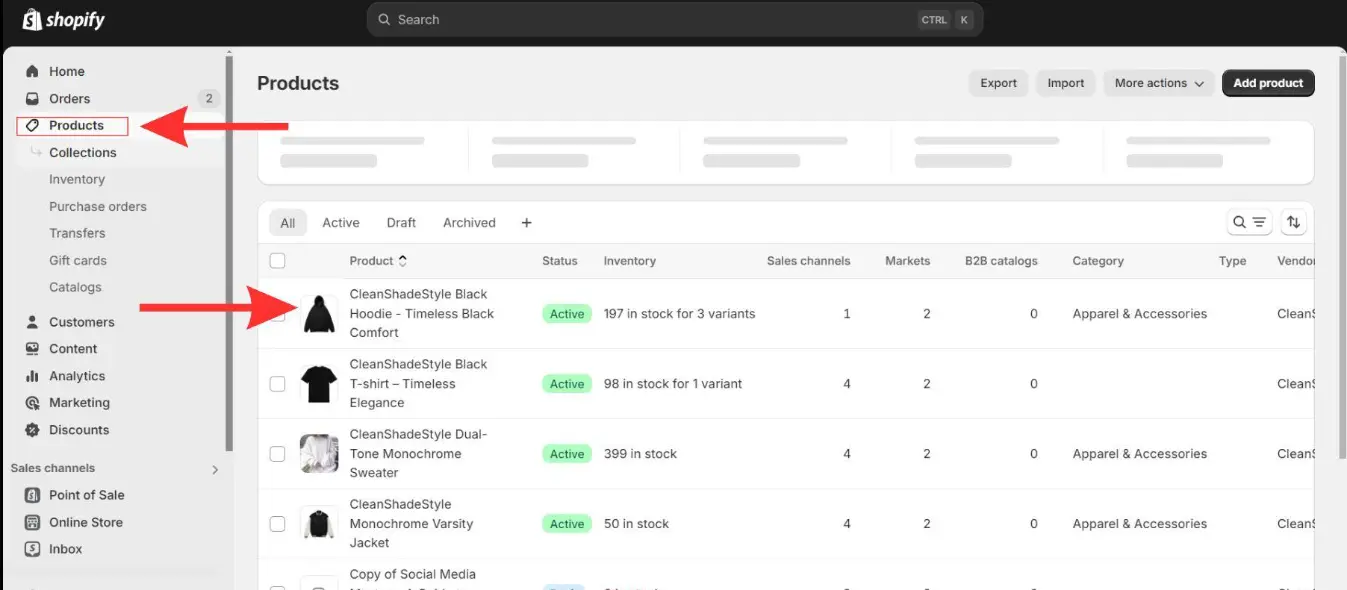
- WooCommerce: REST API for live product, price, and stock data.
- Shopify: Storefront API for read-only catalog access, or Admin API if you need deeper order/inventory visibility.
- CSV import: fine for simpler, smaller catalogs.
- JSON product feeds: for platforms that expose a live feed endpoint.
Whichever source you use, confirm it reflects real-time stock rather than a stale snapshot, and set the catalog refresh interval; live API calls versus a scheduled sync, based on how often your inventory actually changes.
A fast-moving catalog on a slow sync schedule is the most common cause of an assistant confidently quoting sold-out items as in stock.
Enable shopping skills
None of these ship built in; each is a skill you create or install: product search, recommendations, stock checks, price lookups, product comparisons, order tracking, checkout assistance, and upselling/cross-selling.
Step 6: Connect Customer Communication Channels
Telegram
Create a bot via BotFather and grab its API token. Add it in the Channels section with that token, then restrict which Telegram user IDs or groups can interact with the assistant. Run a test conversation and confirm activity shows up correctly in the dashboard’s logs.
Connect a WhatsApp Business account, then pair the device by scanning the QR code from WhatsApp’s Linked Devices menu. Approve the resulting connection request inside OpenClaw. Run a test conversation, and specifically watch for duplicate or dropped messages before relying on the channel for real customers; WhatsApp’s device-linking model is more failure-prone than Telegram’s token-based API.
Test across channels
Send the same queries through every connected channel and confirm consistent answers. Verify that a customer’s conversation state holds up across multiple messages within a channel, and that every shopping workflow- search, comparison, stock check, order status, checkout- works identically everywhere, not just on whichever channel you set up first.
Step 7: Test the Shopping Assistant
Before pointing real traffic at it, walk through: product search, stock checks, product comparisons, order tracking, shipping questions, and a full sample purchase journey end to end.
Step 8: Secure and Protect the Deployment
Before using your shopping assistant in production, take a few minutes to secure your deployment.
- Keep OpenClaw updated. Security vulnerabilities have been discovered in older versions that could expose API tokens or allow attackers to take over the gateway. Always install updates as they become available.
- Limit open ports. Only expose the ports you actually need. If you don’t need remote access to the dashboard, restrict it to trusted IP addresses instead of making it publicly accessible.
- Control tool permissions. OpenClaw can run shell commands and access external services. Only grant the permissions your shopping assistant needs, and avoid giving it unrestricted access.
- Watch for prompt injection. Customer messages, product descriptions, and web pages can contain malicious instructions designed to trick AI agents. Limit the assistant’s tools to shopping-related tasks to reduce risk.
- Back up your deployment. Create a snapshot before major updates and enable regular backups so you can quickly recover if something goes wrong.
- Protect your credentials. Store API keys securely, use HTTPS, and regularly review connected devices and integrations to keep your deployment secure.
Troubleshooting Common Issues
| Symptom | Fix |
| Browser won’t reconnect after an IP change | Rotate the OpenClaw token (openclaw token rotate) and pair the browser again. |
| Chat returns no AI response | Verify Amazon Bedrock first-time setup (FTU) is complete, check IAM permissions, then re-run the CloudShell deployment script. |
| WhatsApp keeps disconnecting | Run openclaw channels update and scan the WhatsApp QR code again. |
| Token expired | Rotate the token with openclaw token rotate and pair the browser again. |
| Shopping tools can’t browse products | Review the tool and execution permissions, confirm the required shopping tools are enabled, then restart the gateway. Check whether the skill needs additional tool access instead of broadly increasing execution permissions. |
| SSL certificate errors | Wait for the certificate service to complete its first run, or assign a static IP address and re-trigger SSL certificate issuance. |
Get Started With OpenClaw Shopping Assistant
The setup work is real, but it’s a one-time cost. Once the instance is running, the model’s connected, and the channels are paired, you’ve got an assistant that never clocks out, answering product questions, checking stock, and moving customers toward checkout on WhatsApp and Telegram at 2 am just as reliably as at 2 pm.
Where you host it matters less than getting the fundamentals right: a properly scoped exec policy, a live product feed instead of a stale one, and a human handoff path for anything that isn’t a straightforward shopping question. Get those three right and the rest is maintenance.
If you’d rather skip the manual server setup and start from a pre-configured environment, deploy OpenClaw on a Truehost VPS and have your shopping assistant online in minutes.
OpenClaw Shopping Assistant FAQ
What’s the recommended Lightsail plan for OpenClaw?
At least 4 GB of RAM, AWS’s own recommendation, and consistent with what VPS providers recommend for smooth performance under normal shopping-assistant load.
Does OpenClaw work with WhatsApp for e-commerce?
Yes, via a WhatsApp Business account paired through the Linked Devices flow, though message-sync stability should be verified before relying on it for live customers.
Do I need technical skills to deploy OpenClaw?
Basic SSH/console familiarity is enough for the Lightsail blueprint or a managed VPS route (like Truehost’s one-click deployment); a fully manual VPS install (Docker, Nginx, Node.js) needs more comfort with the command line.
Can I use OpenClaw without Amazon Bedrock?
Yes, OpenAI, Google Gemini, Mistral and OpenAI-compatible endpoints, and Ollama for fully local inference are all supported alternatives.
What happens if the IP address changes?
Your dashboard URL, browser pairing, and SSL certificate all break and need to be redone; this is why assigning a static IP immediately after launch matters.