 Web Hosting
 Windows HostingBuilt for Windows apps and websites – stability, speed and flexibility
 Reseller HostingLaunch a hosting business without technical skills or expensive infrastructure
 Affiliate ProgramRefer customers and earn commissions from sales across our platform
 Domain SearchFind and secure a domain name in seconds with our quick lookup tool
 CO ZA Domains
 All DomainsExplore domain names from over 324 TLDs globally – all in one place
 Free Whois Lookup Tool South Africa
 VPS
VPS Website Builder
 Online ShopSet up a sleek eCommerce store with zero coding knowledge
 SSLs
SSLs SupportAccess help articles, how-tos, and everything about our services
 Blog
Blog Contact UsReach our team instantly via live chat or drop us an email
Pointing your domain to a new host is an essential step when moving to a new hosting provider, launching a website, or upgrading to a VPS or cloud server. When configured correctly, visitors can access your website without interruption. If it’s done incorrectly, your website or email may become temporarily unavailable.
This guide explains how domain pointing works, the two ways to point a domain, how to prepare for the change, step-by-step instructions for each method, and how to troubleshoot common issues.
Table of Contents
How Domain Pointing Actually Works
Every time someone types your domain into a browser, a lookup chain runs in the background before the page ever loads:
Browser → root servers → TLD servers → your domain’s authoritative nameservers
The resolver first asks a root nameserver where to find information for your domain’s extension (.com, .co.ke, .org, and so on). The root server points it to the right TLD (top-level domain) server.
The TLD server, in turn, points the resolver to your domain’s authoritative nameservers, the servers that hold your actual DNS records.
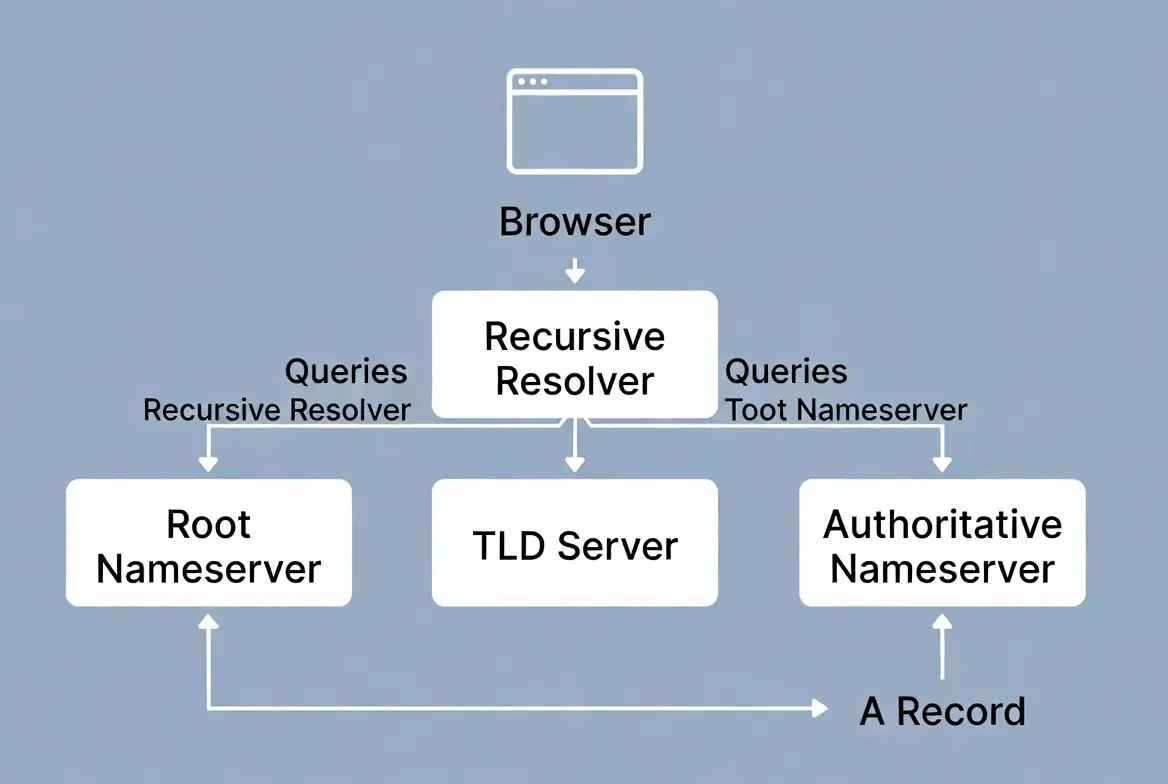
Only then does the resolver ask those nameservers for the specific record it needs, typically an A record (which maps your domain to an IP address) or a CNAME record (which maps your domain to another domain name), and that record tells the browser where to actually connect.
Because of this chain, there are exactly two places you can intervene to change where a domain points:
i) Change the nameservers: hand off DNS management to a new provider entirely (for example, your new host, or a service like Cloudflare).
ii) Update the DNS records: keep your current DNS provider, but edit the A or CNAME record so it points at the new server’s IP address.
Which one you choose determines the entire workflow below.
Preparation: Do This Before Pointing Your Domain
A little preparation can help you avoid downtime and other issues during the move.
1) Back Up Your Website
Create a full backup of your website files, database, emails (if applicable), and current DNS records. Make sure you can restore the backup if needed.
2) Set Up Your New Hosting First
Upload your website to the new host, configure the database, install an SSL certificate if required, and test that everything works using a temporary URL or a hosts file.
3) Record Your Current DNS Settings
Take note of your existing DNS records, including A, CNAME, MX, TXT, and nameserver records. You’ll need these if you have to recreate your DNS settings later.
4) Lower the TTL Value
Reduce the TTL (Time to Live) for the DNS records you’ll be changing to around 300–3600 seconds at least 24–48 hours before the migration. This helps DNS changes propagate faster.
5) Prepare Your Email Settings
If your domain uses email, make sure your MX and other email-related DNS records are copied correctly. This prevents email interruptions after the switch.
6) Decide How You’ll Point Your Domain
Choose the method that best suits your setup:
- Update A records while keeping your current DNS provider (recommended for most users).
- Change nameservers to let your new hosting provider manage DNS.
- Use a third-party DNS provider like Cloudflare for additional security and performance features.
7) Keep Your Old Hosting Active
Don’t cancel your old hosting immediately. Keep it running until your domain has fully propagated and you’ve confirmed your website and email are working correctly.
Step-by-Step Guide to Pointing the Domain
Method A: Changing Nameservers
Use this method if you’re moving DNS management to your new host or to a third-party provider.
Step 1: Get the new nameservers.
Your new host will supply these, usually in the welcome email or somewhere in the hosting control panel. They’ll look something like ns1.example.tld and ns2.example.tld.
Step 2: Log into your domain registrar.
Find the DNS or nameserver management section; this is usually under your domain’s settings, not your hosting account, since the registrar is where the domain itself was purchased.
Step 3: Switch to custom nameservers.
Change the setting from the registrar’s default nameservers to “custom,” and enter the new values exactly as given, in the ns1.example.tld format. If your host provided both nameserver names and IP addresses, only enter the nameserver names; the IP addresses are informational and don’t belong in this field.
Step 4: Save the change.
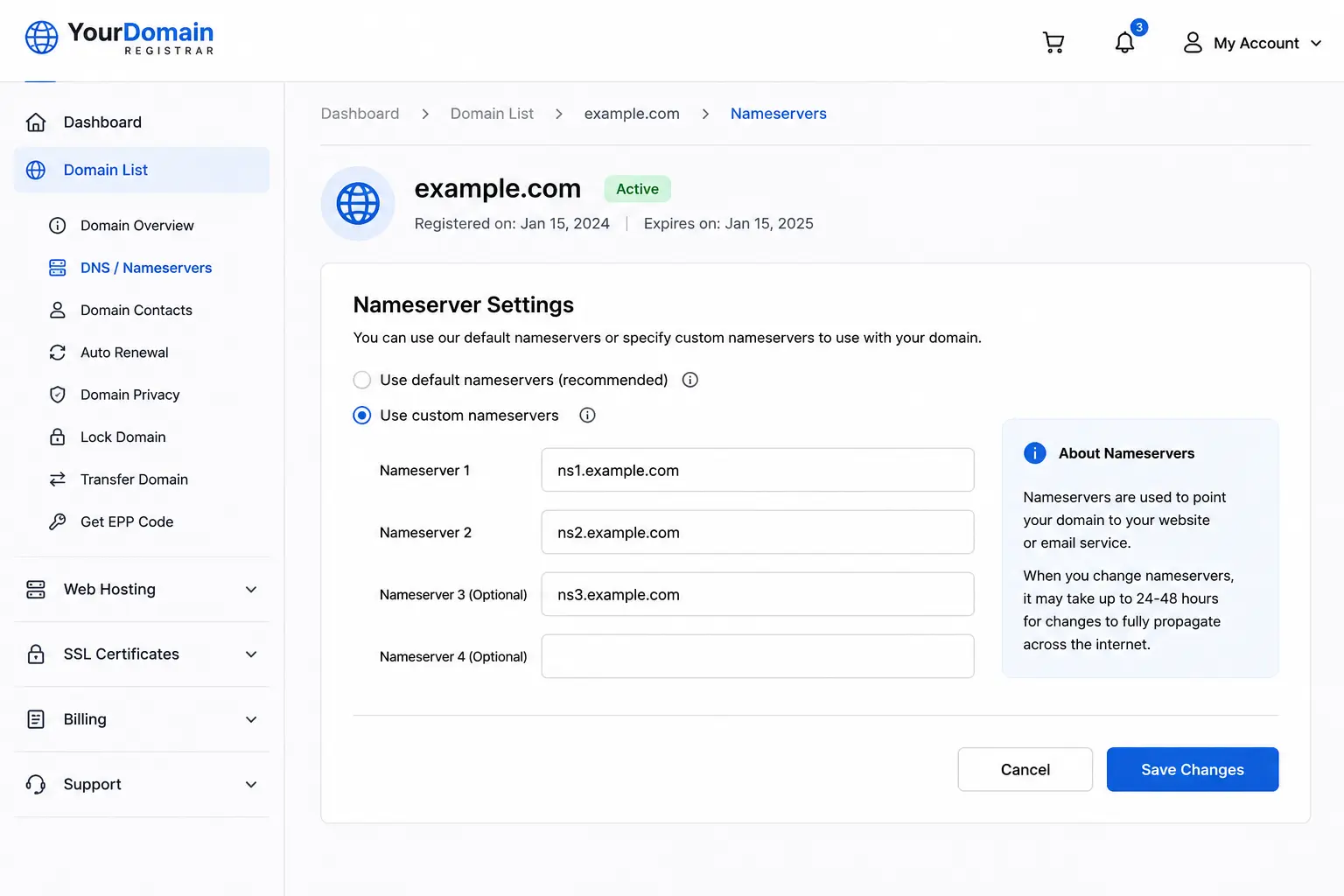
A critical warning: many registrars will wipe your existing custom DNS records the moment you switch nameserver modes. Once you point your domain at the new host’s nameservers, any custom records you previously had (MX, TXT, additional A records, etc.) may be gone, and you’ll need to recreate them from scratch inside your new host’s DNS zone editor using the inventory you took during preparation.
Method B: Updating DNS Records Directly
Use this method if you’re keeping your current DNS provider and simply pointing records at a new server’s IP address.
Step 1: Find your current A record.
In your DNS zone editor, locate the A record for the root domain, typically shown as @.
Step 2: Replace the IP address.
Swap the old server IP for your new host’s server IP.
Step 3: Update the www record.
If your new host gave you an IP address rather than a nameserver, you’ll typically need two A records: one with the host field left blank (or set to @) pointing to the IP, and a second one using a wildcard * pointing to the same IP, so that www and any other subdomain resolve correctly.
Step 4: Remove conflicting old records.
Look for any leftover ALIAS, CNAME, or A records still pointing at your old server, and delete them. Leaving them in place is one of the most common causes of a domain resolving inconsistently after a migration; different resolvers may pick up different, conflicting records.
Step 5: Save and note the expected timeline.
Direct record changes typically propagate much faster than nameserver changes; often within minutes rather than days. In many cases, browsers start routing to the new server within about five minutes, though full global propagation can still take longer depending on caching along the way.
During and After Propagation
Monitor progress. Tools like WhatsMyDNS.net let you check how your domain is resolving from dozens of locations around the world simultaneously. Test from a few different devices and networks yourself as well, since your own browser or ISP may have cached the old answer.
Keep the old host active. Don’t cancel your previous hosting until you’ve confirmed propagation is complete and everything- the site, email, subdomains- is working correctly on the new setup. If something’s wrong, you want the ability to roll back or at least diagnose the issue with both environments still available.
Handle the services that don’t migrate automatically:
- Email: Prioritize getting MX records right, and consider temporary forwarding if there’s any gap.
- SSL/HTTPS: Reissue or transfer your certificate (Let’s Encrypt is the common free option) so the new server can serve your site securely; don’t assume a certificate from the old host carries over.
- Subdomains and add-on domains: Each one needs to be checked and updated individually; they don’t automatically follow the root domain’s changes.
- CDN/proxy services: If you’re using Cloudflare or a similar service, reconfigure it to point at the new origin server.
Troubleshooting Common Problems
| Problem | Possible Cause | How to Fix |
| Website doesn’t load after pointing the domain | Typo in the nameserver or IP address | Double-check every nameserver, IP address, and DNS record for spelling mistakes before saving. |
| Changes won’t save | Domain is locked at the registrar | Unlock the domain in your registrar’s control panel, then try again. |
| New nameservers aren’t showing | DNS changes are still propagating | Wait for DNS propagation to complete, which can take anywhere from a few minutes to 48 hours. |
| Domain points to the wrong website | Missing or incorrect A or CNAME record | Verify that the new host has the correct A or CNAME record pointing to your server’s IP address. |
| Website is unreachable after changing nameservers | Nameservers from two different providers were mixed | Use only one complete set of nameservers from the same hosting provider. Never mix nameservers from different hosts. |
| Email stops working after the switch | MX, SPF, DKIM, or other email records were not copied | Recreate all required email DNS records before or immediately after changing nameservers to restore email service. |
Point Your Domain with Confidence
Pointing a domain to a new host is a straightforward process when you choose the right method and prepare properly. Whether you change your nameservers or update your DNS records, planning helps minimize downtime and ensures your website and email continue working without interruption.
Ready to move your website? Get fast, reliable web hosting with Truehost and enjoy an easy migration process, high-performance servers, and expert support to help you every step of the way.
Point a Domain to a New Host FAQs
What is the difference between changing nameservers and changing an A record?
Changing nameservers moves your entire DNS management to a new provider. Changing an A record only updates the IP address your domain points to while keeping your current DNS provider. Nameserver changes affect all DNS records, while A record changes affect only your website.
Will pointing my domain delete my website?
No. Pointing a domain only changes where your domain directs visitors. Your website files and database remain on your hosting server. However, make sure your website is fully migrated before updating DNS to avoid visitors seeing an incomplete site.
Will visitors experience downtime?
Usually not, if you prepare properly. Keep your old hosting account active until DNS propagation is complete and confirm your new website is working before changing your domain settings.
How long does DNS propagation take?
Most DNS changes take effect within a few minutes to a few hours, but full propagation can take up to 48 hours. Lowering your DNS TTL before making changes can help speed up the process.
Can I keep my email with the old provider?
Yes. You can continue using your current email provider by keeping the correct MX and other email-related DNS records (such as SPF, DKIM, and DMARC) unchanged while pointing your website to a new host.
Can I point only a subdomain to a different server?
Yes. You can point a subdomain, such as blog.example.com or shop.example.com, to a different server by updating its A or CNAME record without affecting your main domain.
Why does my site load differently in different locations?
This is usually caused by DNS propagation. Some internet providers update DNS records faster than others, so people in different locations may temporarily see different versions of your website until propagation is complete.
How do I know whether my registrar or my host manages DNS?
Check your domain’s nameservers. If they use your registrar’s default nameservers, manage DNS records at your registrar. If they point to your hosting provider’s nameservers, you’ll manage DNS through your hosting control panel instead.