 Web Hosting
 Windows HostingBuilt for Windows apps and websites – stability, speed and flexibility
 Reseller HostingLaunch a hosting business without technical skills or expensive infrastructure
 Affiliate ProgramRefer customers and earn commissions from sales across our platform
 Domain SearchFind and secure a domain name in seconds with our quick lookup tool
 CO ZA Domains
 All DomainsExplore domain names from over 324 TLDs globally – all in one place
 Free Whois Lookup Tool South Africa
 VPS
VPS Website Builder
 Online ShopSet up a sleek eCommerce store with zero coding knowledge
 SSLs
SSLs SupportAccess help articles, how-tos, and everything about our services
 Blog
Blog Contact UsReach our team instantly via live chat or drop us an email
A VPS control panel is software with a web-based interface. It sits between you and your server’s command line. Instead of typing terminal commands, you click buttons to manage your setup.
Most panels handle the same core jobs:
- Web server configuration, including Apache, Nginx, or OpenLiteSpeed
- Domain and DNS management
- SSL certificate installation and renewal
- Database setup and management
- Email accounts, where the panel supports mail
- Cron jobs and scheduled tasks
- Backups and restore points
You can still manage a VPS via the command line without a panel at all. Some sysadmins prefer that route, and there is nothing wrong with it. This guide is for people who prefer the graphical option.
This guide walks through the panels worth your time in 2026, sorted by who each one actually serves.
Table of Contents
Best Free Control Panel Options for VPS Management
| Panel | Idle RAM | Best OS Support | Web Server | Best For | Maintenance Status |
|---|---|---|---|---|---|
| HestiaCP | Low | Debian, Ubuntu | Nginx + Apache | Small VPS, solo admins | Active |
| CyberPanel | Moderate | AlmaLinux, Rocky, Ubuntu | OpenLiteSpeed | WordPress speed | Active |
| aaPanel | Moderate to high | Broad Linux support | Nginx, Apache, OpenLiteSpeed | Beginners, one-click apps | Active |
| CloudPanel | Very low | Debian, Ubuntu | Nginx | Cloud instances, PHP apps | Active |
| Webmin/Virtualmin | Varies | Broad Linux support | Apache | System admin control | Active |
| ISPConfig | Moderate | Broad Linux support | Apache, Nginx | Reseller, multi-server setups | Active |
| Froxlor | Very low | Debian, Ubuntu | Apache, Nginx | Single hobby server | Active |
1) HestiaCP
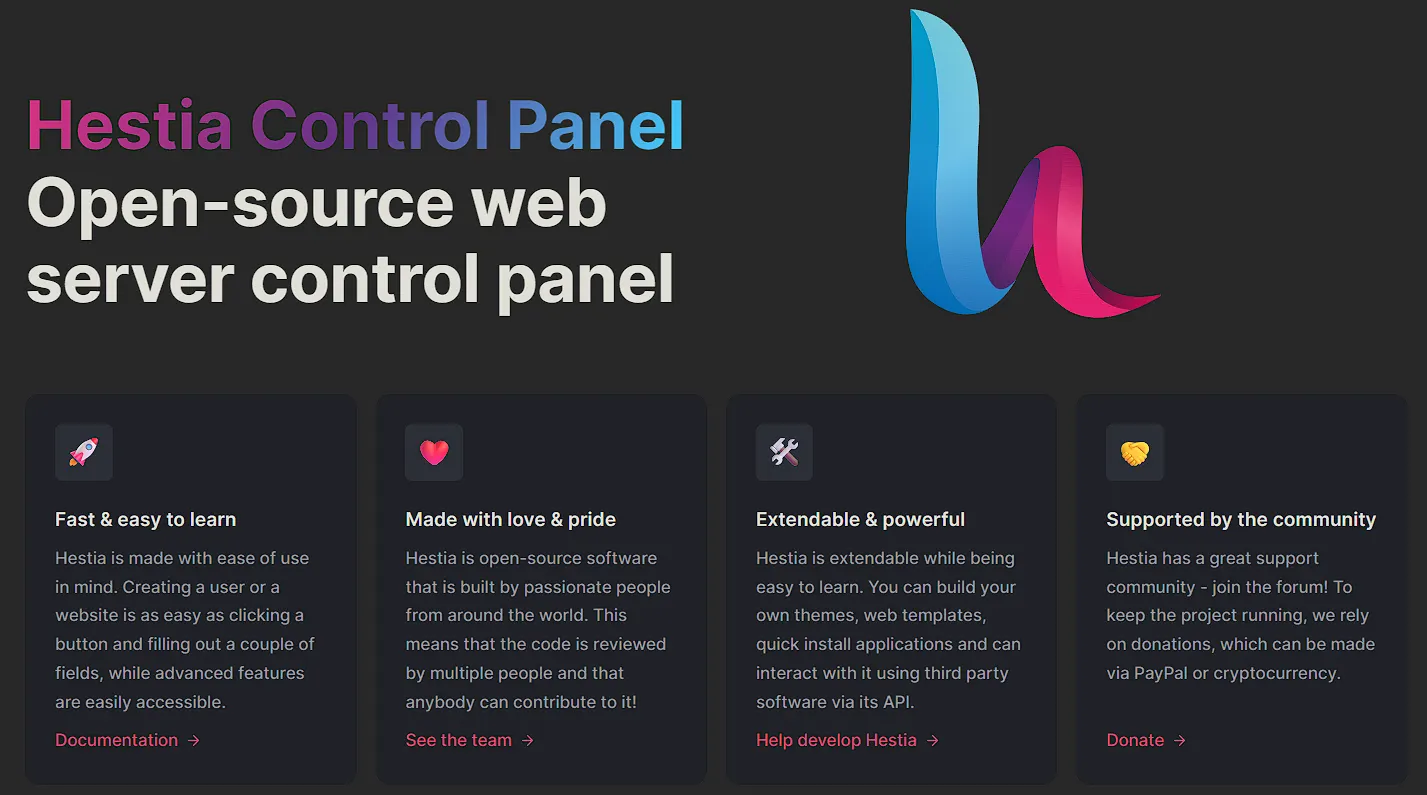
HestiaCP is a community fork of VestaCP, rebuilt with a cleaner codebase and steady updates. It runs light and stays out of your way.
On a small VPS, HestiaCP keeps idle RAM use low. That makes it a solid pick for servers running on 1 to 2 GB of memory.
It works best on Debian and Ubuntu. It does not support RHEL-family distributions such as AlmaLinux or Rocky Linux, so check your OS before installing.
Multi-PHP version switching comes built in, along with automatic Let’s Encrypt SSL. Setup for both takes just a few clicks.
The tradeoff is app support. HestiaCP ships with fewer one-click installers than aaPanel or CyberPanel, so you may need to install some apps manually.
It fits solo admins, small agencies, and anyone running a lean personal VPS. If you want a panel that installs quickly and rarely surprises you, this is a safe pick.
2) CyberPanel
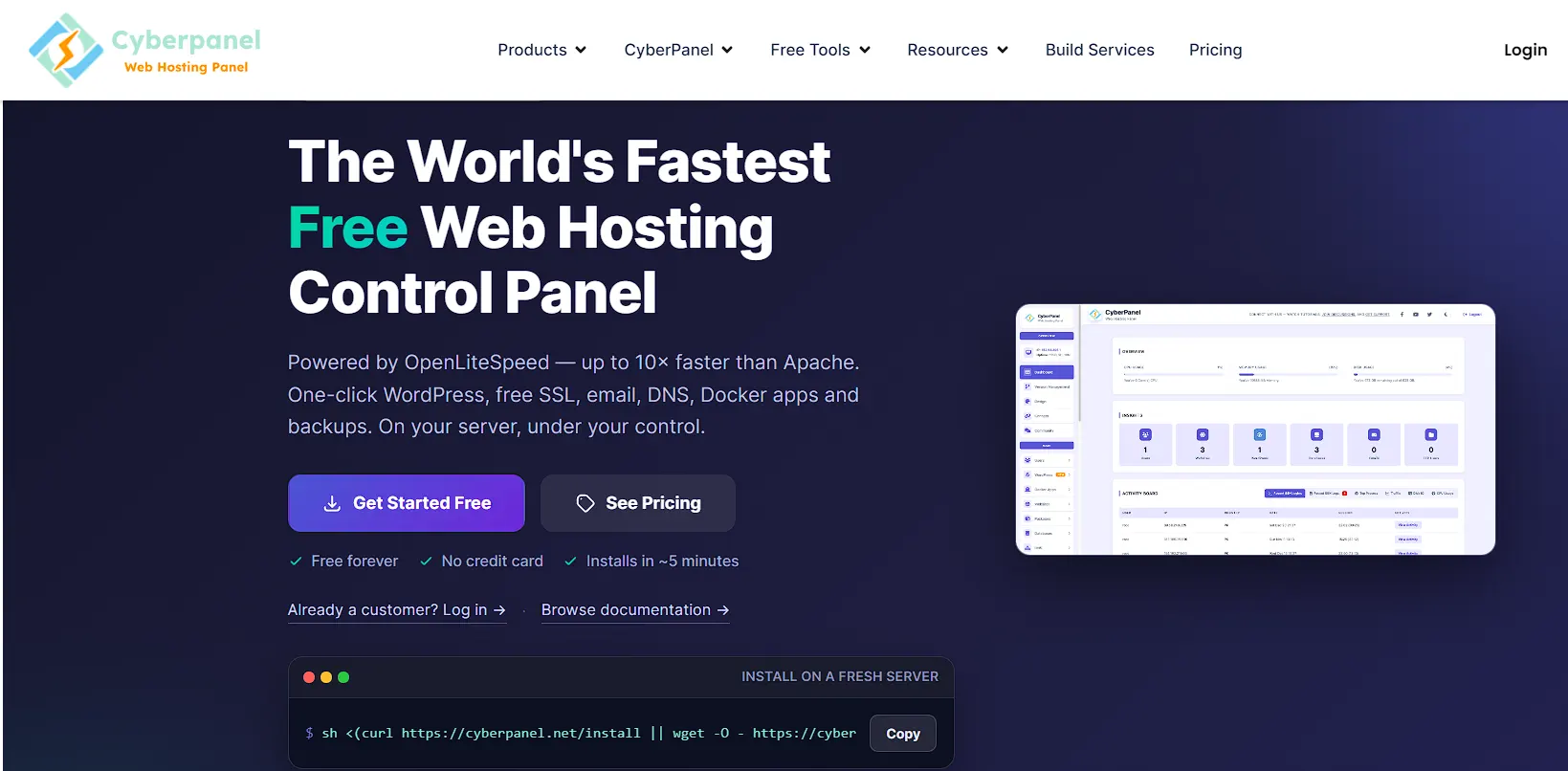
CyberPanel runs on OpenLiteSpeed instead of the usual Apache or Nginx setup. That choice gives it a real speed edge for WordPress sites.
The built-in LiteSpeed Cache plugin noticeably cuts page load times compared to panels without native caching support. For a WordPress-heavy site, this difference shows up fast.
CyberPanel supports a wide range of operating systems, including AlmaLinux and Rocky Linux. If your VPS provider defaults to an RHEL-family distro, CyberPanel is the strongest free option available.
One caveat is worth knowing before you commit. Isolation between accounts relies on Linux user permissions and per-site PHP handlers, not full process-level separation. If you plan to host multiple client sites on a single server, read the security section below first.
CyberPanel is well-suited to WordPress-focused deployments and to anyone running AlmaLinux or Rocky Linux who wants speed without a manual caching setup.
3) aaPanelReview
aaPanel has the broadest library of one-click app installers among the free panels covered here. WordPress, Node.js, Docker, and dozens of other stacks can be installed in a few clicks.
Its interface feels similar to cPanel, which helps anyone migrating from a paid panel adjust quickly. The layout stays familiar even for first-time VPS owners.
Resource usage is higher than with HestiaCP or CloudPanel. It still stays workable on most modern VPS plans with 2 GB of RAM or more.
Some advanced features, such as extended firewall rules and certain monitoring tools, are available through a paid plugin marketplace. The core panel stays free, but read the fine print before assuming every feature is included.
aaPanel is ideal for beginners and anyone who wants the widest app support without paying for a license.
4) CloudPanel
CloudPanel was built specifically for cloud environments. Its setup wizard offers ready-made templates for WordPress, PHP, Node.js, and Python. A new website goes live in minutes.
Resource use remains extremely low, often the lowest of all panels in this guide. That makes it a strong fit for small cloud instances where every bit of RAM counts.
It runs best on Debian and Ubuntu. Support for RHEL family distributions like AlmaLinux is limited, so check compatibility first if that is your OS.
Nginx handles the web server layer, and SSL setup through Let’s Encrypt comes built in. The interface stays clean, with fewer menus than aaPanel or CyberPanel.
The tradeoff is app variety. CloudPanel focuses on a smaller set of stacks rather than trying to cover every use case at once.
It fits developers who want a lightweight, no-clutter panel for PHP or Node.js apps on small cloud VPS plans.
5) Webmin And Virtualmin
Webmin gives full system administration control, extending well beyond hosting features to include user accounts, disk quotas, and service management. Virtualmin layers hosting tools on top of it for domains, email, and databases.
Resource use varies depending on which modules you enable, since Webmin lets you turn features on and off individually. A minimal setup stays light, while a full Virtualmin install uses more RAM.
OS support is broad, covering most major Linux distributions, including both Debian-based and RHEL-based systems. This flexibility is one of its strongest points.
The interface feels dated next to newer panels like CloudPanel or aaPanel. The learning curve also runs steeper, since menus expose deep system settings rather than simplified toggles.
Advanced admins tend to prefer this depth over a friendlier design. It gives direct access to configuration files that most other panels hide.
It fits sysadmins who want full OS level control alongside basic hosting features, not just a simple website manager.
6) ISPConfig
ISPConfig lets you manage multiple servers from a single dashboard. That single feature sets it apart from most other free options, which only manage one server at a time.
Resource use sits in the moderate range, similar to aaPanel, though it can run leaner with fewer modules active. It works comfortably on a 2 GB VPS.
OS support spans Debian, Ubuntu, and several RHEL-based distributions. This range makes it a flexible pick regardless of which VPS provider you use.
Its reseller features stand apart from the other panels here. Admin, reseller, and client account levels come built in from the start. Email hosting support is also solid, covering multiple mail server combinations.
The interface looks functional rather than polished, and new users may need time to find their way around the menus.
It fits reseller hosting setups or anyone running several VPS instances who wants one login instead of five.
7) Froxlor
Froxlor keeps things minimal by design. Its resource footprint is small enough for a single hobby server or a light internal hosting project.
RAM use stays close to CloudPanel’s level, making it one of the leanest panels in this guide. A 512 MB to 1 GB VPS can run it without strain.
It works best on Debian and Ubuntu, with community documentation mostly written in German and English. Support for RHEL-based systems is limited.
Setup covers the basics well: domains, email, databases, and SSL through Let’s Encrypt. It leaves out extras like built-in monitoring dashboards or app marketplaces.
Enterprise-level features are intentionally missing, so larger hosting businesses will likely outgrow it quickly.
It fits hobbyists and small internal projects that need a simple panel without any extra weight.
Security Tradeoffs Of Free Control Panels
Free panels rely on community contributors for security patches instead of a dedicated support team. Patch speed varies from project to project, so check each panel’s release history before you commit.
Isolation gaps appear differently across panels, especially when running multiple sites or client accounts on a single server. Read the specifics for your chosen panel before assuming full separation.
A few practical steps close most of the gap:
- Set firewall rules that limit access to only the ports you need
- Turn off any panel module you are not using
- Keep both the panel and your OS on a regular update schedule
- Review user permissions after adding new accounts or sites
None of these steps takes long, and skipping them is where most free panel security issues start.
Best Paid Control Panel Options for VPS Management
A paid control panel differs from a free one in three ways. You get dedicated support, an uptime commitment for the panel software itself, and commercial features such as WordPress toolkits and billing integrations.
Every paid VPS control panel bills you through one of three models. Learning these three before you compare prices will save you a lot of confusion later.
- Per-account licensing. You pay based on how many hosting accounts run on the server. cPanel and DirectAdmin both work this way.
- Per-server licensing. You pay a flat rate for the entire server, no matter how many domains it hosts. Plesk’s top tier works this way.
- Per-domain licensing. Some Plesk tiers cap the number of domains a license covers, so the cost climbs in steps rather than smoothly.
A paid panel is not always the right call. If your VPS runs one app, one database, and a handful of services, the panel overhead can outweigh the convenience. Direct shell management with SSH and a few config files often works better for jobs of that size.
| Panel | Entry Price | Licensing Basis | Notes |
|---|---|---|---|
| cPanel | $29.99/month | Per account, tiered | Overage fees apply past the tier limit |
| Plesk | $13.59/month | Per server, domain-capped by tier | Web Host tier covers unlimited domains |
| DirectAdmin | $5/month | Per account, unlimited on Standard | Cheapest option for most account volumes |
| InterWorx | $20/month | Per server | Built for multi-server clustering |
| Webuzo | $2.50/month | Tiered by user count and instance type | Business tier covers unlimited end-user accounts |
| ISPmanager | $9.59/month | Per server | Cleaner interface at a similar cost |
1) cPanel
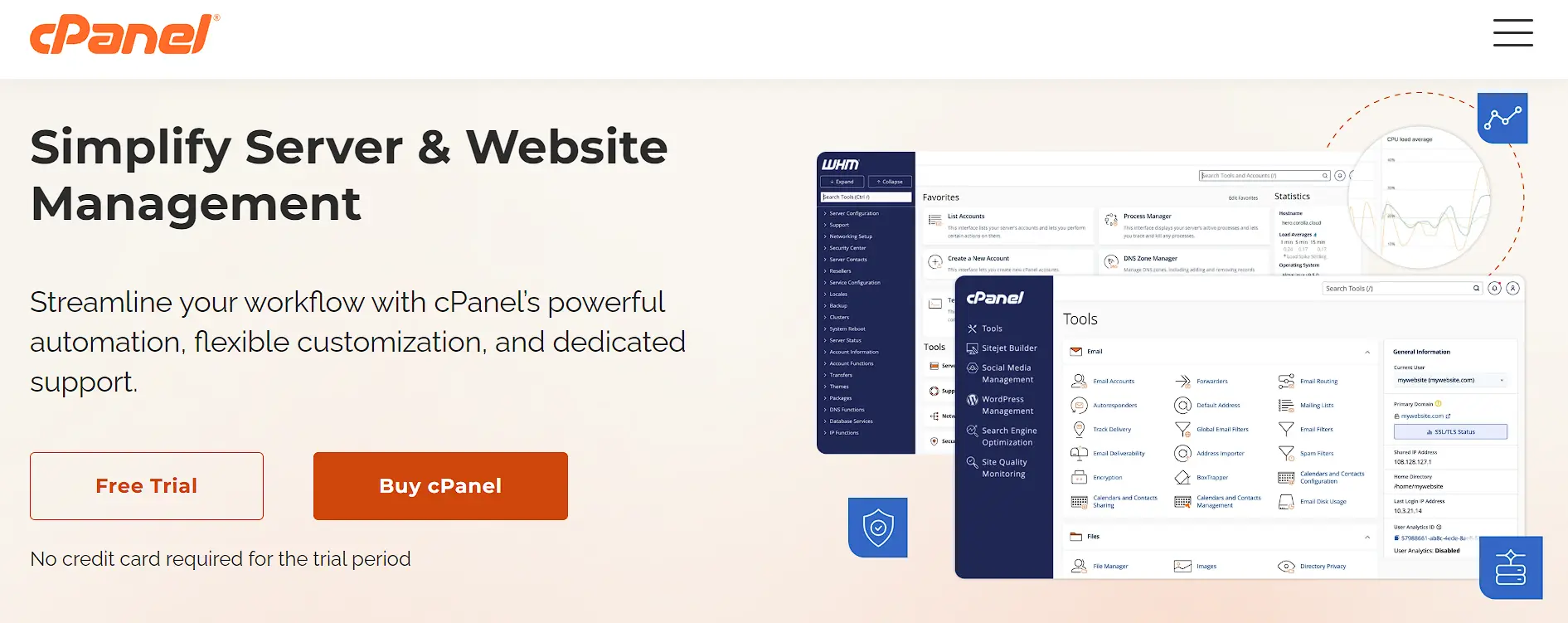
cPanel is the panel most hosting tutorials assume you already have. That familiarity alone saves hours for anyone new to VPS management.
The WP Toolkit handles WordPress installation, staging, and security scanning on one screen, and its billing integration list is the widest of any panel here, covering WHMCS, Blesta, HostBill, BILLmanager, and ClientExec.
Support documentation runs deep, so most problems already have a written fix somewhere online. On the other side, price climbs fast once your account count grows, since overage fees kick in past the tier limit.
Memory usage is also higher than with DirectAdmin, so a small VPS may feel the strain. cPanel is ideal for agencies and hosting resellers who need billing automation and want the shortest learning curve for new staff.
2) Plesk
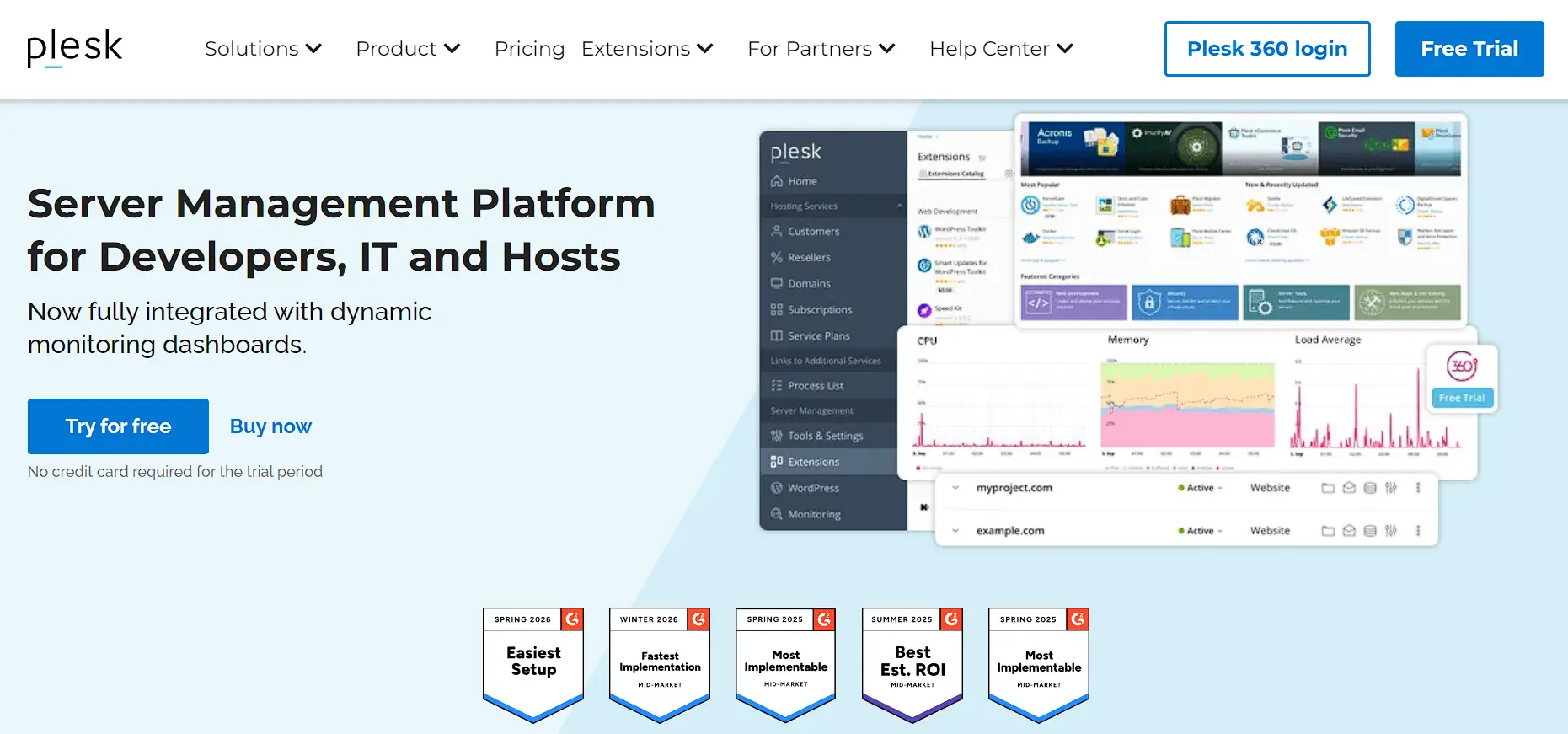
Plesk is the only panel on this list built from the ground up for both Linux and Windows. That single fact influences many buying decisions before price even enters the conversation.
True cross-platform support opens the door to Windows-based apps that cPanel and DirectAdmin cannot touch, and the WordPress Toolkit matches cPanel’s feature for feature.
Docker and Git integration give developer teams tools that older panels skip. On the downside, per-server licensing means multi-server setups pay a full license fee for each machine, and entry pricing is higher than DirectAdmin for a comparable account volume.
Plesk fits mixed Windows and Linux shops, and development teams that already build around Docker and Git.
3) DirectAdmin
DirectAdmin trades a polished interface for a lower bill. For cost-conscious buyers, that trade pays off fast.
The Standard tier covers unlimited accounts for around $29 a month, undercutting cPanel and Plesk at nearly every account volume.
Memory use stays lower than the other two major panels, which helps on a small VPS, and setup and account management run quicker once you learn the interface.
Still, the interface looks and feels dated next to cPanel or Plesk, and WordPress installs still need Softaculous, since the built-in WP Manager only tracks installs you already have.
DirectAdmin is ideal for solo site owners, freelancers, and budget-conscious buyers running a small- to mid-size VPS.
4) InterWorx
InterWorx splits its interface into two parts: NodeWorx for server administration and SiteWorx for website management. That split gives admins a clear line between server-level and account-level tasks.
Clustering support lets you manage several VPS instances from one dashboard, which none of the big three panels handle as directly, and pricing stays simple, split only between single VPS and dedicated server.
On the other hand, the user base is smaller than cPanel or Plesk, so community tutorials and forum answers are harder to find, and feature depth outside of clustering trails the bigger panels.
InterWorx suits admins running multiple VPS instances who want a single dashboard instead of switching between servers.
5) Webuzo
Webuzo covers the widest price range of any panel on this list, from about $2.50 to $25 a month. That range makes it flexible for a wide range of account sizes.
Softaculous comes built in, so app installs stay quick, and native import tools cover cPanel, Plesk, DirectAdmin, and several other panels, which makes migration less painful than most competitors.
That said, brand recognition trails the big three, so support resources and third-party guides run thinner, and some features sit behind higher tiers that smaller buyers may skip.
Webuzo is ideal for anyone switching from another panel who wants a smooth import process and flexible tier pricing.
6) ISPmanager
ISPmanager positions itself as a cleaner-looking alternative to DirectAdmin at a similar price point.
The interface feels more modern than DirectAdmin’s, with no large price jump, and DDoS protection and site-building tools are built in on some tiers.
On the flip side, market share and documentation both trail DirectAdmin, so support answers can take longer to find, and there are fewer third-party integrations than with cPanel or Plesk.
ISPmanager is for buyers who want DirectAdmin-level pricing with a more modern interface and are willing to trade some community support for it.
How to Choose a VPS Control Panel
Before you pick a name off a list, weigh these factors against your own setup.
Ease of use versus technical control. Beginner-friendly panels use wizards and simple menus. Advanced panels give you more direct access to server settings, but expect a learning curve.
Resource overhead. Every panel uses some RAM and CPU just to run. On a budget VPS tier, a heavy panel can eat resources your website or app needs. Lighter panels leave more room for your actual workload.
Licensing model. Some panels are free and open source. Others charge a monthly or annual fee, often based on the number of accounts or servers you manage. Check current pricing directly, since cPanel and Plesk have both changed their pricing structures multiple times under their shared parent company, WebPros.
Operating system and web server compatibility. Most panels run on Linux. Only a few support Windows Server. Some are built specifically around a single web server, like CyberPanel’s integration with OpenLiteSpeed or CloudPanel’s Nginx-only design.
Built-in security tools. Look for a firewall, automatic SSL, two-factor authentication, and IP blocking included by default. Adding these later, panel by panel, wastes the time you do not have.
Best Control Panel by Use Case
- Solo site or freelancer on a small VPS. Cyberpanel Basic or with addons gives you the lowest flat monthly cost with no account limit to worry about.
- An agency running many client sites on Linux. cPanel gives you the deepest tutorial base and the widest billing integrations. Plesk is a strong runner-up if your team already works in Git and Docker daily.
- Mixed Windows and Linux environment. Plesk is the only real option among the three main panels, since it is the sole one with true cross-platform support.
- Multi-server operation needing one dashboard. InterWorx handles clustering out of the box. cPanel or Plesk can also work across multiple servers, but each server needs its own license.
- Switching panels soon. Check the import tool support before anything else. cPanel and Webuzo offer the broadest set of native migration tools among panels.
FAQs
Do I need a control panel for VPS hosting?
No, but most people find one useful. A control panel replaces manual terminal commands with a visual interface, so tasks like SSL setup and backups take less time and fewer mistakes.
Can you manage a VPS without a control panel?
Yes. Many experienced sysadmins run servers entirely through the command line and skip a panel altogether. It gives full control, but it also demands more technical skill and more patience with terminal work.
Which VPS control panel uses the least server resources?
CloudPanel and Froxlor both run light, since they skip extra features like built-in mail. cPanel and Plesk tend to use more RAM and CPU because they pack in a wider feature set by default.
Is Webmin better than cPanel?
Neither one is better across the board. Webmin gives more raw control and costs nothing, but it demands more server knowledge. cPanel is easier for beginners and comes with paid support at a higher price.
What is the cheapest VPS control panel?
Free open-source panels like Webmin, CloudPanel, CyberPanel, and ISPConfig cost nothing to run. Among paid options, DirectAdmin usually comes in below cPanel and Plesk in terms of feature set.
Is a paid control panel worth it for a VPS?
For most small businesses and freelancers, yes. A paid panel adds dedicated support, faster security patches, and features like automated WordPress management that free panels rarely match. If your VPS runs a single app, the cost may not be worth it.
Can a paid control panel run on a low-RAM VPS?
Yes, though the panel you pick affects how much RAM stays free for your actual sites. DirectAdmin uses noticeably less memory than cPanel or Plesk, so it fits better on smaller VPS plans.
Match the Panel to How You Actually Work
There is no single best VPS control panel for everyone. The right pick depends on your comfort with servers, your budget, and what you are actually hosting. A beginner running one WordPress site has different needs than an agency managing twenty client servers.
Match the panel to your actual workload first, not to whichever name shows up most often in comparison lists. Once you know your priorities, half the decision is already made.
If you are setting up a new VPS and want to confirm which control panels are supported on your plan, check with your hosting provider before you commit to one. A quick conversation now saves a migration headache later.