 Web Hosting
 Windows HostingBuilt for Windows apps and websites – stability, speed and flexibility
 Reseller HostingLaunch a hosting business without technical skills or expensive infrastructure
 Affiliate ProgramRefer customers and earn commissions from sales across our platform
 Domain SearchFind and secure a domain name in seconds with our quick lookup tool
 CO ZA Domains
 All DomainsExplore domain names from over 324 TLDs globally – all in one place
 Free Whois Lookup Tool South Africa
 VPS
VPS Website Builder
 Online ShopSet up a sleek eCommerce store with zero coding knowledge
 SSLs
SSLs SupportAccess help articles, how-tos, and everything about our services
 Blog
Blog Contact UsReach our team instantly via live chat or drop us an email
Yes, you can transfer a VPS, and it rarely results in downtime or lost files when you follow the right steps in the right order.
Moving a VPS does not mean unplugging a physical machine and shipping it somewhere new. It means copying your files, databases, and server settings onto a fresh VPS with a different provider.
This works between almost any two hosts, regardless of brand or region. As long as you can access your files, whether through SSH, a control panel, or a backup tool, the transfer is achievable.
There is one catch worth flagging early. Fully managed VPS plans sometimes limit backend access. In those cases, your current provider controls parts of the export process, so you may need their support team involved.
A VPS transfer breaks down into three real tasks. Once you see them separately, the process feels far less intimidating.
- File transfer: Your website files, scripts, and media move to the new server.
- Database transfer: Your MySQL or PostgreSQL databases get exported and imported on the new setup.
- DNS repointing: Your domain gets redirected from the old server’s IP to the new one.
This guide walks through exactly what moves, what does not, and how to get through the switch with your site intact.
Table of Contents
What You Need Before You Migrate a VPS
- Root or admin access to your current VPS, so you can pull files and databases
- SSH login details for both the old server and the new one
- Control panel credentials, if your setup uses cPanel, DirectAdmin, or a similar tool
- A provisioned VPS that matches or exceeds your current specs
- The same operating system and version as your current server, when possible
- Core software installed ahead of time, such as PHP, MySQL, or Nginx
- A full backup of your files and databases, stored somewhere outside the current server
- A list of installed plugins, extensions, or custom settings you will need to recreate
- Your SSL certificate files, since these rarely move over on their own
Step 1: Lower Your DNS TTL Before You Touch Anything
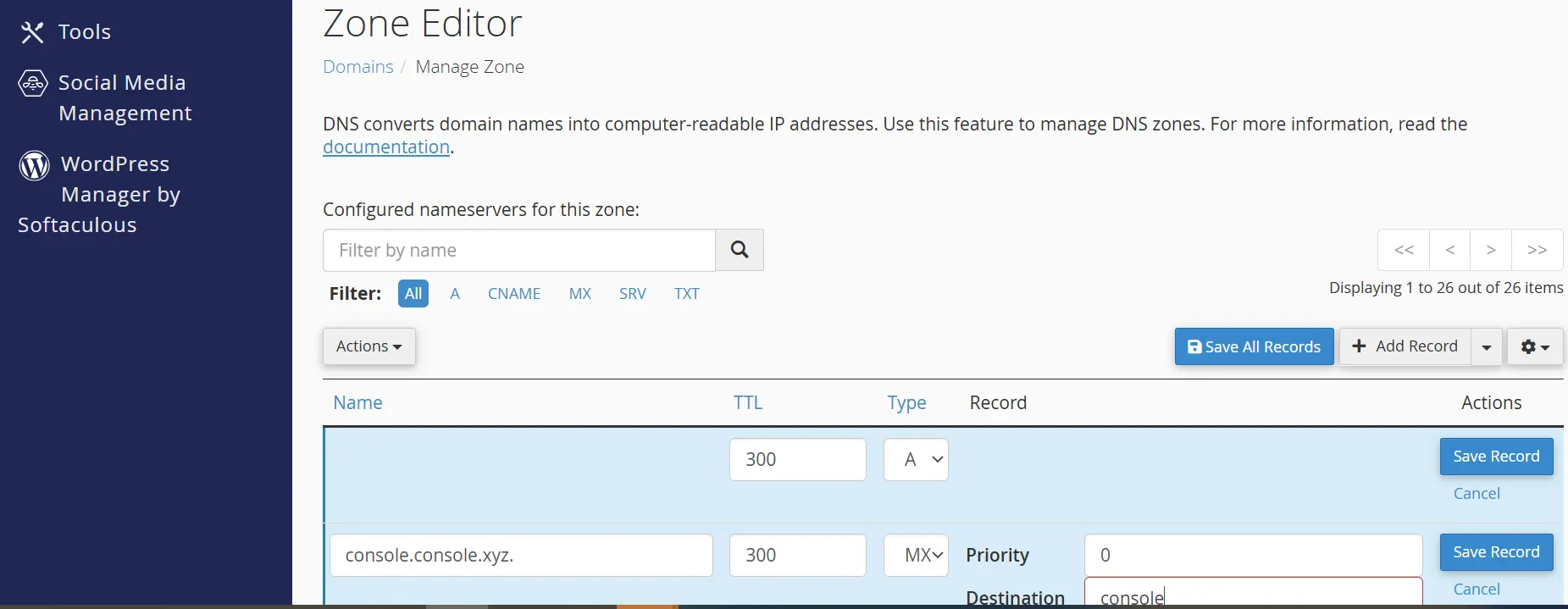
This step happens days before the actual migration, and skipping it is the single biggest cause of long outages.
Lower your DNS TTL to 300 seconds or less. Do this at least 24 to 48 hours before your planned migration date.
A short TTL tells resolvers around the world to check for updates more often. When you finally switch your A record, the change spreads within minutes instead of hours.
If your domain sits behind Cloudflare’s proxy, sometimes called the orange cloud, you can skip this step. Cloudflare routes your traffic through its own network and handles the IP switch internally.
Leave your MX and TXT records untouched during this process. Changing mail-related records can cause delivery problems that are hard to trace later.
Step 2: Provision and Harden the New VPS
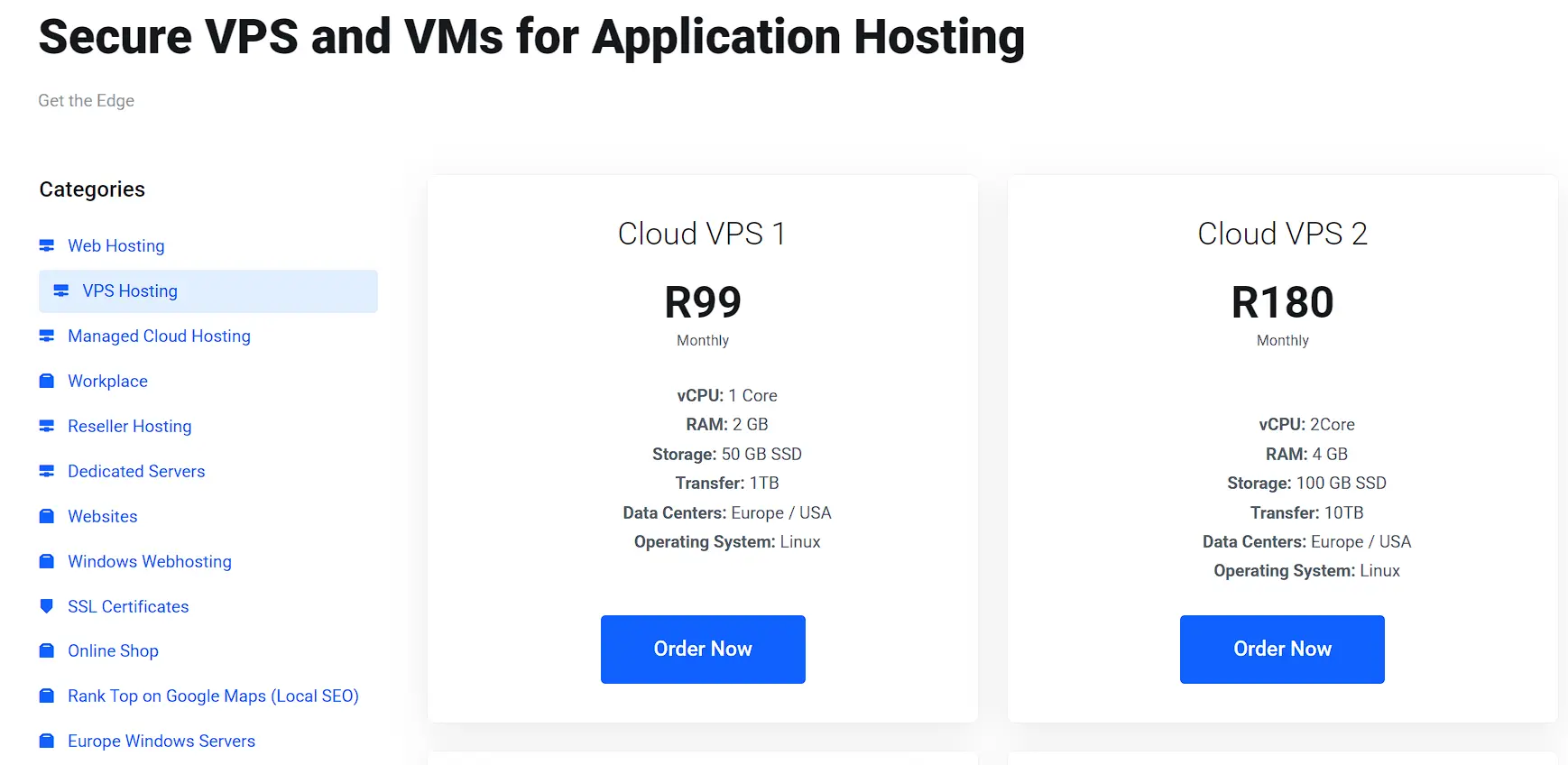
Your new server needs to closely match your old one before any data is moved over. Small mismatches here cause bugs that are painful to debug after cutover.
- Match your operating system and stack versions exactly, including your web server and PHP version
- Install the same database engine and version you currently run
- Set up SSH key authentication and disable password login for stronger access control
- Rebuild your firewall rules so they mirror your current server
Take your time on this stage. A VPS server that matches your original setup closely will save you hours of troubleshooting later.
Step 3: Sync Files With Rsync
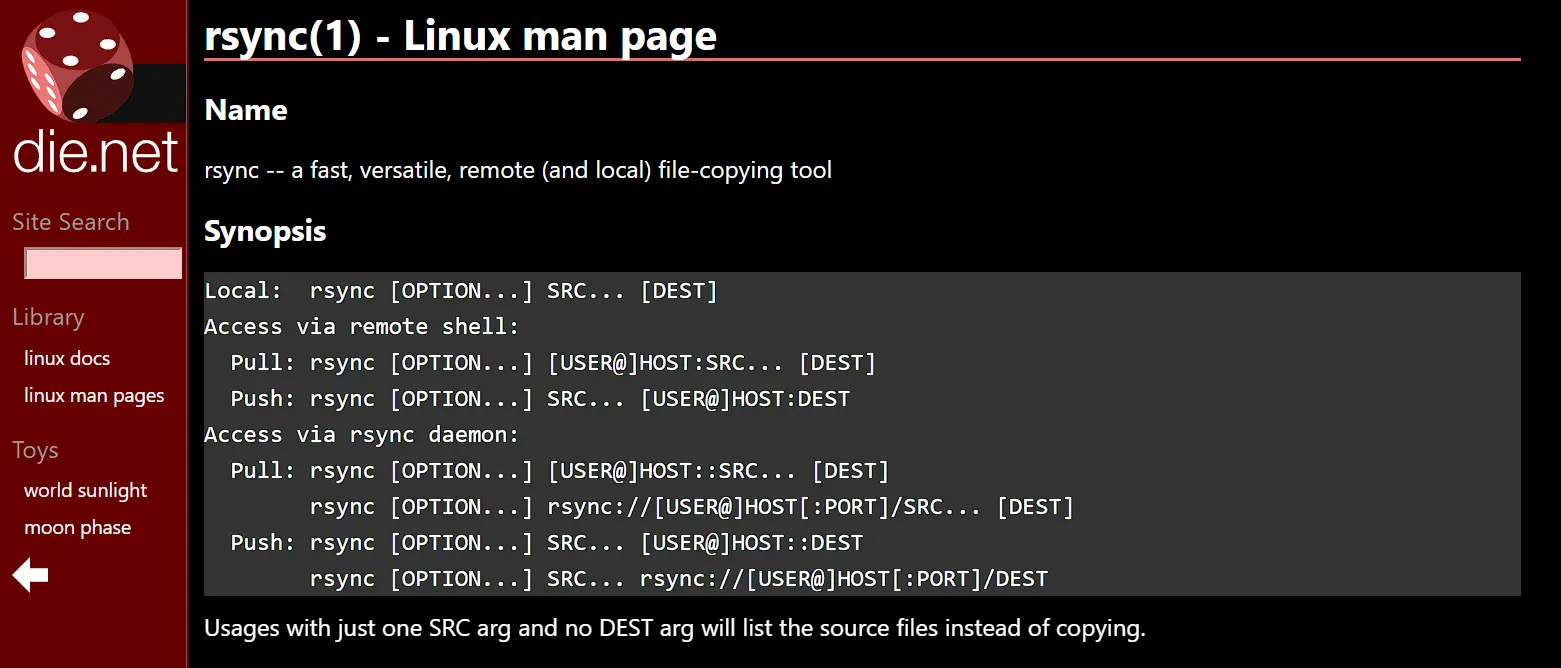
With your new server ready, it is time to move your files. Rsync is the standard tool for this because it efficiently copies data and can run multiple times.
Run your first full sync over SSH using the archive flag, which preserves file permissions, ownership, and timestamps:
rsync -avz -e ssh /home/username/ user@newserver:/home/username/For large sites, break the transfer into batches rather than a single massive copy. This protects your bandwidth and keeps the old server responsive for visitors.
Once the initial sync finishes, schedule a recurring incremental sync. Running this every few minutes in the days leading up to the cutover keeps both servers nearly identical.
Step 4: Migrate the Database Without Data Loss
Your database is usually the trickiest part of any migration, since it keeps changing while your site stays live. This step is where your earlier planning choice matters most.
For smaller, low-write sites, a simple dump and restore works well:
mysqldump -u dbuser -p --single-transaction dbname > dbdump.sql

scp dbdump.sql user@newserver:/home/username/

mysql -u dbuser -p dbname < dbdump.sql
For busy or transactional databases, set up master-slave replication instead. Your old server becomes the master, and your new server runs as a read-only slave, staying in real-time sync.
When you reach cutover, stop the replication process. Promote the new database from slave to master, making it the primary, writable copy going forward.
Update your application configuration files to point at the new local database. This final switch is what makes the new server fully independent.
Step 5: Test the New Server Before Any DNS Change
Never point your domain at a new server without testing it first. This step catches problems while your visitors are still safely on the old server.
Edit your local hosts file or use a temporary URL to preview the new server without affecting live DNS. This lets you browse the site exactly as visitors will see it later.
- Confirm your SSL certificate is valid and correctly bound to your domain
- Test core functionality, including login flows, checkout processes, and contact forms
- Run checksum comparisons between old and new files to catch any transfer errors
- Check that background services and cron jobs are actually running
Fix any issues you find at this stage. Once DNS points to the new server, mistakes become visible to real visitors instantly.
Step 6: Execute the DNS Cutover
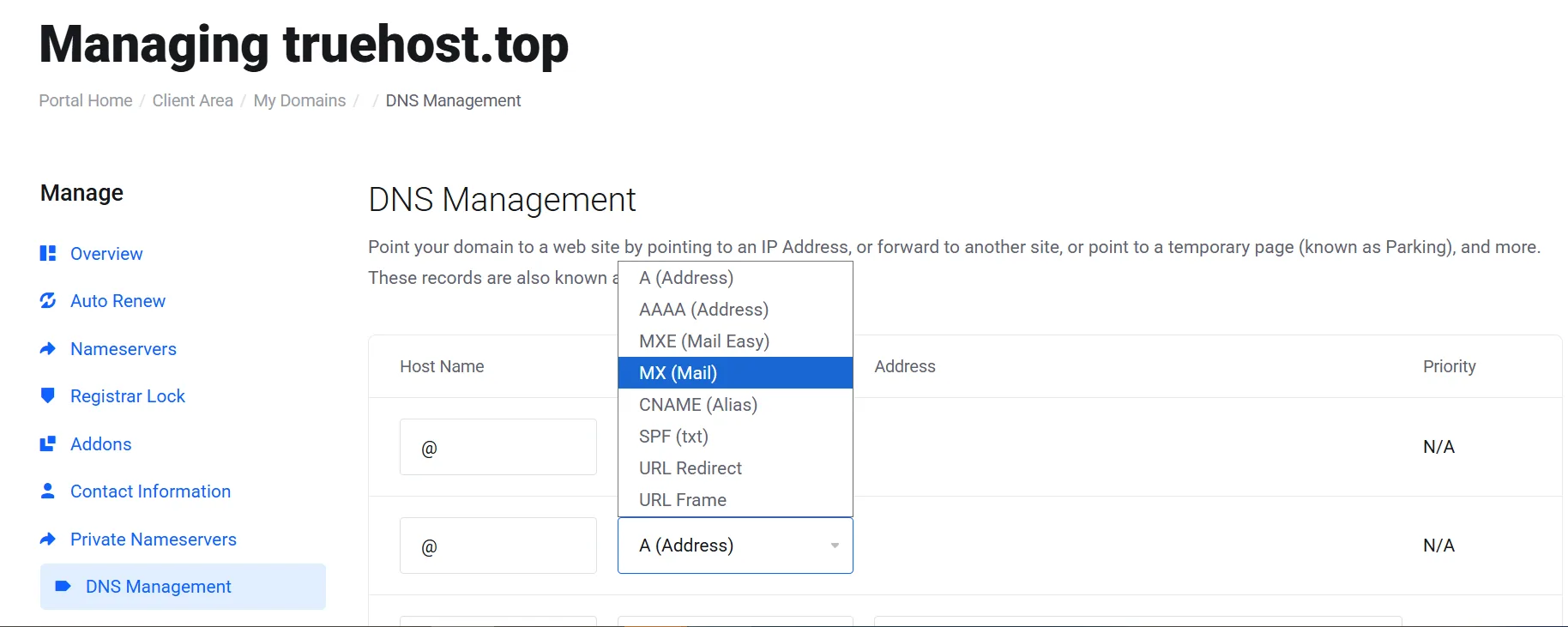
This is the moment your months of preparation pay off. Because you lowered TTL early and tested thoroughly, this step should feel almost anticlimactic.
Run one last rsync and a database sync right before cutover to catch any final changes made in the last few minutes.
Update your A and AAAA records to point to the new server’s IP address. Then use a DNS lookup tool to watch the change spread across resolvers.
Keep your old server running and unchanged during this propagation window. Some visitors will still hit it briefly, and it needs to keep working normally until traffic fully shifts.
Step 7: Build a Rollback Plan
Even a well-planned migration can hit an unexpected snag, so a rollback plan is not optional. This step protects you if anything goes wrong after cutover.
Keep your old server untouched and reachable for at least 48 hours after the switch. This gives you a safe fallback while you confirm everything works.
Set up a reverse sync from the new server to the old one during this window to capture any new data in case you need to revert.
Decide in advance what triggers a rollback. A broken checkout page, missing customer data, or a failed SSL certificate are all valid reasons to switch back.
Because your TTL is still low, reverting your A record spreads within minutes rather than hours. This is exactly why the early TTL step matters so much.
Provider-Assisted Transfer vs Self-Managed Transfer
Not every migration looks the same, and the right approach depends on what control panel you use.
Many hosts offer free migration help as an incentive to win new customers. This works well when both your old and new servers run the same control panel, such as cPanel to cPanel or DirectAdmin to DirectAdmin. In these cases, support teams can often complete the move for you at no extra charge.
A self-managed transfer becomes the better route when your control panels do not match, or when you run an unmanaged VPS without built-in migration tools. Here, you or a developer handle the file transfer, database export, and configuration updates directly.
A simple rule helps with this decision. If your control panels match, ask your new host about provider-assisted transfer first. If they do not match, or you run bare command-line access, plan for a manual move from the start.
How to Troubleshoot Common VPS Migration Issues
Even a well-planned transfer can hit a snag once the new server goes live. Here is how to spot the problem and fix it quickly.
- Database Connection Errors
This is one of the most frequent post-migration problems, and it usually appears as an “Error establishing a database connection” message, making the whole site inaccessible.
- Check the database credentials inside your site’s config file first, since a mismatch here causes most of these errors
- Confirm the database user has the correct permissions on the new server
- Test the connection directly with a command-line database client before assuming the site code is broken
- Verify the database itself actually migrated and was not skipped during the transfer
- Missing Images or Broken Files
Files sometimes arrive corrupted or incomplete, especially on media-heavy sites moving large upload folders.
- Confirm files transferred in binary mode rather than ASCII mode, since ASCII mode can corrupt images and executable scripts during FTP transfers
- Compress large folders into a single zip file before upload, then extract them on the new server to avoid partial transfers
- Compare your new site against the backup to spot which files never arrived
- Re-upload anything missing directly, rather than repeating the full transfer
- Permission Errors Blocking Uploads
Broken image displays or failed uploads often trace back to file ownership, not the files themselves.
- Check who owns your upload folders, since files owned by the wrong user, such as root instead of www-data, prevent images from displaying correctly
- Reset ownership and permissions to match what your application expects
- Test and upload after each permission change to confirm the fix worked
- DNS Propagation Delays
A site that looks fine on the new server but still shows old content to visitors usually points to DNS issues rather than a broken migration.
- Lower your domain’s TTL to a short window before the move, since reducing TTL to around five minutes at least 24 hours ahead speeds up how fast the switch takes effect
- Expect propagation to take up to 48 hours in some regions, even with a low TTL set
- Use a DNS checker tool to track how the change spreads across different networks
- Avoid making further DNS changes while propagation is still in progress, since this resets the clock for some resolvers
- 404 Errors and Broken Links
Pages that worked before the move sometimes disappear after the cutover, often due to changes in URL structure or incomplete redirects.
- Set up 301 redirects for any page whose URL changed during the move, so search engines and visitors land in the right place
- Recheck your permalink structure on the new server, since a mismatch here breaks internal links site-wide
- Crawl the new site with an SEO tool to catch broken links before visitors do
- Plugin or Software Reconfiguration
Some tools retain server-specific settings that never transfer cleanly, even after a technically successful file transfer.
- Reconfigure caching plugins, since stored settings often point back to the old server
- Update SMTP mailer and email plugin settings with new server credentials
- Recheck security firewalls and backup tools, since these often store API keys or environment-dependent settings that need manual reconfiguration after a move
- When the Site Is Still Broken After Troubleshooting
If none of the fixes above solve the problem, do not keep guessing at individual settings.
- Restore from your pre-migration backup and confirm the original site still works
- Match your old server’s PHP version and software configuration as closely as possible before trying again
- Attempt the migration a second time with the specific issue in mind, since most repeat attempts go faster once you know the cause
FAQs
How long does a VPS migration take?
Timing depends heavily on how much data you are moving and how your connection performs.
A smaller site under 5GB usually finishes syncing within minutes on a stable connection. A larger site carrying hundreds of gigabytes can take several hours for the first full sync to complete. Media files and large databases add the most time to this part of the process.
DNS propagation adds another layer on top of the transfer itself. Even after your files land on the new server, allow 24 to 48 hours for DNS changes to fully propagate across the internet. Budget for this separately from your technical transfer time, since rushing this step causes visitors to land on the wrong server.
Can I transfer my VPS for free?
Many hosts include free migration assistance when you sign up as a new customer, especially for control panel-to-control panel moves. Ask your new provider directly, since policies vary by company.
Will I lose data when I switch VPS providers?
Data loss is avoidable with proper backups and testing before cutover. Back up your files and databases before touching anything, and confirm the new server works before switching your DNS.
Can I migrate a VPS with a different operating system?
Migration across operating systems is possible, though it takes more manual work than matching operating systems. Software compatibility and configuration files often need adjustment during the move.
What happens to my old VPS after I migrate?
Your old server keeps running until you cancel it or your billing cycle ends. Keep it active for a short window after the migration in case you need to reference it.
What is the difference between VPS migration and VPS backup?
A backup is a saved copy of your data stored for recovery. A migration moves that data to a new, active server where your site runs going forward.
Making the Switch Without the Stress
Transferring a VPS to a new host is manageable once you know the steps. Back up first, test before cutover, and update DNS only once you confirm the new server works. These three habits prevent almost every migration headache before it starts.
If the technical side feels like more than you want to handle alone, you do not have to do it solo. Truehost managed VPS plans include free migration assistance, so our team can move your site over while you keep running your business. Reach out to start your transfer and get your new server ready before you cancel the old one.