 Web Hosting
 Windows HostingBuilt for Windows apps and websites – stability, speed and flexibility
 Reseller HostingLaunch a hosting business without technical skills or expensive infrastructure
 Affiliate ProgramRefer customers and earn commissions from sales across our platform
 Domain SearchFind and secure a domain name in seconds with our quick lookup tool
 CO ZA Domains
 All DomainsExplore domain names from over 324 TLDs globally – all in one place
 Free Whois Lookup Tool South Africa
 VPS
VPS Website Builder
 Online ShopSet up a sleek eCommerce store with zero coding knowledge
 SSLs
SSLs SupportAccess help articles, how-tos, and everything about our services
 Blog
Blog Contact UsReach our team instantly via live chat or drop us an email
Every OpenClaw skill you download solves someone else’s problem. The one that moves the needle for you is the one only you would build. This guide walks through building a custom skill from scratch: what a skill actually is, how to structure one, how to gate it safely, and how to get it into production.
Table of Contents
Before You Start
You’ll need:
- OpenClaw installed
- A working OpenClaw workspace
- Basic Markdown, plus enough YAML frontmatter familiarity to write a valid block; every SKILL.md requires one, so this isn’t optional
- A text editor
- Permission to use any tools your skill depends on (exec, for example)
That last point counts more than it looks. Skills do not grant permissions. Tool access is controlled separately by OpenClaw configuration. A skill is a set of instructions, not a credential.
Step 1: Define What You’re Building
A skill is a Markdown playbook that tells the agent how and when to use tools it already has access to. It is not code that runs itself, and it does not unlock new capabilities. If your tool policy blocks exec, a skill that relies on exec will still load without error; it will simply fail the moment it’s invoked.
If you’d rather not hand-write the frontmatter and structure, the Skill Workshop workflow (Step 13) offers an alternative: draft the skill as a proposal and route it through review instead of authoring SKILL.md directly.
Step 2: Create the Skill Directory
mkdir -p ~/.openclaw/workspace/skills/hello-world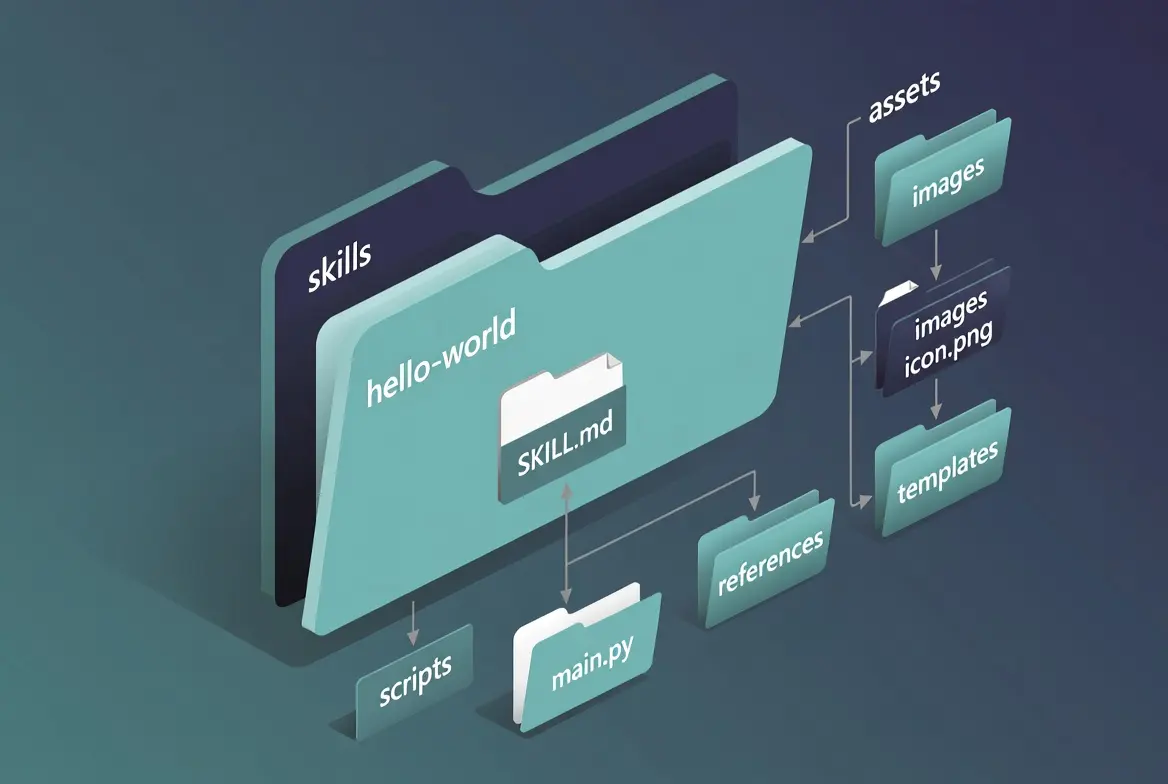
Subfolders exist for your own organization only. The skill’s actual name is defined in the frontmatter, not derived from the folder path.
Step 3: Write SKILL.md
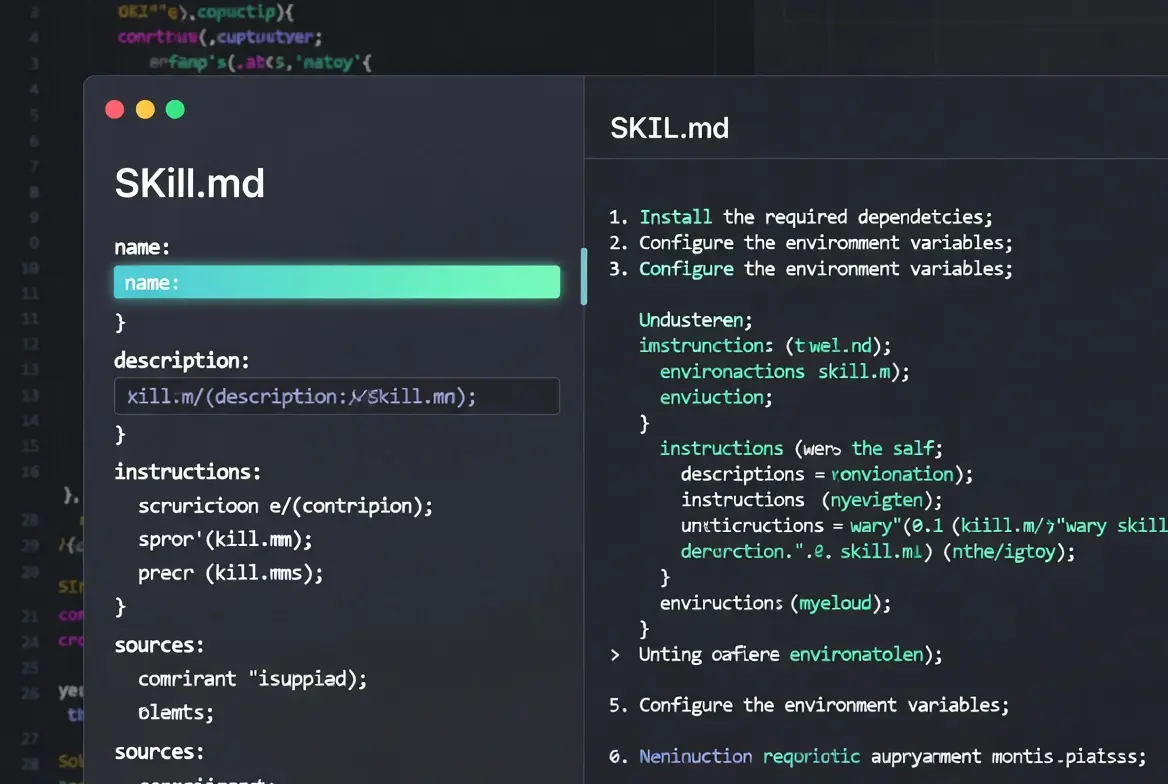
Every SKILL.md needs a YAML frontmatter block followed by a Markdown body:
---
name: hello-world
description: Greets the user by name when they ask to be greeted or say hello.
user-invocable: true
---
Required fields:
- name: lowercase letters, digits, and hyphens only. This is the identifier used by /skill <name> and by config entries like skills.entries.<name>.
- description: one line, under 160 characters. The model reads only this field, not the body, to decide relevance before loading a skill. A vague description (“helps with tasks”) causes misfires; a specific one (“drafts a reply email when the user asks to respond to a message”) doesn’t.
Optional fields:
Step 4: Write the Instruction Body
Write the body like a runbook for a tired on-call engineer, not marketing copy. That means:
- Deterministic steps
- Clear stop conditions
- An explicit output format
Two constraints to hold yourself to:
- Keep the body under 1,000 words. Longer bodies risk context window issues.
- Keep the description distinct from other skills. Overlapping descriptions cause the model to misroute requests to the wrong skill.
If the body directs the agent to call exec or run shell commands, review those instructions the way you’d review code, check for unsanitized inputs and unsafe command construction before shipping.
This isn’t optional diligence; a skill with a shell-command instruction is functionally equivalent to a script, and should be audited as one.
Step 5: Add Gating (If the Skill Needs It)
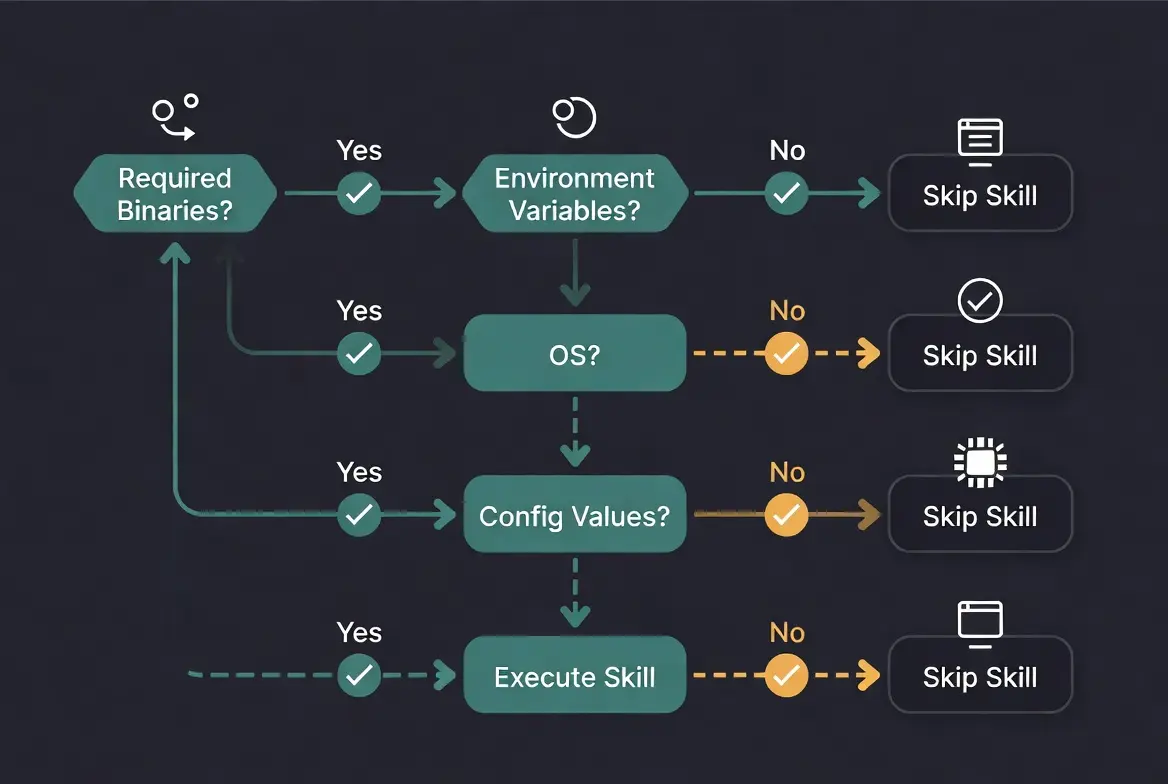
If the skill depends on a binary, environment variable, or config value, declare it in a metadata.openclaw.requires block:
metadata:
  openclaw:
    requires:
      bins: ["jq"]
      env: ["MY_API_KEY"]
os: ["linux", "darwin"]- bins: every listed binary must be present
- anyBins: at least one of the listed binaries must be present
- env: required environment variables
- config: required config keys in openclaw.json
- os: restricts the skill to the listed platforms
If a requirement isn’t met, the skill loads but is silently skipped at invocation time rather than erroring. If none of this applies to your skill, set always: true and skip the block entirely.
Step 6: Wire Up Credentials
Skills that need API keys declare them in openclaw.json:
{
  "skills": {
    "entries": {
      "hello-world": {
        "apiKey": "${MY_API_KEY}",
        "env": { "MY_API_KEY": "${MY_API_KEY}" }
      }
    }
  }
}
These values are injected host-side, per agent turn, only. If the skill runs sandboxed (Step 8), the credential does not cross into the container automatically: you have to pass it through explicitly as part of the sandbox setup.
Step 7: Add Supporting Files (For Non-Trivial Skills)
Organize anything beyond the core instructions into:
- scripts/: deterministic helpers
- references/: docs loaded only when the skill triggers
- assets/ or templates/: output resources
Keep SKILL.md itself lean, since its description is always in context regardless of whether the skill is active. The body and any scripts only load once the skill triggers.
The code-review requirement from Step 4 extends here: any script in scripts/ that shells out or calls exec is not “just a helper file”; it gets the same scrutiny as the instruction body.
Step 8: Apply Sandboxing If the Skill Touches Credentials or Shell Commands
Docker sandbox mode has three settings, set per agent or globally:
{ "sandbox": { "mode": "non-main" } }- off: no isolation
- non-main: sandbox any skill-triggered agent except the main session
- all: sandbox every skill invocation
One gap to watch for: requires. bins (Step 5) is checked on the host. If the skill runs sandboxed, the binary also needs to exist inside the container image, or the gating check passes while the actual invocation fails with a “command not found” error. And regardless of sandbox mode, never let untrusted user input flow into exec unsanitized; sandboxing limits blast radius, it doesn’t substitute for input validation.
Step 9: Reload So OpenClaw Discovers the Skill
Run:
openclaw skills list
to confirm registration. New skills are typically picked up at session start, not mid-session, so restart the gateway or start a fresh session.
If restarting on every edit is slowing you down, Skill Watching is the alternative: it auto-reloads skills as you edit them, so changes appear without a manual restart. See Step 11(v) for how to turn it on.
Step 10: Test It
Three ways to validate a skill:
- openclaw agent –message “…” for a scripted test run
- /skill hello-world (or your skill’s name) for explicit invocation
- Natural phrasing, to confirm the model selects the skill on its own when it should
The third check is the one people skip and shouldn’t; a skill that only works when explicitly invoked hasn’t actually been validated for autonomous use.
Step 11: Debug If Something’s Off
| Symptom | Likely cause |
| Not discovered | Wrong directory path, or gateway/session not restarted |
| Loads but never fires | Description too vague, or overlapping with another skill’s description |
| Silently skipped | A gating requirement (missing binary or env var) isn’t satisfied |
Step 12: Iterate Based on Real Use
Live with the skill for a while before declaring it finished. Refine the instructions, gating, and description based on how it actually performs in practice, not how you expect it to perform on paper.
Step 13 (Optional): Route Through Skill Workshop for Review
For agent-drafted skills, or any time you want operator sign-off before going live, skip hand-authoring SKILL.md and instead submit a proposal:
openclaw skills workshop propose-create \
  --name "hello-world" \
  --description "Greets the user by name" \
  --proposal ./PROPOSAL.md
PROPOSAL.md holds the same frontmatter and body you’d otherwise put directly in SKILL.md. Use –proposal-dir instead of –proposal if the skill includes supporting files (scripts/, references/, etc.). The proposal sits pending until an operator approves it; only then does it become an active skill.
This is a good default for any skill that uses exec: it puts a second reviewer between the draft and production, rather than relying on the author’s own audit from Step 4.
Step 14 (Optional): Publish to ClawHub
Once the skill is solid, finalize the name, description, gating metadata, and homepage, install the publish helper, and run clawhub publish with a unique slug and semantic version. Publishing requires a GitHub account at least a week old.
Troubleshooting
| Problem | Likely Cause | How to Fix It |
|---|---|---|
| Skill isn’t showing | The skill folder isn’t inside a scanned Skills directory. | Move the folder to one of OpenClaw’s scanned Skills directories. |
| The file isn’t named correctly. | Make sure the file is named exactly SKILL.md (case-sensitive where applicable). | |
| Invalid YAML frontmatter. | Ensure the YAML frontmatter begins and ends with ---. | |
| Skill isn’t triggering | The description is too vague or overlaps with another skill. | Rewrite the description to clearly describe a specific purpose and trigger. |
| The skill is intended for manual use only. | Invoke it with /skill <skill-name> instead of relying on automatic model selection. | |
| Skill fails to run | Required tools aren’t available. | Verify the skill has permission to use the required tools. |
| Required software is missing. | Confirm dependencies (such as jq) are actually installed, not just declared in the gating metadata. | |
| Metadata errors | Optional metadata is incorrectly formatted. | Keep optional metadata fields as valid single-line JSON. |
| Changes don’t appear | OpenClaw hasn’t reloaded the updated skill. | Start a new OpenClaw session to reload skills, or enable Skill Watching by setting skillWatching: true in openclaw.json or launching the gateway with --watch. With Skill Watching enabled, edits to any SKILL.md in a scanned directory are automatically applied on the next invocation without restarting. |
Getting Started With Custom OpenClaw Skill
A custom skill only needs a directory, a valid frontmatter block, and a clear description; everything else in this guide (gating, credentials, sandboxing, review) scales up as the skill’s complexity and risk do. Start with something small like hello-world, confirm it triggers on natural phrasing, then layer in the rest as the real use case demands it.
Running OpenClaw on infrastructure built for it removes a layer of setup friction. Get OpenClaw hosting from Truehost and start building your skill on a workspace that’s ready for it.