 Web Hosting
 Windows HostingBuilt for Windows apps and websites – stability, speed and flexibility
 Reseller HostingLaunch a hosting business without technical skills or expensive infrastructure
 Affiliate ProgramRefer customers and earn commissions from sales across our platform
 Domain SearchFind and secure a domain name in seconds with our quick lookup tool
 CO ZA Domains
 All DomainsExplore domain names from over 324 TLDs globally – all in one place
 Free Whois Lookup Tool South Africa
 VPS
VPS Website Builder
 Online ShopSet up a sleek eCommerce store with zero coding knowledge
 SSLs
SSLs SupportAccess help articles, how-tos, and everything about our services
 Blog
Blog Contact UsReach our team instantly via live chat or drop us an email
Most coding assistants live inside a subscription editor and forget everything the moment you close the tab.
OpenClaw, on the other hand, runs on your own machine, takes instructions through Telegram or Slack, and keeps working while you sleep.
You send a plain-language message from your phone.
OpenClaw reads the files in your project folder, writes code into the right place, runs your tests, and reports back all without opening a new IDE.
That’s the core promise. And it’s real.
I will take you through how to use OpenClaw as your coding assistant once it’s set up.
If you’re still at the installation stage, start with our OpenClaw VPS setup guide first, then come back here.
Table of Contents
Prerequisites
Before you start using OpenClaw as your coding assistant, confirm you have the following in place.
Node.js version:
- Node.js 24 (recommended) or 22.19 and above
A model provider pick one:
- An Anthropic API key (for Claude)
- An OpenAI API key (for GPT-4)
- A Google Gemini API key
- Ollama for free local models no API key required
A messaging channel:
- Telegram is the fastest to connect for solo developers
- Slack works better for team setups
A machine that stays on:
- Your laptop works for testing
- A VPS is better for always-on use (more on that at the end)
Install and configure
Run the install command for your system:
macOS / Linux:
curl -fsSL https://openclaw.ai/install.sh | sh
Windows PowerShell:
iwr https://openclaw.ai/install.ps1 | iex
Or via npm:
npm install -g openclaw
Verify the install:
openclaw --version
Then run the setup wizard:
openclaw onboard --install-daemon
The wizard walks you through your workspace folder, model provider, messaging channel, and daemon configuration. Your config is stored at ~/.openclaw/openclaw.json. Run openclaw doctor at any point to check your setup.
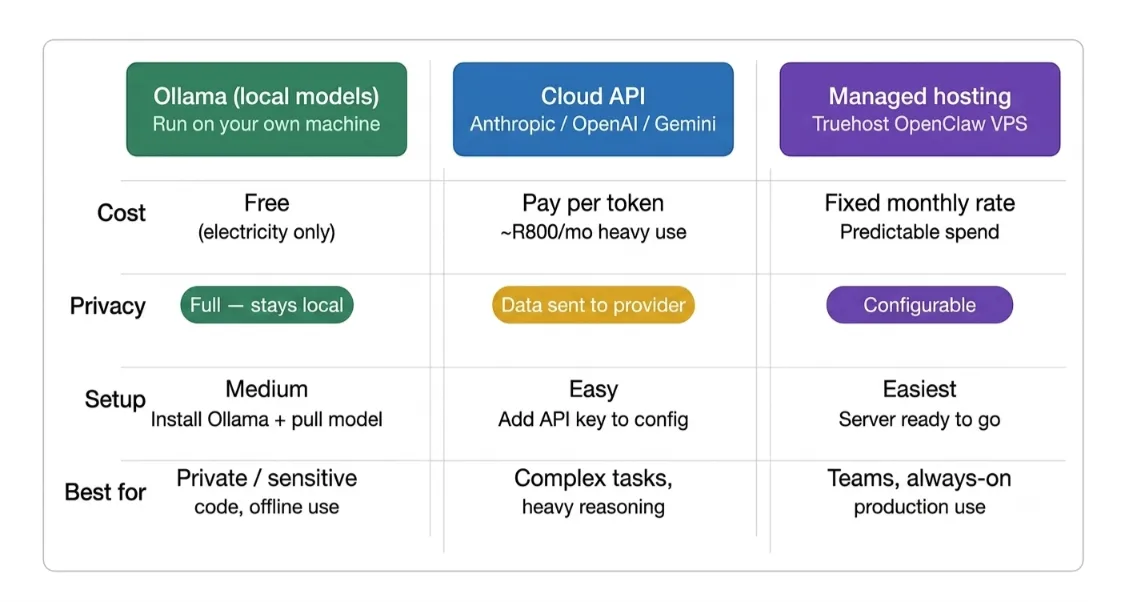
Model provider comparison
| Provider | Cost | Privacy | Best for |
|---|---|---|---|
| Ollama (local) | Free (electricity only) | Full no data leaves your machine | Privacy-sensitive projects |
| Cloud API (Anthropic, OpenAI, Gemini) | Pay-per-token | Data sent to provider servers | Complex reasoning, heavy coding tasks |
| Managed hosting (Truehost OpenClaw) | Fixed monthly rate | Configurable | Teams who want zero infrastructure management |
Connect Telegram
- Open Telegram and search for @BotFather
- Run
/newbotand follow the prompts - Copy the API token BotFather gives you
- Add it to your
openclaw.jsonunder the Telegram channel settings - Restart the daemon with
openclaw gateway restart
Send your bot a message. If it replies, you’re connected.
Check our guide on how to deploy OpenClaw on an Ubuntu VPS
How to Generate Code with OpenClaw
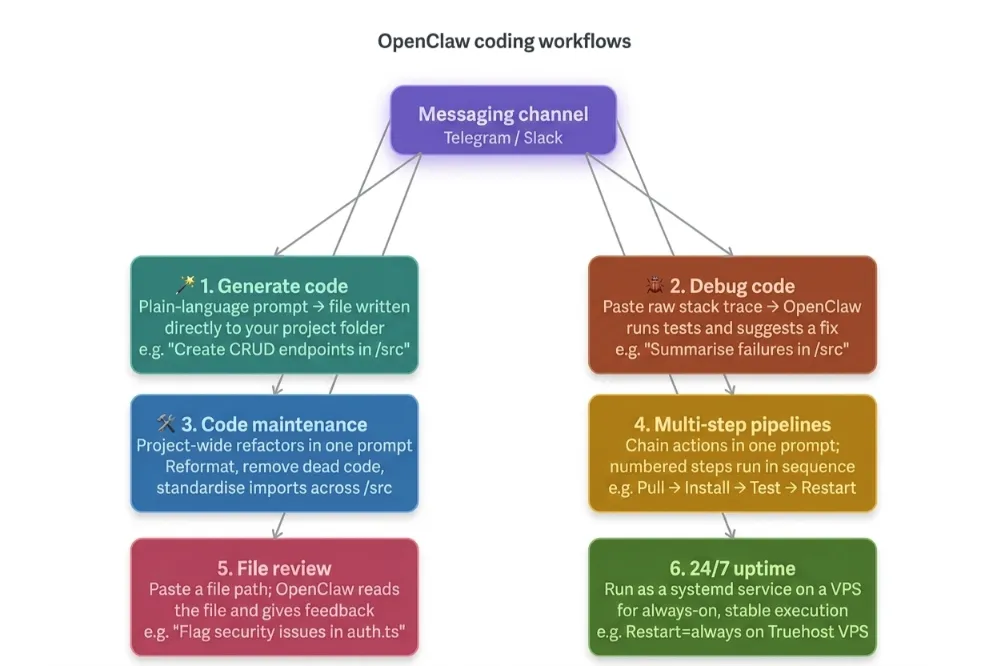
You send a plain-language prompt through your messaging channel.
OpenClaw reads your project files, reasons over the request, and writes the output directly into the correct folder.
The more file context you include in your prompt, the more accurate the result. Paste a file path or name the specific module you’re working on.
Example prompts you can use right now:
- “Generate CRUD endpoints for the User model in /src/routes/users.ts”
- “Read /src/types/api-response.json and write TypeScript interfaces for it”
- “Create a Dockerfile for the Node.js app in the root directory. Use the 22-alpine base image.”
- “Scaffold a new Python project in /projects/scraper with src, tests, and docs folders. Add a basic pyproject.toml.”
Reference specific module names in your prompt. A prompt like “generate endpoints for the User model in /src/routes/users.ts” produces tighter output than “add some CRUD routes.”
How to Debug Code with OpenClaw
OpenClaw can run your tests, read the output, and reason over a stack trace in a single session.
You don’t need to copy-paste errors into a separate chat window. The whole loop happens in your messaging channel.
Example prompts:
- “Run npm test in /src and summarize the failures”
- “Here’s the stack trace from the last deploy; suggest a fix: [paste raw error output].”
Paste the full, raw error output into the chat. Don’t paraphrase it. OpenClaw reads raw logs better than summarized descriptions. Stack traces contain line numbers and module paths that are important.
Read also: Top OpenClaw AI Assistant Capabilities
How to Handle Code Maintenance Tasks
Repetitive, project-wide tasks are where OpenClaw saves the most time. It can apply a change across every file in a folder in one instruction.
This is the kind of work that takes hours to do manually, reformatting, removing dead code, and standardizing imports.
OpenClaw handles the scope; you review the result.
Example prompts:
- “Format all Python files in /src with Black”
- “Scan all files in /src/utils and remove unused imports”
Always specify the scope in your prompt. “All files in /src” avoids unintended changes in nested or shared directories. Be as specific as you would be with a junior developer.
How to Run Multi-Step Pipelines
You can chain multiple actions into a single prompt. OpenClaw executes them in sequence. This is useful for common development loops: pull, install, test, restart.
Example pipeline prompt:
“Pull the latest from the main branch on GitHub, install dependencies with npm install, run the test suite, and restart the server only if all tests pass.”
OpenClaw follows numbered steps more reliably than a single run-on sentence. If your pipeline is complex, break it into ordered instructions:
- Pull latest from GitHub
- Run npm install
- Run npm test
- If tests pass, restart the server with pm2 restart app
Use numbered steps inside your prompt. “Step 1, Step 2…” gives OpenClaw a clear execution order to follow.
How to Send a File for Review
Attach a file in your messaging channel or paste a file path directly into the chat. OpenClaw reads it and gives you feedback.
This works for any file type in your workspace folder: TypeScript, Python, YAML, SQL, Markdown, and configuration files.
Example prompts:
- “Review the logic in /src/auth/middleware.ts. Flag any security issues.”
- “Look at /src/db/queries.sql and suggest refactors for readability.”
- “Check /src/api/payments.ts for potential injection vulnerabilities.”
You don’t need to copy the file contents into the chat. Just paste the path. OpenClaw reads the file directly from your workspace.
How to Extend OpenClaw with Skills (Optional)
Skills are instruction packs that add specialized workflows to OpenClaw. They’re stored as SKILL.md files and loaded into your agent’s context automatically when relevant.
Useful skill categories for developers include:
- Advanced code review workflows
- Project memory across sessions
- CI/CD automation
- GitHub PR review and submission
How to find and install skills:
# Search for code-related skills
openclaw skills search code

# Install a specific skill
openclaw skills install @namespace/skill-name
ClawHub is OpenClaw’s official skill registry. As of early 2026, it hosts over 13,700 skills.
Security warning read this before installing anything
In early February 2026, Bitdefender Labs reported that approximately 17% of OpenClaw skills analyzed in the first few weeks of the platform’s release carried malicious payloads.
A coordinated campaign called ClawHavoc was discovered, where 341 malicious skills were hidden inside the ClawHub marketplace, many disguised as legitimate productivity tools.
The attack worked by including a fake “Prerequisites” section that directed users to install malware before the skill would function.
ClawHub has since integrated VirusTotal and ClawScan scanning. But this does not make third-party skills safe by default.
Follow these rules before installing any skill:
- Only install skills from verified publishers with substantial review history
- Check the publisher’s GitHub account age and contribution history
- Read the full
SKILL.mdfile before installing, look for unusual prerequisites - Treat every third-party skill as untrusted code
The official OpenClaw documentation says the same thing.
Treat skill installation like running a third-party script with privileged system permissions. Because that’s what it is.
How to Keep OpenClaw Running 24/7 (Optional)
Your laptop sleeps. A background service doesn’t.
If you want OpenClaw available at all hours, responding to messages, running scheduled tasks, finishing a pipeline you started, you need it running on a persistent process or machine.
Setup by operating system:
macOS, launchd plist:
Create a .plist file in ~/Library/LaunchAgents/ that starts the OpenClaw daemon on login and restarts it if it crashes.
Linux, systemd service:
Create a service file at /etc/systemd/system/openclaw.service. Set Restart=always so it recovers from failures automatically.
[Unit]
Description=OpenClaw Daemon
After=network.target

[Service]
ExecStart=/usr/local/bin/openclaw gateway start
Restart=always
User=your-username

[Install]
WantedBy=multi-user.target
Enable and start it:
sudo systemctl enable openclaw
sudo systemctl start openclaw
Windows, NSSM:
Use NSSM (Non-Sucking Service Manager) to wrap the OpenClaw process as a Windows service. It handles restarts and runs in the background without a terminal window.
Best practice: run on a VPS
Your laptop changes networks, loses power, and restarts. A VPS doesn’t.
Running OpenClaw on a cloud server gives you a stable IP, continuous uptime, and no dependency on your local machine.
We at Truehost offer OpenClaw-ready VPS plans in South Africa with pre-configured Node.js environments. You can get a server running in minutes.
Troubleshooting Table
| Problem | Command to Run | What It Does |
|---|---|---|
| Not sure if OpenClaw is healthy | openclaw doctor | Runs a full health check |
| Gateway not responding | openclaw gateway restart | Restarts the gateway process |
| Bot not replying | openclaw gateway status | Shows channel connection status |
| Config errors after editing | openclaw doctor | Validates your openclaw.json |
Run openclaw doctor first whenever something isn’t working.
It catches the most common issues, model config errors, missing tokens, and misconfigured channels in one pass.
How to Use OpenClaw as Your Coding Assistant FAQs
Is OpenClaw free for coding use?
The software itself is open source and free to install. Your costs depend on the model you choose. Ollama lets you run local models for free (you only pay for electricity). Cloud API providers like Anthropic and OpenAI charge per token. A heavy coding session using Claude costs roughly R~575-740 per month ($35–$45 per month) for most developers, based on community cost breakdowns.
Do I need to know how to code to use OpenClaw?
You need enough familiarity to review what OpenClaw produces. The tool generates, edits, and runs code, but you’re responsible for what goes into your project. If you can read code and understand what a function does, you can use OpenClaw effectively.
How is OpenClaw different from GitHub Copilot?
GitHub Copilot works inside your IDE and completes code as you type. OpenClaw works through a messaging channel, operates across your whole project folder, runs tests, executes pipelines, and continues working when you’re not at your desk. They solve different problems. Many developers use both.
Is my code private when using a cloud API?
No. When you use a cloud model (Anthropic, OpenAI, Gemini), your prompts and file contents are sent to that provider’s servers. If you’re working on proprietary or sensitive code, use Ollama with a local model instead. Your data never leaves your machine.
Can I use OpenClaw on a Truehost VPS?
Yes. We at Truehost offer OpenClaw-compatible VPS plans in South Africa. You SSH in, install Node.js, install OpenClaw, configure it as a systemd service, and it runs continuously from a stable South African IP address. Our managed VPS option handles the server setup for you if you’d rather skip the configuration.
Get Started With Truehost OpenClaw Hosting
Your local machine sleeps, restarts, and loses connection. A VPS runs continuously from one stable IP.
If you want to use OpenClaw as your coding assistant without worrying about uptime, the cleanest setup is a cloud server.
You spin up the VPS, SSH in, install Node.js, install OpenClaw, and configure it as a systemd service. From that point, your assistant is always on.
We at Truehost also offer a managed VPS option for developers who want the server handled for them, no configuration, no maintenance, just a working OpenClaw environment from day one.