 Web Hosting
 Windows HostingBuilt for Windows apps and websites – stability, speed and flexibility
 Reseller HostingLaunch a hosting business without technical skills or expensive infrastructure
 Affiliate ProgramRefer customers and earn commissions from sales across our platform
 Domain SearchFind and secure a domain name in seconds with our quick lookup tool
 CO ZA Domains
 All DomainsExplore domain names from over 324 TLDs globally – all in one place
 Free Whois Lookup Tool South Africa
 VPS
VPS Website Builder
 Online ShopSet up a sleek eCommerce store with zero coding knowledge
 SSLs
SSLs SupportAccess help articles, how-tos, and everything about our services
 Blog
Blog Contact UsReach our team instantly via live chat or drop us an email
Are you tired of replying to the same WhatsApp messages over and over again? You reply. You copy data into a spreadsheet. You follow up with the customer. Then the next message comes in, and you do it all over again.
It eats your day without you even noticing.
That loop is exactly what an n8n workflow for WhatsApp automation removes. It connects WhatsApp to your other tools and runs tasks in the background the moment something happens, so you are not the one doing the repeating anymore.
Here is how it works, based on a real n8n and WhatsApp setup.
Table of Contents
1) WhatsApp Webhook Trigger Setup
Every n8n workflow for WhatsApp automation starts with something called a webhook. A webhook is a digital doorbell. When something happens on WhatsApp, that doorbell rings and tells your workflow it is time to wake up and do something.
Meta, the company that owns WhatsApp, sends data to your webhook in two ways:
- A GET request is used during setup just to verify your webhook is real.
- A POST request is what carries the actual incoming messages once everything is connected.
During setup, Meta sends what is called a challenge, which is just a test value. Your n8n workflow has to send that exact value back to prove the connection works. Once that verification passes, real messages start flowing in.
So when a user sends “Hi, I need pricing,” your webhook receives the message text, the sender’s phone number, and a unique message ID. That is what triggers your whole workflow into action.
2) Message Capture and Structuring
Once your webhook receives a message, what you get is raw JSON, which is a messy block of data formatted in a way computers understand but humans find hard to read. You do not want to work with that mess directly.
This is where the Set node and Function node come in.
Set node and Function node are tools inside n8n that let you pull out only the exact pieces of information you actually need. So instead of dealing with a huge wall of raw data, you extract clean pieces like the message itself and the sender’s phone number.
Raw input like “Hi, I need pricing” becomes a tidy output where message equals pricing and user equals the phone number, e.g., +254700000000. That clean structure makes every step after this one much easier to build.
3) Conditional Routing with Logic
Not every message should be treated the same way, and this is where IF nodes step in. An IF node is a decision point inside your workflow that checks something and sends the conversation down a different path depending on the answer.
So if a message contains the word “pricing,” the workflow sends pricing details. If it contains “support,” the workflow kicks off a support flow instead. And if it matches neither, a fallback reply goes out so the user is never left hanging.
This kind of routing keeps your n8n workflow for WhatsApp automation accurate instead of sending the same generic reply to everyone, regardless of what they asked.
4) Sending WhatsApp Responses via API
Here is something important to understand early on. n8n does not have a built-in WhatsApp node sitting there ready to use. You send messages out through an HTTP Request node connected to the WhatsApp Cloud API, or through a provider like Twilio that handles the messaging layer for you.
So when a user types “pricing,” your workflow fires off a request that sends back something like, “Our plans start at $10 per month. Do you want more details?”
That request travels through the API connection you built, and the user sees the reply land in their chat within seconds. This API connection is the actual engine room of your entire n8n workflow for WhatsApp automation.
5) Template vs Free-Form Messages
WhatsApp has rules around how you message people, and breaking them gets your messages blocked. The first message you ever send to a new user must use an approved template, which is a pre-written message format that Meta has reviewed and approved in advance.
After that first message, if the user replies within 24 hours, you can send normal custom text without needing a template. So a brand new user gets an approved template message, while someone already chatting with you gets natural, free-form replies.
Following this rule is non-negotiable if you want your automation to keep working without getting flagged.
6) AI-Based Response Integration
n8n does not come with built-in AI, but that does not stop you from adding it. You connect your workflow to an external AI API. An AI API is a service that takes a question and sends back an intelligent answer.
The flow works like this.
The user’s message goes into the AI API →The AI generates a response →That response gets sent straight back to the user on WhatsApp.
So if someone asks “Explain your service,” the AI puts together a clear answer, and your workflow delivers it instantly.
You stay in control of the tone, the length, and the format of what gets sent, even though the AI is doing the actual writing.
7) Multi-Step Conversation Flows
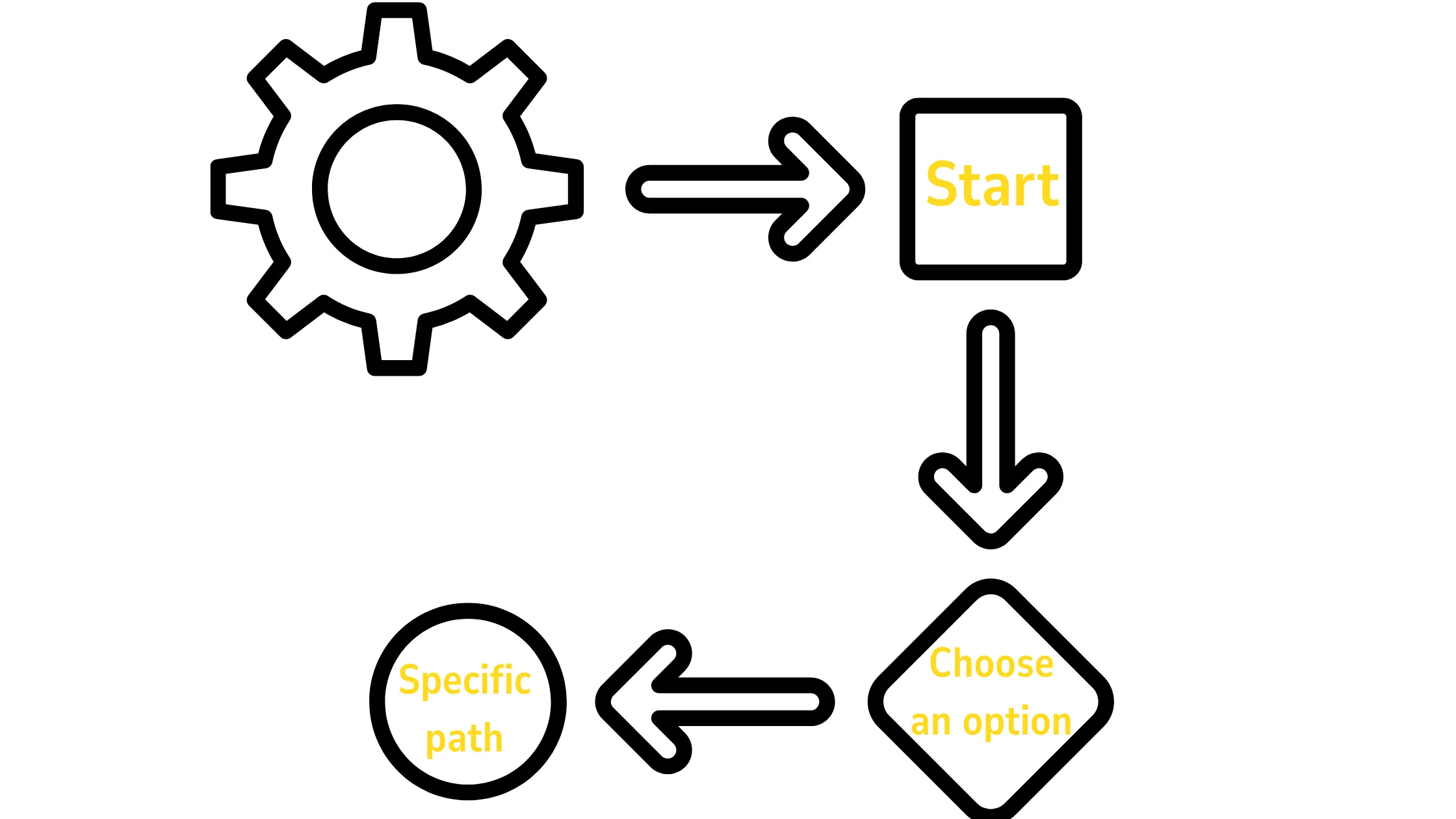
A single reply is fine, but a real n8n workflow for WhatsApp automation can hold full back-and-forth conversations.
Picture this. A user types “start.” Your workflow replies, “Choose an option,” and gives them choices like Pricing or Support.
The user picks one, and the workflow continues down that specific path based on their choice. Every single step of this conversation gets handled through logic nodes that check what the user selected and decide what happens next.
This is how a basic chatbot reply turns into something that actually feels like a real conversation.
8) CRM and Data Storage Integration
Your workflow can also remember things about your users instead of treating every message like it is coming from a stranger.
You connect it to Google Sheets, Airtable, or a Customer Relationship Management (CRM) system. CRM is a digital filing cabinet for everything you know about your customers.
So when someone first messages you, the workflow saves their phone number and what they were asking about. Later, if that same user messages “my order,” the workflow checks the database, finds their information, and returns their order status right there in the chat.
That stored context makes every future conversation faster and more personal.
9) Media Handling Automation
WhatsApp is not just for back-and-forth text messages. People also send images, documents, and voice notes, and your n8n workflow for WhatsApp automation can handle it all.
If a user sends a PDF, the workflow downloads it, stores it somewhere safe, and replies with something like, “Your file has been received.” You can also send files back the other way, whether that is a brochure, an invoice, or anything else your business needs to share.
This turns your automation from a simple text responder into something that handles full customer interactions.
10) Scheduled Messages and Follow-Ups
Not everything needs to happen the instant a message arrives. Sometimes you want a built-in delay, and that is exactly what the Wait node and Cron node are for.
A Wait node pauses a workflow for a set amount of time, while a Cron node runs actions on a fixed schedule, such as every day at a specific time.
So a user signs up, and one hour later, they get a reminder. One day after that, they get a follow-up message checking in.
You can also run broadcast workflows that send messages to multiple users at once, as long as you stay within WhatsApp’s policy limits throughout.
11) Error Handling and Fail-Safe Logic
Things will go wrong eventually. That is not pessimism; it is just how systems work. Maybe a message fails to send, or an API you are connected to goes down for a moment. Retry logic, fallback responses, and dedicated error workflows are how you handle those moments without your whole system breaking.
So if a message fails to be sent, the workflow automatically retries it. If an API call fails, a backup reply is sent instead of leaving the user in silence. This kind of safety net is what keeps your n8n workflow for WhatsApp automation stable even when something behind the scenes hiccups.
12) Webhook Security and Access Control
Your webhook is an open door, and you need to make sure only the right people can walk through it. You validate that requests are genuinely coming from Meta, use security tokens to confirm authenticity, and block any traffic that does not match what you expect.
In practice, this means only real WhatsApp requests get accepted into your workflow, and everything else gets ignored completely. Skipping this step leaves your automation wide open to misuse, so it is one of those things that feels technical but really counts once your workflow is live and handling real customer data.
13) Workflow Performance Optimization
As more people start messaging you, speed starts to count a lot more than it did when you were just testing things out. You reduce unnecessary nodes inside your workflow, combine steps where you can, and keep an eye on how much load your workflow is putting on your server.
Fewer nodes generally means a faster response time, which means your users are not sitting there waiting for a reply that feels slow. Keeping your n8n workflow for WhatsApp automation lean and efficient is what separates a smooth experience from one that frustrates the people messaging you.
14) Testing and Debugging
Before any of this goes live in front of real customers, you test everything thoroughly. You send test messages through every path your workflow can take.
You check the execution logs, which are a record of everything your workflow did step by step. You fix any broken paths you find along the way.
So you test typing “pricing” and confirm the correct reply comes back. You test sending something completely random and confirm your fallback reply kicks in properly.
This step feels tedious, but it saves you from real users hitting broken parts of your automation later.
15) Deployment and Continuous Execution
For any of this to actually work day- to-day, n8n has to stay switched on and running. That means your workflow needs to be turned on inside n8n, your webhook needs to stay live and connected, and your server needs to be running continuously without interruptions.
If any one of those three things stops, your entire automation stops with it. Messages stop being received, replies stop going out, and your customers are left wondering why nobody answered.
16) WhatsApp Policy Compliance
WhatsApp has rules you must follow if you want to keep using their platform for automation. You need to get proper consent from users before messaging them. You need to use approved templates for that first message. And you need to avoid anything that looks like spam.
So you never send messages to someone who has not opted in first. Following these rules is what keeps your WhatsApp Business number active, trusted, and safe from being restricted or banned.
Skipping this part might work for a short while, but it catches up with you eventually.
Bringing It All Together
An n8n workflow for WhatsApp automation starts simple. A webhook receives a message. The system checks it. Then it sends a reply. From there, you build more layers on top.
What the workflow does is:
- Add logic to route messages down the right path.
- Connect APIs to send real responses.
- Store data so conversations have context
- Handle media when users send files
- Run follow-ups automatically over time.
Each layer adds a new function, and in the end, it becomes a full system. Messages trigger actions. Actions trigger responses. The workflow keeps running without you doing any manual work in the background.
That is how WhatsApp automation with n8n moves from a basic reply setup into a complete, working system.
Do you want to run this kind of n8n workflow for WhatsApp automation without limits? You need reliable n8n hosting behind it. You can get started with n8n hosting from Truehost, which gives you full control, stable performance, and the freedom to scale your automation as your needs grow.
n8n Workflow for WhatsApp Automation FAQs
Yes, you need a verified Facebook Business account to use WhatsApp with n8n. To use the WhatsApp Cloud API, your Meta Business account must be properly set up and verified. Without that verification, you cannot send or receive messages once your workflow goes into production.
No, you cannot use a normal WhatsApp number instead of the WhatsApp Business API. n8n only works with the WhatsApp Business API, and personal WhatsApp numbers are not supported for any kind of automation workflow.
The 24-hour messaging window is the period after a user sends you a message where you can reply freely with custom text. After a user messages you, you have 24 hours to respond however you like. Once that window closes, you must switch back to using an approved message template.
Yes, you can automate WhatsApp replies without coding in n8n for most basic setups. Workflows built with nodes like IF, Set, and Webhook do not require any code at all. For more advanced logic, the Function node may need a little simple JavaScript, which is a common programming language used on websites.
How many messages your n8n WhatsApp workflow can handle depends entirely on your server and your API limits. A small, basic setup can comfortably manage low traffic. A proper VPS or cloud setup can handle a much higher volume of messages without slowing down.
Yes, you can connect multiple WhatsApp numbers to one n8n workflow. Each number needs to be configured separately through the WhatsApp API first, but once that is done, you can route all of them through the same n8n setup.
If your n8n workflow is turned off, all automation stops immediately. Messages will not be processed, replies will not go out, and everything stays frozen until you turn the workflow back on again.
Yes, you can send bulk WhatsApp messages using n8n, but only within WhatsApp’s policy rules. Users must have opted in beforehand, and your messages must follow approved template rules to avoid getting restricted.
Yes, it is possible to track message delivery and read status through your n8n workflow. WhatsApp sends status updates like sent, delivered, and read through your webhook, and n8n can capture and process that data as it comes in.
Yes, n8n WhatsApp workflows can integrate with payment systems. You can connect APIs from payment platforms and trigger automatic actions like sending payment confirmation messages or order status updates straight to the customer on WhatsApp.