 Web Hosting
 Windows HostingBuilt for Windows apps and websites – stability, speed and flexibility
 Reseller HostingLaunch a hosting business without technical skills or expensive infrastructure
 Affiliate ProgramRefer customers and earn commissions from sales across our platform
 Domain SearchFind and secure a domain name in seconds with our quick lookup tool
 CO ZA Domains
 All DomainsExplore domain names from over 324 TLDs globally – all in one place
 Free Whois Lookup Tool South Africa
 VPS
VPS Website Builder
 Online ShopSet up a sleek eCommerce store with zero coding knowledge
 SSLs
SSLs SupportAccess help articles, how-tos, and everything about our services
 Blog
Blog Contact UsReach our team instantly via live chat or drop us an email
WhatsApp is the primary channel businesses use to reach customers, especially outside the US, and pairing it with n8n turns it into a programmable channel.
With the right workflow, a single WhatsApp number can qualify leads, answer support questions with AI, log every conversation to a spreadsheet or CRM, and send real-time alerts when something in your business needs attention.
There are two fundamentally different ways to connect WhatsApp to n8n, and the choice you make up front shapes everything downstream:
- The Official Path: Meta’s WhatsApp Business Cloud API. This is Meta’s own product. It requires a verified business and a Meta Developer app, but it’s fully sanctioned, stable, and won’t get your number banned for automating it.
- The Self-Hosted Path: an unofficial gateway like WAHA or Evolution API. These tools log in to WhatsApp Web as a regular session running in a headless browser or WebSocket client. They’re free and require no business verification, but because they reverse-engineer WhatsApp Web rather than using a sanctioned API, Meta can and does ban numbers it detects behaving like a bot.
For most customer-facing or revenue-generating projects, the official route is the recommended choice. The self-hosted route is better suited to prototyping, testing, and personal use.

Table of Contents
1) Set Up n8n
You have three main options for running n8n:
- n8n Cloud: a hosted plan with nothing to install, good if you want to skip infrastructure work entirely.
- Self-hosted via npm, for quick local testing:
npm install n8n -g
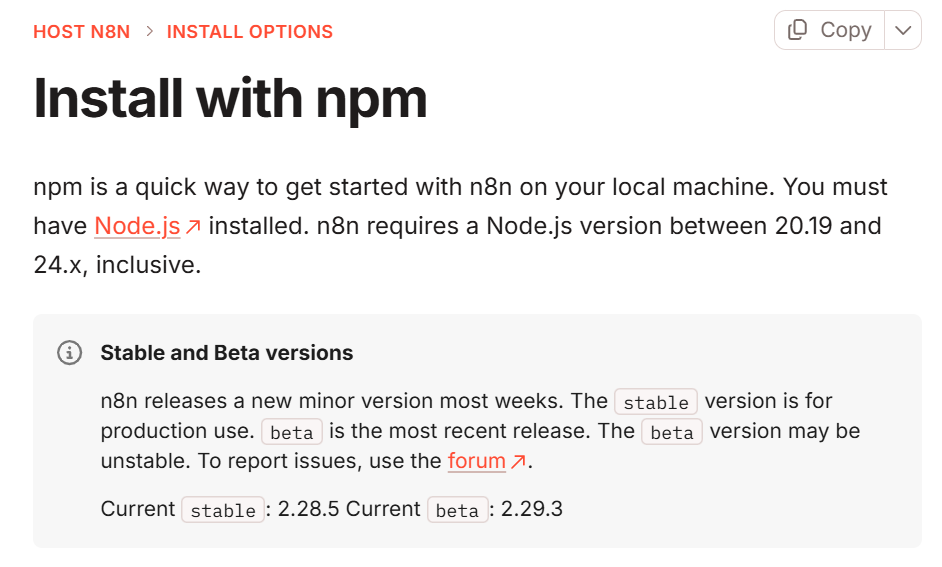
n8n start
Then open the editor at http://localhost:5678.
- Self-hosted via Docker, which is the more common choice for anything beyond a local test, since it isolates dependencies and is easy to move to a VPS:
docker run -d --name n8n \
-p 5678:5678 \
-v n8n_data:/home/node/.n8n \
n8nio/n8n
For a production deployment, run n8n behind a reverse proxy (Caddy or Nginx are common choices, since Caddy handles Let’s Encrypt TLS certificates automatically), and use PostgreSQL instead of the default SQLite database once you expect meaningful volume.
If you’re processing a high number of conversations, n8n’s Queue Mode (which adds a Redis instance and separate worker processes) keeps webhook responses fast even while AI calls or slow API requests are still processing in the background.
2) Choose Your WhatsApp Connection Method
| Method | Cost | Setup effort | Ban risk | Best for |
| Meta WhatsApp Business Cloud API | Free tier + per-conversation pricing after that | Moderate (business verification) | None if used within Meta’s policies | Production customer support, e-commerce, anything revenue-related |
| WAHA (WhatsApp HTTP API) | Free, self-hosted | Low (Docker + QR scan) | Real, Meta can detect and permanently ban automated-looking accounts | Prototyping, personal assistants, low-volume internal tools |
| Evolution API | Free, self-hosted (also supports Meta Cloud API mode) | Low–moderate | Same as WAHA in unofficial mode; low in Cloud API mode | Teams wanting one gateway that can run either official or unofficial |
| Third-party BSPs (AiSensy, WbizTool, Whapi.cloud, WOZTELL, Twilio, etc.) | Subscription + markup on top of Meta’s fees | Low | None (they wrap the official API) | Teams that want official-API reliability without managing Meta setup themselves |
A detail worth knowing before you commit: n8n ships native WhatsApp nodes, a WhatsApp Trigger node and a WhatsApp Business Cloud node, so for the official route you often don’t need to hand-build the webhook and HTTP Request nodes yourself; n8n’s own nodes can handle sending messages, uploading and downloading media, and (for AI Agent workflows) pausing execution to wait for a human or a customer’s reply.
For WAHA, a dedicated community node (@devlikeapro/n8n-nodes-waha) exists as an alternative to plain HTTP Request calls.
3) Get Your WhatsApp Credentials
Meta Cloud API:
i) Create a developer account at Meta for Developers and set up a Meta Business Portfolio (formerly Business Manager) if you don’t have one.
ii) Create an app, add the WhatsApp product, and go to WhatsApp > API Setup.
iii) Generate an access token. For anything beyond a quick test, generate a permanent System User token rather than the default temporary token, which expires after 24 hours and will silently break your workflow in production.
iv) Note your Phone Number ID and WhatsApp Business Account ID; you’ll need both for API calls and for n8n’s credential setup.
v) Before going live, switch the app mode from Development to Live, and set a Privacy Policy URL and Terms of Service URL under App Settings.
WAHA: Run the Docker container, start a session, and scan the QR code with the WhatsApp app on the phone you’re dedicating to this bot (never your personal number; a fresh, disposable number is safest while you’re testing). Note the API base URL (e.g., http://localhost:3000) and set an API key.
Third-party providers: generate an API key from the provider’s dashboard, following their specific onboarding flow.
4) Configure the WhatsApp Webhook
If you’re using Meta’s Cloud API with n8n’s Webhook node directly (rather than the native WhatsApp Trigger node), set the webhook URL in the Meta Developer Console to point at your n8n endpoint:
https://your-n8n-url/webhook/whatsapp
Subscribe to the messages event so incoming messages get pushed to n8n. One quirk to know about in advance: WhatsApp only allows one registered webhook per app.
Every time you switch between n8n’s test URL and its production URL, Meta overwrites the previous registration, so if you try to test a workflow that’s also live in production, only one of the two will actually receive events. The common workaround is to temporarily deactivate the production workflow while testing.
For WAHA, the webhook is configured on the session itself (via its dashboard or API) and points to your n8n webhook path in the same way.
5) Build the Workflow in n8n
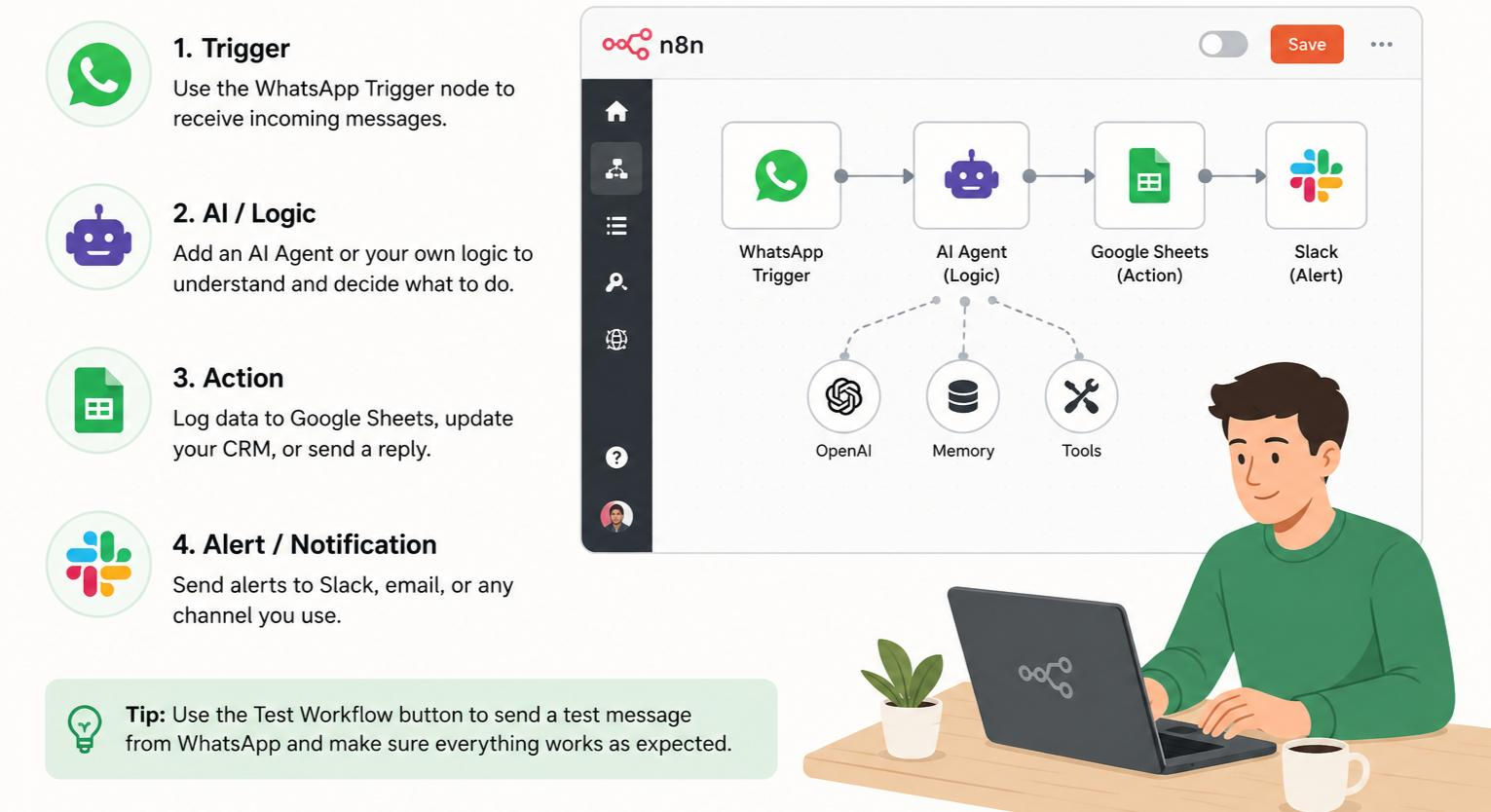
Create a new workflow and add your trigger:
- Official route: use either the built-in WhatsApp Trigger node (OAuth2-based, purpose-built for this) or a generic Webhook node set to POST with a path like /whatsapp-webhook.
- Self-hosted route: a Webhook node receiving WAHA’s event payload, which looks roughly like this:
{
"event": "message",
"session": "default",

"payload": {
"id": "[email protected]_3EB0...",
"from": "[email protected]",
"body": "Hello",
"timestamp": 1713801234,
"fromMe": false
}
}
Either way, this node becomes the entry point for every incoming WhatsApp message.
6) Add Processing and Logic Nodes
From here, chain nodes to actually do something with the message:
- IF / Switch: route by keyword, sender, or message type (text, image, location, voice note).
- HTTP Request: call external systems: your CRM, inventory, shipping-rate API, or a Google Maps distance lookup.
- AI Agent (LangChain node, or direct HTTP calls to Claude, OpenAI, Gemini, Groq, or Ollama): generate contextual replies. A common pattern is to pass the incoming message text as the user turns and keep a short system prompt reminding the model that WhatsApp replies should stay brief.
- Google Sheets / Supabase / Postgres: log every conversation, or look up existing customer or order data.
For anything with real conversation flow, most production builds also add a small memory layer: store the last few messages per phone number (in Sheets, Supabase, or Postgres), pass that history into the AI Agent call, and clear it after a period of inactivity so old conversations don’t bleed into new ones.
If the AI can’t confidently answer, a common safety net is to detect low-confidence responses and route the conversation to a human agent, either through a helpdesk like Chatwoot (which has a dedicated WhatsApp channel and agent inbox) or a simple internal notification.
7) Set Up the Reply Mechanism
To send a message back, the node depends on your gateway:
Meta Cloud API: an HTTP Request node (or the native WhatsApp Business Cloud node) calling the send-message endpoint:
POST https://graph.facebook.com/v21.0/{PHONE_NUMBER_ID}/messages
Authorization: Bearer {ACCESS_TOKEN}
{
"messaging_product": "whatsapp",
"to": "{{$json.from}}",
"type": "text",
"text": { "body": "{{$json.aiResponse}}" }
}
WAHA: an HTTP Request node calling its send-text route, e.g., http://waha:3000/api/sendText (note: if n8n And WAHA are both running in Docker on the same host; localhost refers to the n8n container itself, not WAHA; use the WAHA service’s Docker network name instead, or run both containers on the same custom network.
Third-party providers: their dedicated n8n community node, if one exists, or a generic HTTP Request call to their API.
8) Test the Workflow
- Activate the workflow and send a real test message to your WhatsApp number.
- Watch the n8n execution log to confirm each node runs and passes data as expected.
- Use the Webhook node’s “Listen for Test Event” feature to inspect the raw incoming payload before you build logic against it; this saves guesswork about field names and structure.
- If your workflow calls a slow AI model or external API, test what happens when that call is slow: WhatsApp gateways (both Meta and WAHA) expect a fast webhook acknowledgment and will retry, sometimes causing duplicate replies, if your workflow takes too long to respond. The standard fix is to set the Webhook node’s response mode to “Using Respond to Webhook Node,” return a 200 immediately, and do the slow work afterward in the same execution.
9) Handle Errors and Retries
- Add error-handling branches after any HTTP Request or AI node, for example, a fallback reply like “Let me check on that, one moment,” queued for a retry rather than a silent failure.
- Respect WhatsApp’s rate limits, especially on new or low-volume numbers. A frequently cited rule of thumb for the self-hosted route is to stay well under 20 outbound messages per minute on a fresh number, using n8n’s Wait node (or a queued send pattern) to space out bulk messages.
- Deduplicate incoming events: gateways occasionally deliver the same message webhook more than once (for example, when a phone reconnects after being briefly offline), so idempotency checks (e.g., against the message ID) help avoid double replies.
10) Deploy and Monitor
Once tested, activate the workflow permanently. If self-hosted, keep the n8n process alive continuously using pm2 or systemd (or your container orchestrator’s restart policy).
Monitor the execution list for failures, and revisit your logic as real-world usage surfaces edge cases you didn’t anticipate in testing, unexpected message types, unusual phrasing, or spikes in volume are the most common surprises.
What Can You Automate?
Once the connection is stable, the same basic pattern- trigger, logic, AI, reply, log- supports a wide range of use cases:
- Automated Customer Support: an AI node generates instant, context-aware responses to common questions, with human handoff for anything it can’t confidently answer.
- Alerting System: monitor for events like server downtime or failed payments, and push an instant WhatsApp notification when they occur.
- Bulk Messaging: pull recipient lists from a Google Sheet and send templated marketing or announcement messages (note: Meta requires pre-approved message templates for business-initiated conversations outside a customer’s active 24-hour window).
- Personal AI Assistant: a bot that answers questions, manages a calendar, or searches the web, all through WhatsApp as the interface.
- Order Processing: from receiving an order via WhatsApp through updating a CRM or inventory system, with status updates sent back automatically as the order progresses.
Getting Started with WhatsApp Automation in n8n
Whether you’re sending order confirmations, responding to customer enquiries, qualifying leads, or automating support workflows, n8n gives you the flexibility to build powerful WhatsApp automations that save time and reduce manual work.
If you’re building workflows for customers, clients, or business operations, the Meta WhatsApp Cloud API is the best choice because it offers an official, reliable, and scalable platform. If you’re experimenting, building personal projects, or testing ideas, a self-hosted gateway such as WAHA can be a practical alternative.
To run self-hosted n8n reliably without managing server infrastructure yourself, consider Truehost’s managed n8n hosting. It provides a ready-to-use environment so you can focus on building automations instead of maintaining the underlying server.