 Web Hosting
 Windows HostingBuilt for Windows apps and websites – stability, speed and flexibility
 Reseller HostingLaunch a hosting business without technical skills or expensive infrastructure
 Affiliate ProgramRefer customers and earn commissions from sales across our platform
 Domain SearchFind and secure a domain name in seconds with our quick lookup tool
 CO ZA Domains
 All DomainsExplore domain names from over 324 TLDs globally – all in one place
 Free Whois Lookup Tool South Africa
 VPS
VPS Website Builder
 Online ShopSet up a sleek eCommerce store with zero coding knowledge
 SSLs
SSLs SupportAccess help articles, how-tos, and everything about our services
 Blog
Blog Contact UsReach our team instantly via live chat or drop us an email
If your website still shows that “Not Secure” warning in Chrome, you are losing visitors before they even read your first line. South African users have become more security-conscious, and that padlock in the browser tells them instantly whether your site is worth trusting or not.
Skipping SSL is no longer something you can put off. Whether you run a small business site in Joburg, a portfolio in Cape Town, or an online store serving customers across SA, an unsecured website is costing you traffic and trust every single day.
The good news? Getting a free SSL certificate in SA is not complicated — especially if you are already hosted with Truehost. You just need to know what to do and in what order.
Table of Contents
Why SSL Is Non-Negotiable for SA Websites
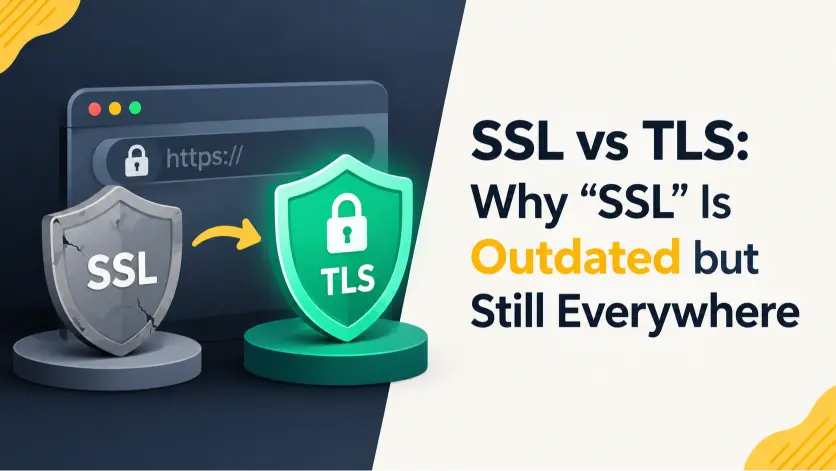
SSL encrypts the connection between your website and your visitors. Without it, anyone on the same network can intercept what your users are doing — login details, form submissions, payment information — all of it sitting in the open.
Google penalises unencrypted websites in search rankings. If your competitor has SSL and you do not, they are already ahead of you in the results before the day even starts.
Beyond rankings, Chrome now labels every HTTP site as Not Secure directly in the address bar. That warning alone pushes first-time visitors away without them clicking a single thing on your page.
Why Truehost Makes SSL Easy for SA Websites
Most SA website owners run into SSL problems because their hosting provider makes the process harder than it needs to be. Either SSL is locked behind a paid upgrade, or the setup requires technical steps that most people are not comfortable with.
Truehost handles this differently. Every web hosting plan on Truehost comes with free SSL included — no extra charges, no manual certificate requests, no waiting on support tickets.
If you are already on Truehost, your SSL can be active within minutes. If you are still on another host and constantly fighting with SSL errors, that alone is a good enough reason to move.
Technical Checklist: Free SSL Certificate for SA Websites
Work through this list from top to bottom. Do not skip steps.
Step 1 — Log In to Your Truehost Control Panel
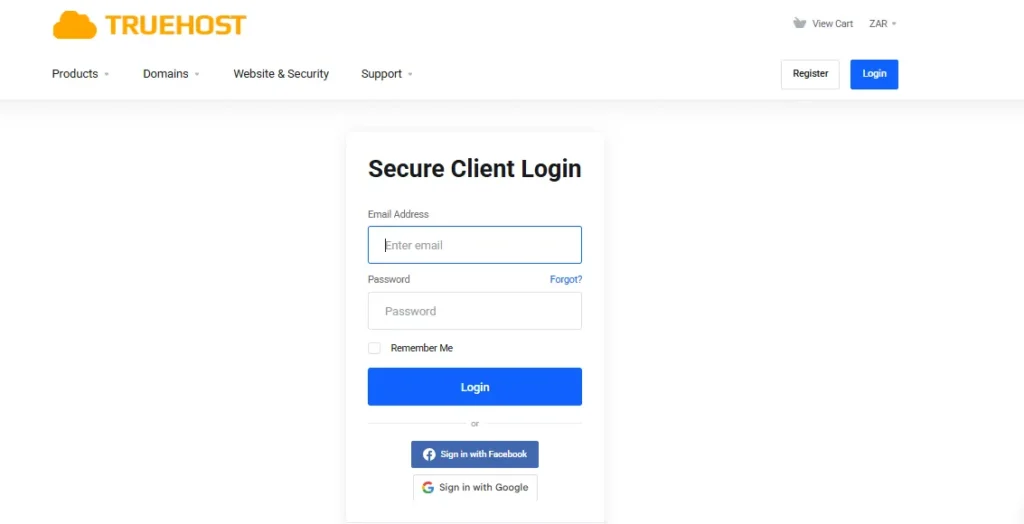
Go to your Truehost client area and log in. Truehost uses cPanel, which is one of the most widely used hosting dashboards in SA.
Once inside cPanel, scroll down to the Security section. You will find the Let’s Encrypt SSL option sitting right there.
Step 2 — Check That Your Domain Points to Truehost
Before SSL can be issued, your domain DNS must be pointing to your Truehost server. Use a free tool like MXToolbox or Whatsmydns.net to check your A record.
If your domain was registered elsewhere, you need to update your nameservers to point to Truehost first. This can take up to 48 hours to fully propagate, so do this before anything else.
Step 3 — Issue Your SSL Certificate Through cPanel
Inside cPanel, click on Let’s Encrypt SSL. Select your domain from the list — including the www version — and click Issue.
Truehost runs AutoSSL, which means the system verifies your domain and installs the certificate automatically. The whole process takes under two minutes when your DNS is set up correctly.
Step 4 — Force HTTPS Across Your Entire Website
Getting the certificate installed is only half the job. You need your site to always load on HTTPS and never fall back to HTTP.
In cPanel, go to Redirects and add a permanent 301 redirect from HTTP to HTTPS. If you are on WordPress, install the Really Simple SSL plugin — it handles the redirect and catches most mixed content issues automatically with a single toggle.
Step 5 — Fix Mixed Content Warnings
After switching to HTTPS, some images, scripts, or stylesheets might still load over HTTP. This breaks the padlock icon and tells visitors the page is not fully secure even with SSL installed.
Use Why No Padlock to scan your site and find every broken reference. On WordPress, run Better Search Replace to update all old HTTP URLs in your database to HTTPS in one operation.
Step 6 — Update Google Search Console
Log in to Google Search Console and add your HTTPS version as a new property. Submit your updated sitemap using the HTTPS URL.
This signals to Google that your secure version is the one to index and rank. Without this step, Google may keep crawling the old HTTP version, which creates duplicate content issues that hurt your rankings over time.
Step 7 — Verify the Certificate in Your Browser
Open your website in Chrome or Firefox and click the padlock icon in the address bar. You should see Connection is secure with the certificate issued by Let’s Encrypt.
If you see a warning triangle on the padlock, there is still a mixed content issue. Go back to Step 5 and run the scan again until the padlock shows clean.
Step 8 — Confirm Auto-Renewal Is Active
Let’s Encrypt certificates expire every 90 days. On Truehost, AutoSSL handles renewal automatically — you do not need to do anything manually.
To confirm it is set up, go back into your Truehost cPanel and check the Let’s Encrypt SSL section. It will show your certificate expiry date and renewal status. If it shows AutoSSL is active, you are covered.
Step 9 — Test Your SSL Strength
Go to SSL Labs and enter your domain. It grades your SSL setup from A to F and flags any weak points in the configuration.
Truehost servers are configured to support TLS 1.2 and TLS 1.3, which means you should score a strong grade without needing to adjust anything. If you score below a B, contact Truehost support and they will help you sort it out.
Step 10 — Set Up Uptime Monitoring
SSL problems often go unnoticed until a customer sends a complaint. Set up free monitoring through UptimeRobot so you get an email or SMS alert the moment your site goes down or your certificate has an issue.
This takes five minutes to configure and saves you from finding out about SSL errors through a bad review instead of an automated alert.
Common SSL Problems SA Website Owners Face
The site still loads on HTTP after SSL was installed. This means the HTTPS redirect was not configured. Go back to Step 4 and add the 301 redirect in cPanel or through your WordPress plugin.
The padlock is showing but with a warning. This is a mixed content issue. Some assets on your page are still loading over HTTP. Step 5 covers how to find and fix every one of them.
The SSL certificate failed to issue. This almost always means the domain DNS is not pointing to your Truehost server yet. Check your A record using MXToolbox and wait for propagation to complete before trying again.
Certbot errors on a VPS. If you are on a Truehost VPS rather than shared hosting, make sure port 80 is open in your firewall before running Certbot. Use this command to allow it:
sudo ufw allow 80Then run the Certbot installation again and it should complete without errors.
Free SSL vs Paid SSL — What SA Sites Actually Need
For most SA business websites, blogs, and business email setups, a free SSL certificate from Let’s Encrypt is all you need. It provides 256-bit encryption — the same level that paid certificates use.
Paid SSL certificates — specifically Extended Validation certificates — are designed for banks and large financial platforms that need to display a verified business name in the browser. A standard SA business website does not need that level.
If you do want a premium SSL option, Truehost offers managed SSL certificate plans that come with dedicated support and extended validation options for businesses that need them.
7 FAQs About Free SSL Certificates in SA
1. Is a free SSL certificate safe for my South African business website?
Yes, completely. Let’s Encrypt is used by millions of websites globally, including large SA businesses. The encryption strength is identical to what paid certificates provide.
2. How long does it take to get a free SSL certificate on Truehost?
If your domain DNS is already pointing to Truehost, the whole process through cPanel takes under five minutes. AutoSSL does the heavy lifting automatically.
3. Will my SSL certificate renew on its own?
On Truehost, yes. AutoSSL renews your certificate automatically before it expires. You can confirm the renewal status anytime from your cPanel SSL section.
4. My domain is registered elsewhere — can I still use Truehost SSL?
Yes. Update your nameservers to point to Truehost, wait for propagation, and then follow the checklist from Step 3. The SSL will issue without any issues once DNS is resolving correctly.
5. Does having SSL help my SA website rank on Google?
Google confirmed HTTPS as a ranking signal and continues to factor it in. More practically, Chrome’s Not Secure label on HTTP sites damages your first impression before a visitor reads a single word.
6. Can I use Truehost free SSL on a WooCommerce or online store?
7. What happens if my SSL certificate expires?
Visitors will see a full-page browser warning blocking access to your site entirely. On Truehost, AutoSSL prevents this from happening. Set up UptimeRobot monitoring as an extra safety net as shown in Step 10.
Get SSL Sorted Today with Truehost
Securing your SA website with a free SSL certificate is straightforward when you are on the right hosting platform. Truehost includes free SSL on every hosting plan, handles renewal automatically, and gives you cPanel access to manage everything without needing a developer.
If you are still on a host that charges extra for SSL or makes you jump through hoops to get it installed, it is time to move. Get started with Truehost today and have your SSL active before the end of the day.
Need a managed SSL option for a larger SA business site? Browse the SSL certificate plans and pick what fits — Truehost support is available to help you get it configured correctly from day one.